Punch lists
Punch list software for facilities teams
Walk a building, capture each issue with a photo from your phone, assign it, and close it out when a manager approves the fix. For turnovers, move-ins, renovations, tenant fit-outs and handovers.

Sample data. Northfield University is a fictional university.
The problem
Walk-throughs on clipboards and camera rolls
Every facilities team runs walk-throughs: a residence hall before move-in, a school before the first day, an office suite before the new tenant, a wing after a renovation. The issues go onto paper, the photos stay in someone's camera roll, and the summary arrives as an emailed spreadsheet that's out of date by lunch.
Renovation closeouts are no better. The owner walks the space and lists what's wrong, the contractor disagrees about what was fixed, and nobody can show a clear before and after.
Items slip because nothing asks for a second look. Work gets marked done, the next person finds the same loose dryer vent, and the department can't send the contractor a clean list with photos.
How BuildingHelm handles it
Capture, assign, approve, export
BuildingHelm punch lists are built for the person standing in the room with a phone, and for the manager who needs to know what's left.

Capture in under a minute
Take a photo of the problem first, then pick the building, floor and room, or scan the room's QR code. Choose a scope category, type a short description and set a priority. A round plus button on a technician's phone starts one from any page.
Hallways and the last place used
Choose "Not in a room" for a hallway, stairwell or roof. The app remembers the last place you used, so the next item starts there.
Scope categories you can edit
Paint, Ceiling Tile, Flooring, Drywall, Doors and Hardware, Electrical, Lighting, Plumbing, HVAC, Millwork/Casework, Windows, Signage, Cleaning and Other. Each organization can edit the list.
Named lists with progress
Group items into lists such as "Summer turnover, Residence Hall A" or "Suite 400 fit-out". Each list shows how many items are finished out of the total.
A clear status path
Open, In progress, Pending review and Done. Whoever finishes an item adds an "after" photo and sends it for review.
Approved by a manager
An item isn't Done until a facilities manager approves it. That one extra step is what keeps closeouts honest.
Escalate or add to the backlog
Turn an item into a work order in a click, or add it to the deferred maintenance backlog.
Filters and room views
Filter by building, floor, room, scope, status, priority and assignee. A room's page shows its open items.
PDF and Excel export
Export a list to PDF with photos, or to Excel, to send to a contractor.
How it works
From setup to a working routine
Step 1: Create a named list
Start a list for the turnover, the renovation or the handover, with an optional due date.
Step 2: Walk the building and capture items
Add each issue from a phone with a photo, a scope category and a priority. It works without a signal.
Step 3: Assign the work
Send items to technicians or to a contractor company, each with a due date.
Step 4: Fix it and add an after photo
The assignee marks the item done with a photo of the result, and it goes to review.
Step 5: Approve and close out
A manager approves each item, watches the list's progress and exports the final record.
Punch items that turn out to be bigger jobs move into the work order queue without retyping. Book a demo to see a turnover list with sample data.

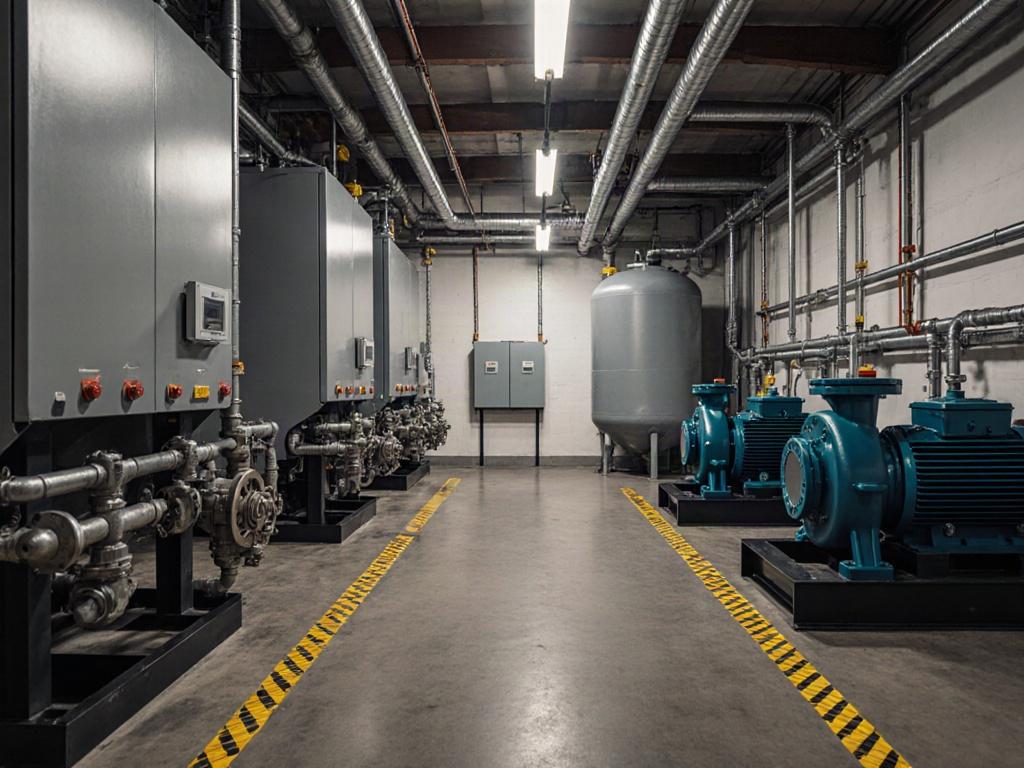
Illustrative photo.
Who uses it
Built for the crew, and the people they report to
The facilities team
Facilities, housing and property managers create lists, assign items, approve finished work and export the results.
Technicians
Technicians add items on a phone, see what's assigned to them and attach after photos when they finish.
Contractors
Contractors see only the punch items assigned to their company, update them and add photos, or get the PDF or Excel export.
Finance and leadership
Viewers can follow progress on lists and items, and the backlog link keeps larger fixes visible for budgeting.
FAQ
Frequently asked questions
What is punch list software?
Does it work for turnovers and for renovations?
Can technicians create items from their phones?
How do we share a list with a contractor?
Can I add items without a signal?
Keep reading
Related pages
- Work ordersQR-code reporting, one queue, and every job tracked to done.Read more
- Contractor portalOne vendor login for every owner, with access limited to assigned work.Read more
- Capital planning and FCIA deferred maintenance backlog, FCI by building and a replacement plan by year.Read more
- Colleges and universitiesResidence halls, summer turnover, deferred maintenance and buildings from different decades on one site.Read more
See your buildings in BuildingHelm.
We'll show you a site set up from sample building documents, walk through the day-to-day work, and talk about what setting up yours would take.
Already a customer? Create your account.