Contractors
Your work as a contractor
On your phone: see the jobs assigned to your company, log hours and photos, and mark work done, with one login for every owner you serve.
- Who it's for
- Contractor AdminsContractor Technicians
- Where
- On a phone0:59 video
Steps
Step 1: Open My work.
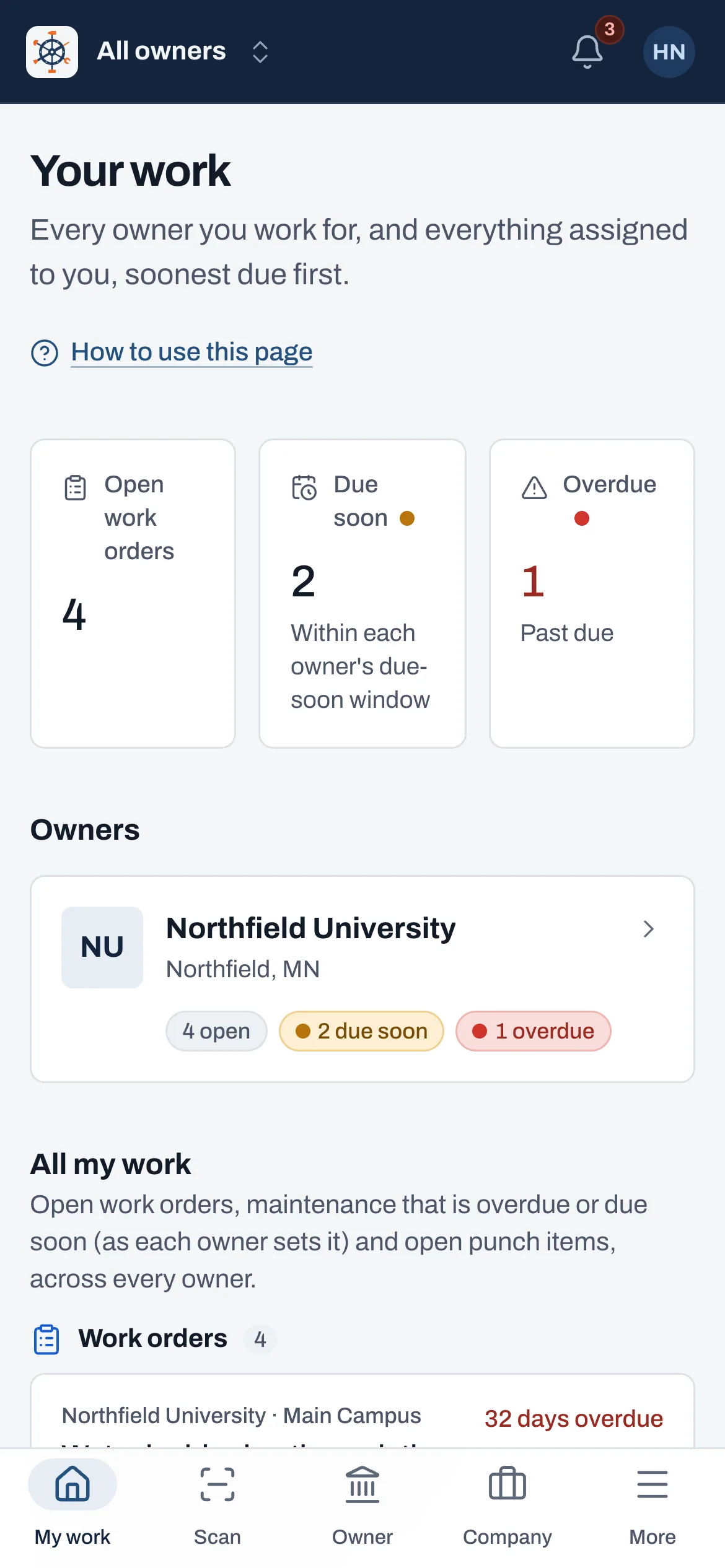
Step 2: Tap the job.
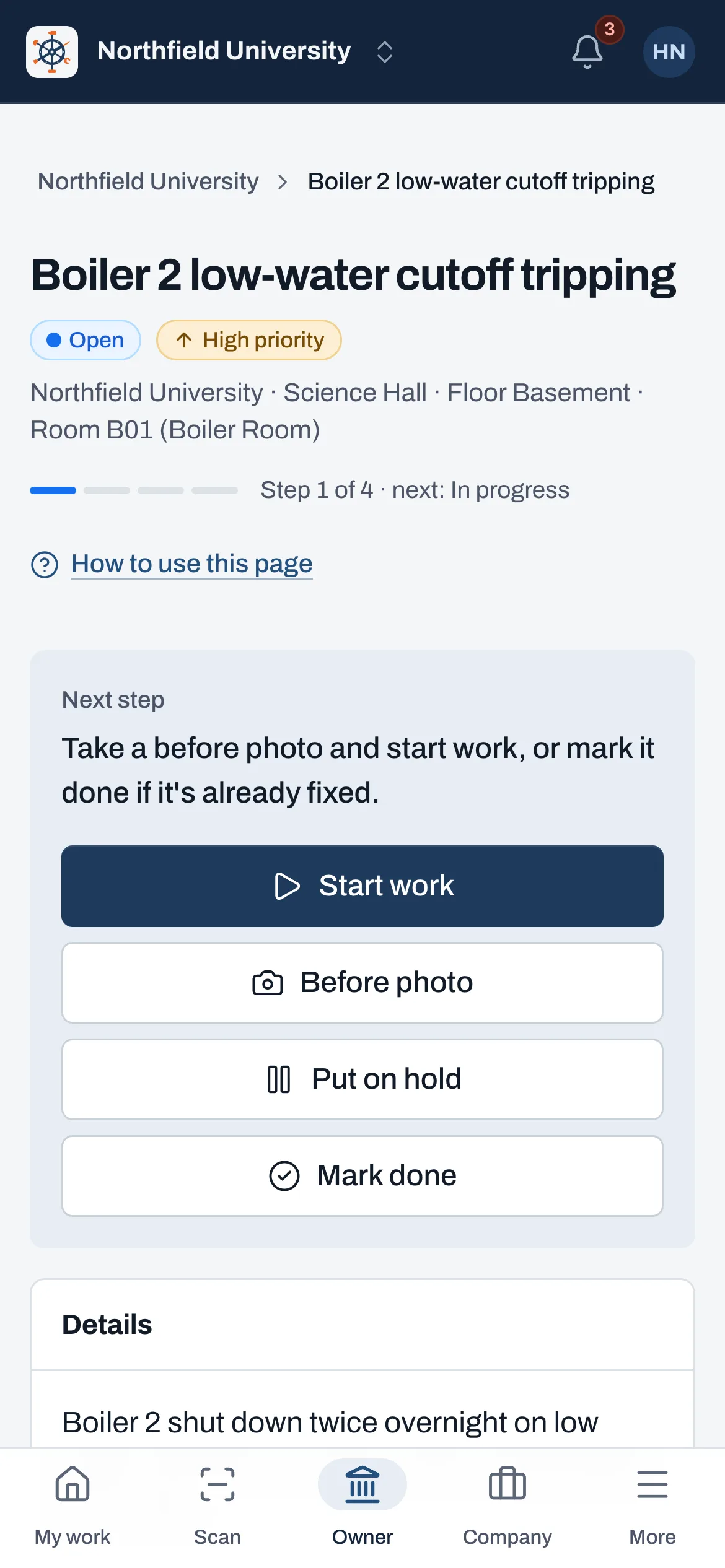
Step 3: Propose a time in the Schedule box.
Step 4: Use Comments to talk to the owner.
Step 5: Tap Start work when you arrive.
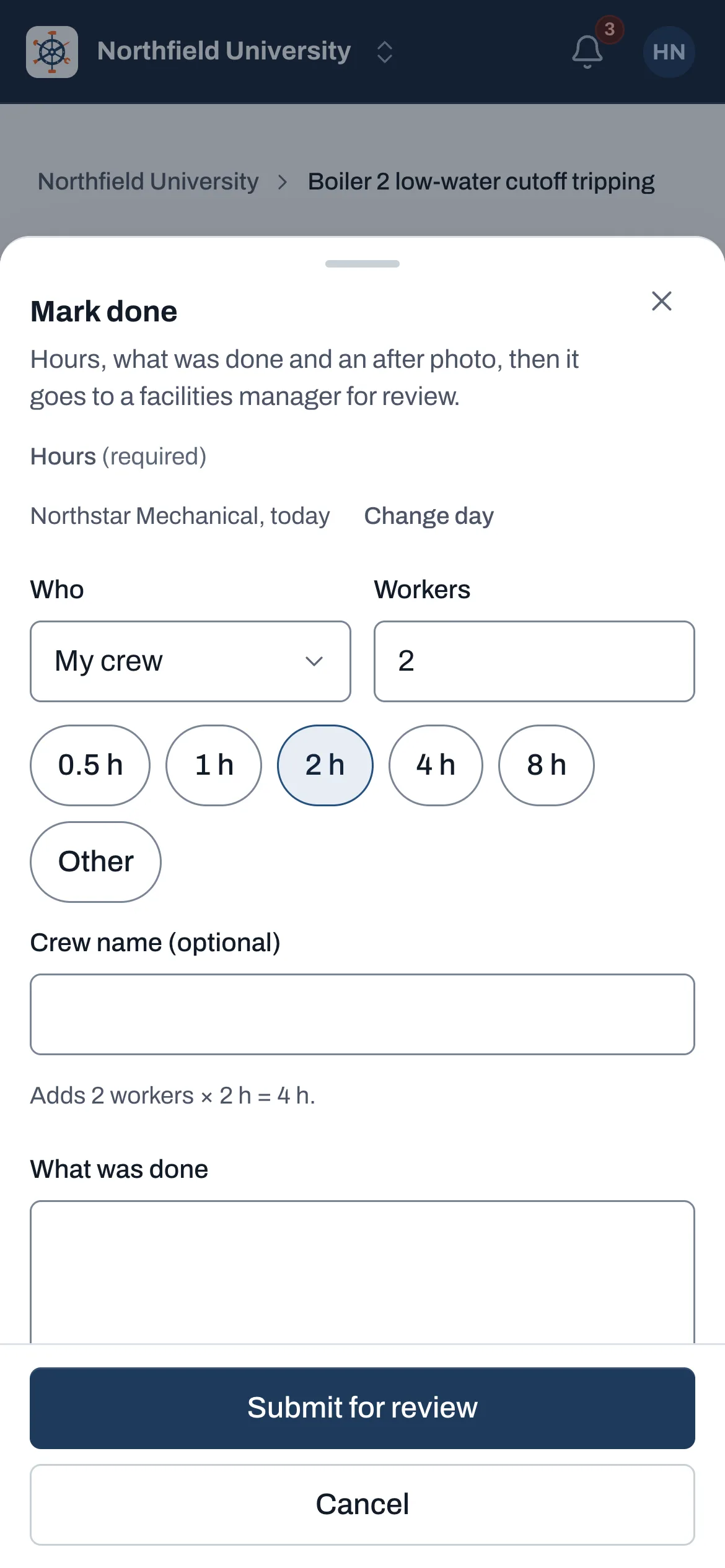
Step 6: When you're finished, tap Mark done.
Step 7: Enter your crew's hours: how many workers, and the hours each.
Step 8: Answer the checklist, if the job has one.
Step 9: Say what you did and add an after photo.
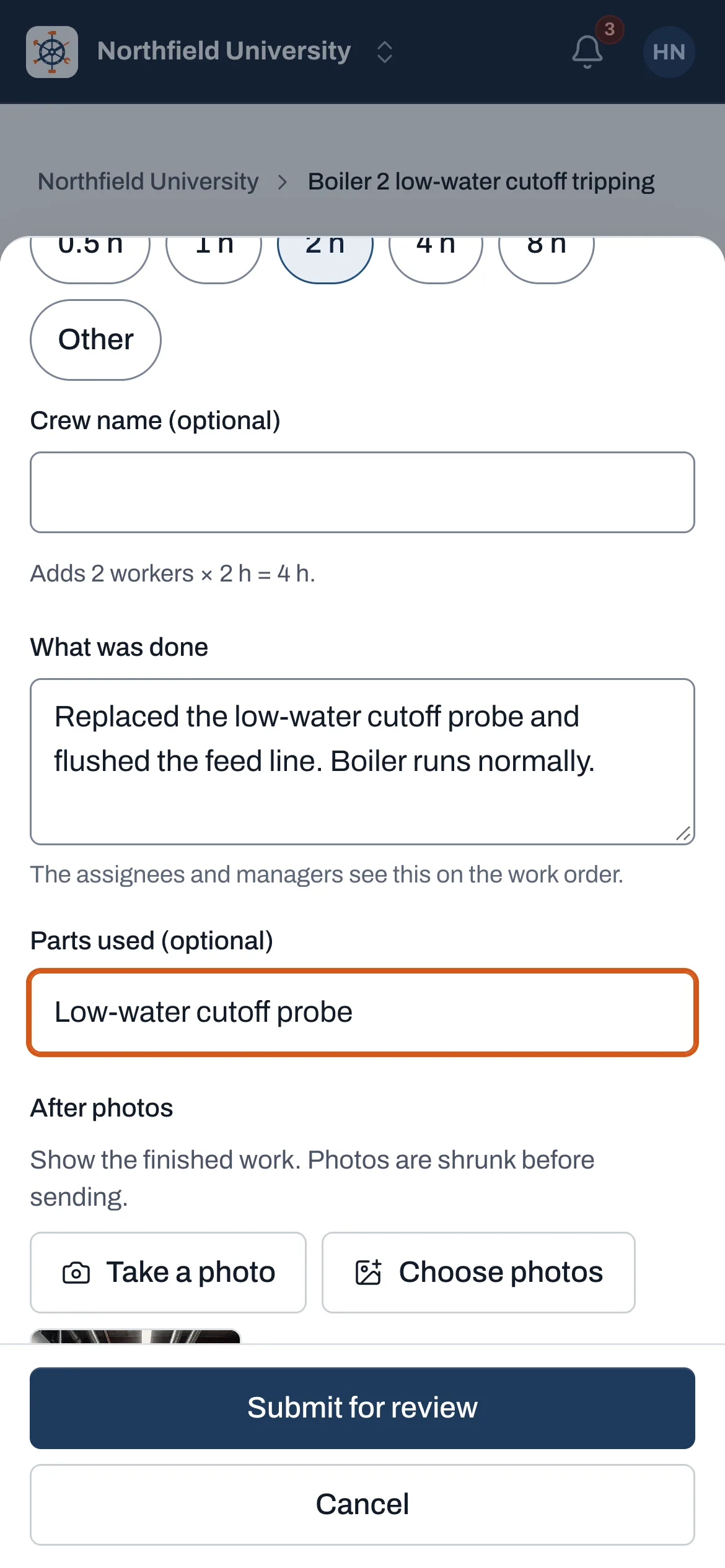
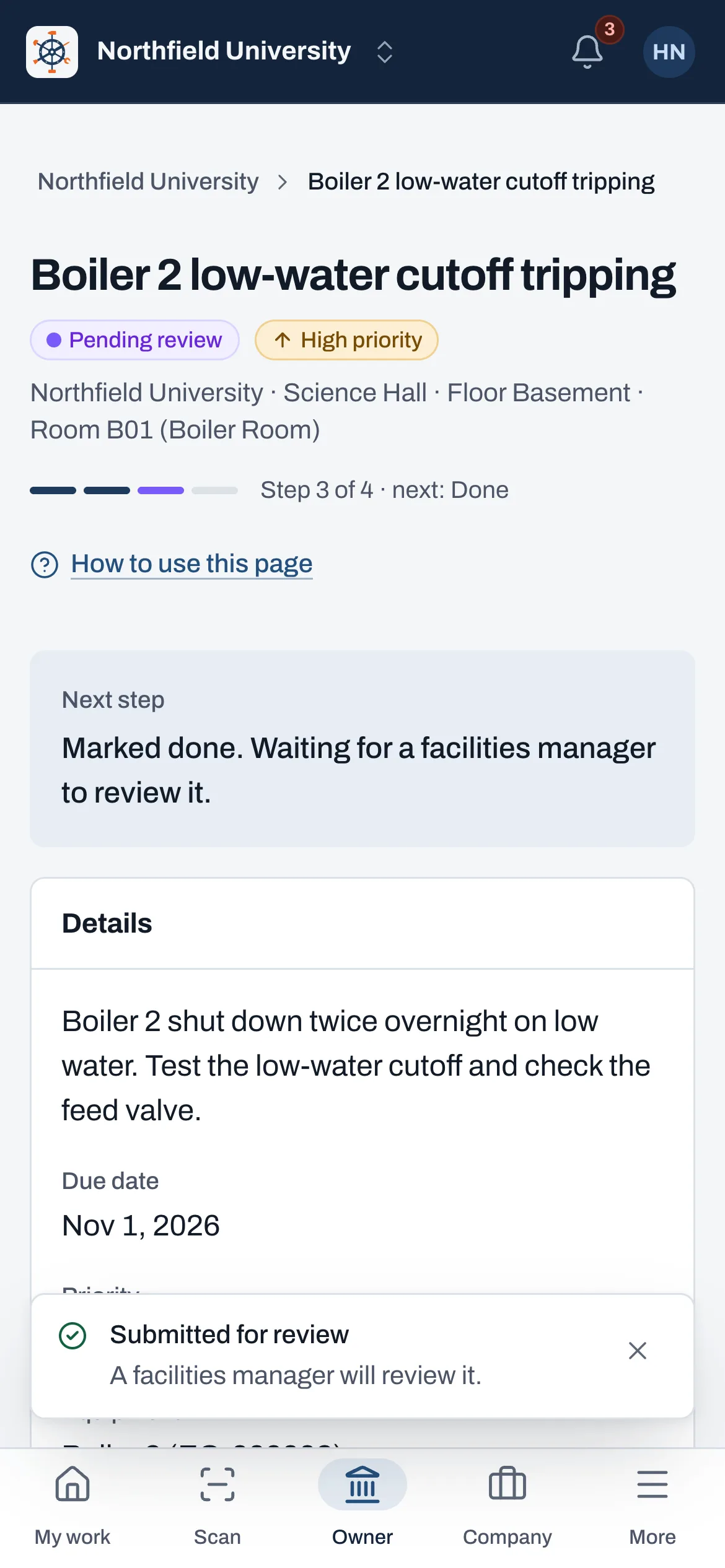
Step 10: Tap Submit for review.
Step 11: See all your visits under Schedule.
Step 12: Answer proposed times on the Requests tab.
Step 13: See the times you sent under Waiting for them.
Transcript
Show the transcript
You use one login for every owner you work for. Your work screen lists each owner, and everything assigned to you, soonest due first.
Tap a job to open it. You see the site, the equipment and how urgent it is. You only ever see work assigned to your company.
Choose Propose a time in the Schedule box, then enter when you will start and how long the work will take. The owner's coordinator accepts it or proposes another time, and you are told each step. When a time is accepted, the box shows it as booked.
Comments is your company's own conversation with the owner's staff about this job. Ask a question or add photos, and they are told. You never see their internal notes or any other company's conversation.
When you arrive, tap Start work. The owner sees right away that the job is in progress.
When the work is finished, tap Mark done. One short form takes your hours, your notes and a photo.
Log the hours for your crew: how many workers, and how long each one worked. If you worked alone, change Who to yourself.
If the job has a checklist, answer it in the same form: tick items, choose Pass, Flag or Fail, enter readings, add photos or sign with your finger. Mark done waits until the required items are answered. If the equipment was out of service, you are also asked Is it working again?
Write a line about what you did, list any parts, and add a photo of the finished work.
Tap Submit for review. The owner's facilities team checks the work and approves it, together with your hours.
Schedule in your menu lists your company's visits for each owner, with the time and where each one stands. Under One visit for several punch items, pick your punch items, for example everything in one building, and propose one time for them all.
The Requests tab on Schedule gathers every proposed time in one place, for every owner you work for. Waiting for your answer lists the times owners proposed for your visits, and each card has Accept this time, Propose another time and Decline. The number next to Schedule in your menu is how many are waiting for you.
Waiting for them lists the times your company sent that the owner has not answered yet. Choose Visit details and history on a card to see every time proposed on that visit.