Work orders
Update progress and log hours
On your phone: start a job, put it on hold if you're stuck, and mark it done with your hours and an after photo.
- Who it's for
- Maintenance Technicians
- Where
- On a phone1:01 video
Steps
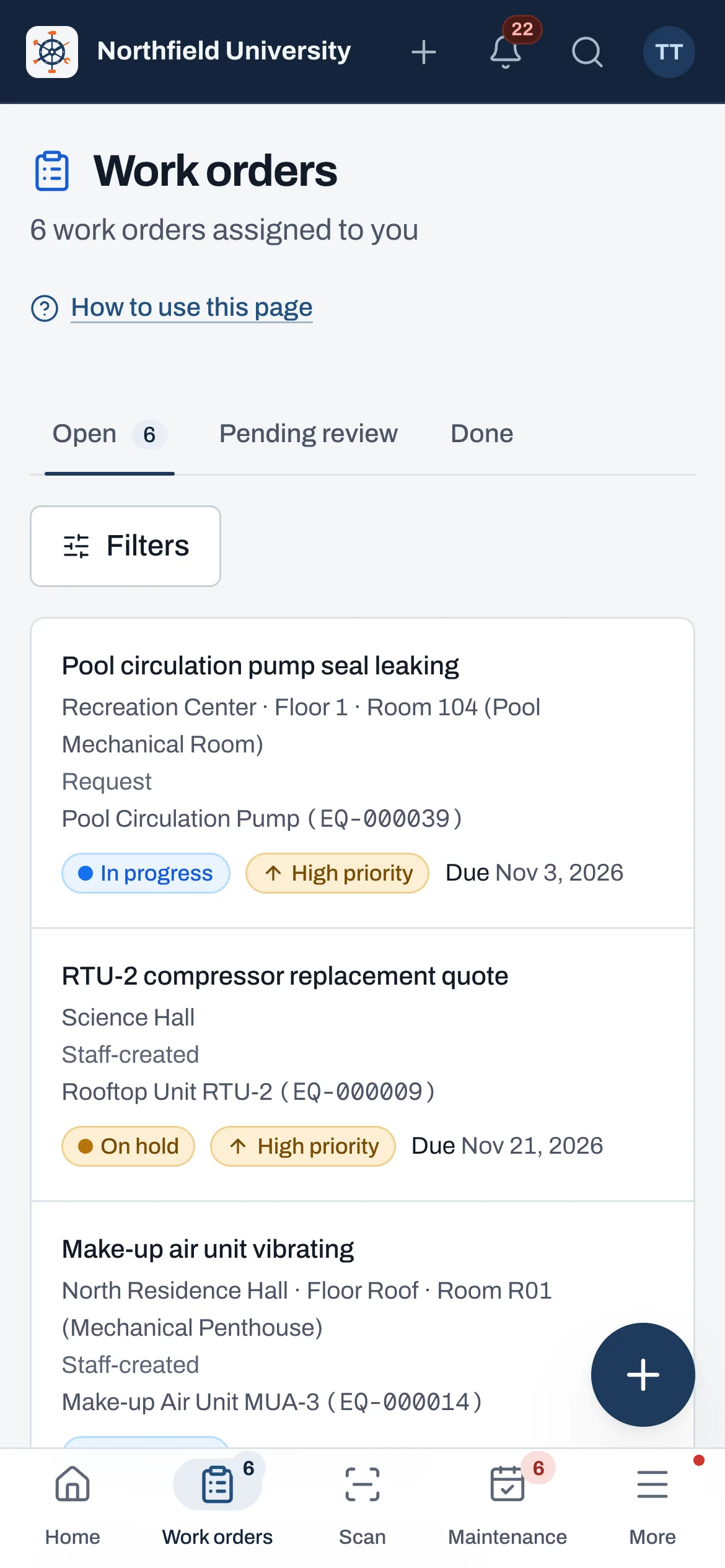
Step 1: Tap Work orders in the bar at the bottom.
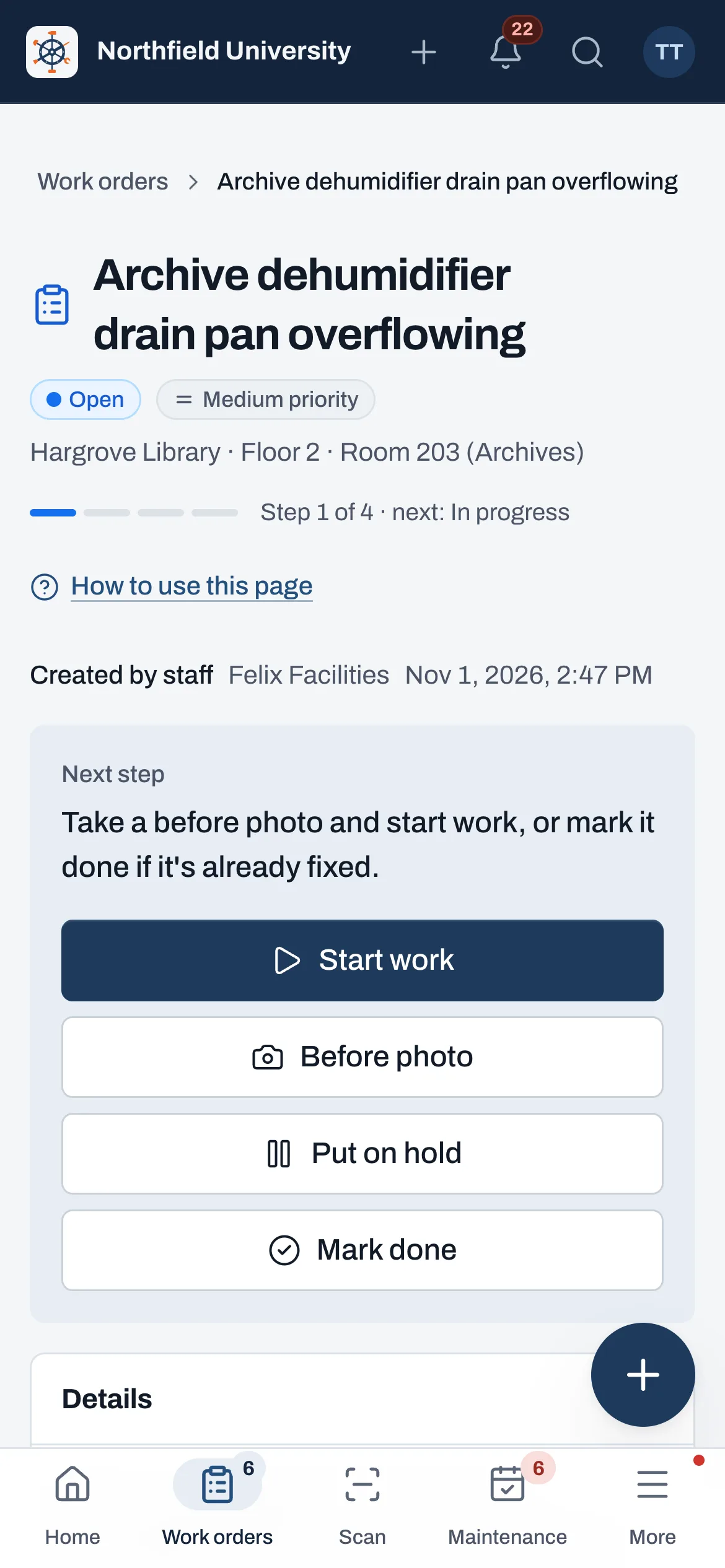
Step 2: Tap the job you're working on.
Step 3: Ask a question in Comments.
Step 4: Tap Start work when you begin.
Step 5: Waiting on parts? Tap Put on hold and choose a reason.
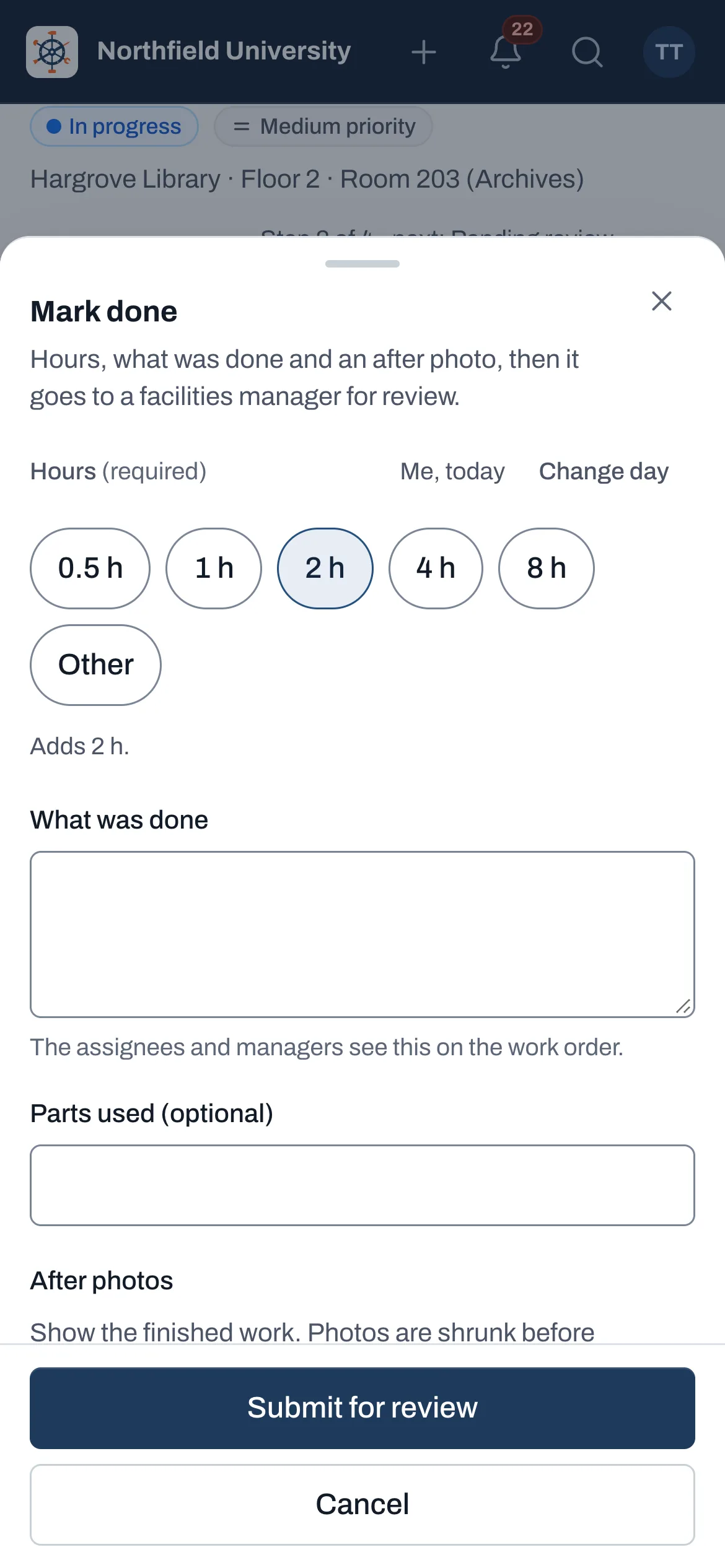
Step 6: When you're finished, tap Mark done.
Step 7: Choose the hours you worked on the job.
Step 8: Answer Is it working again?
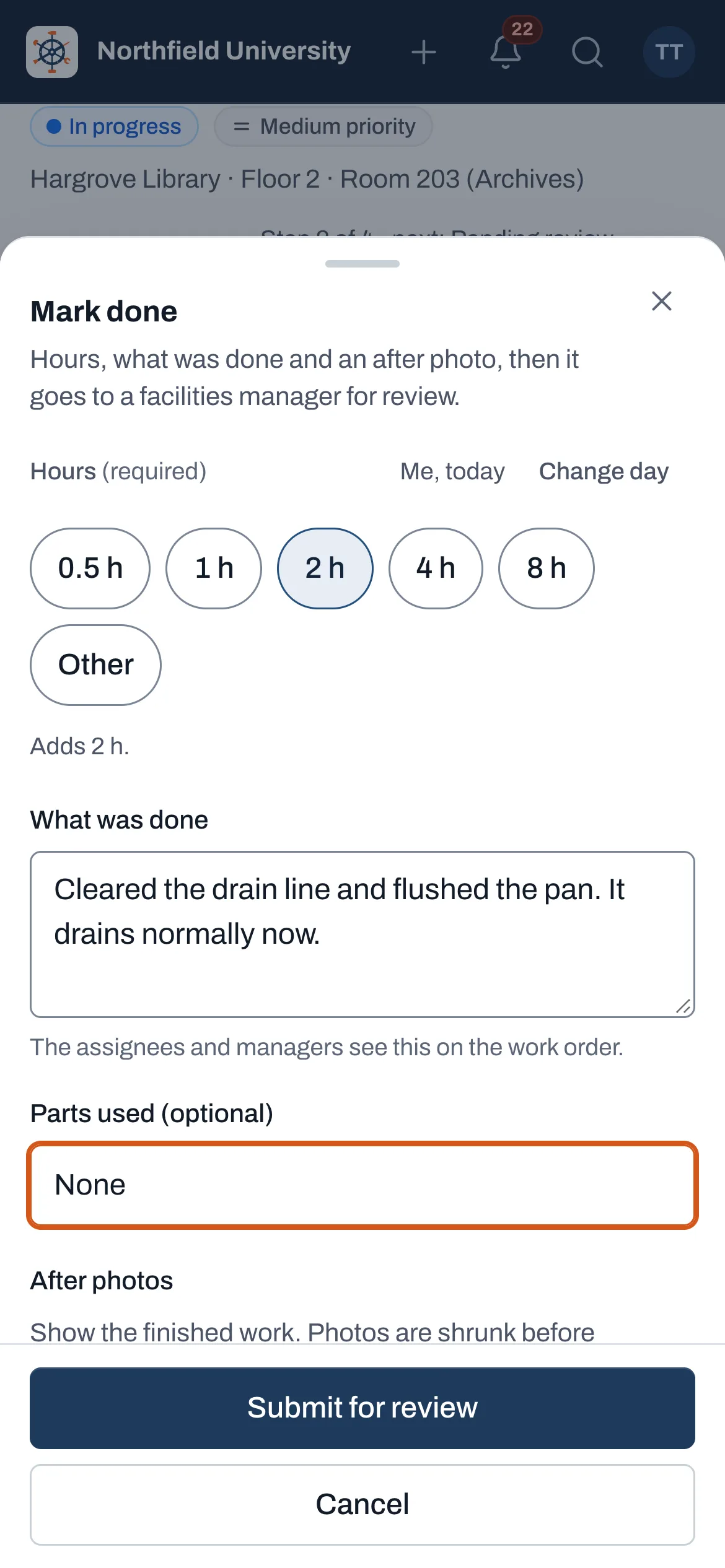
Step 9: Say what you did and add an after photo.
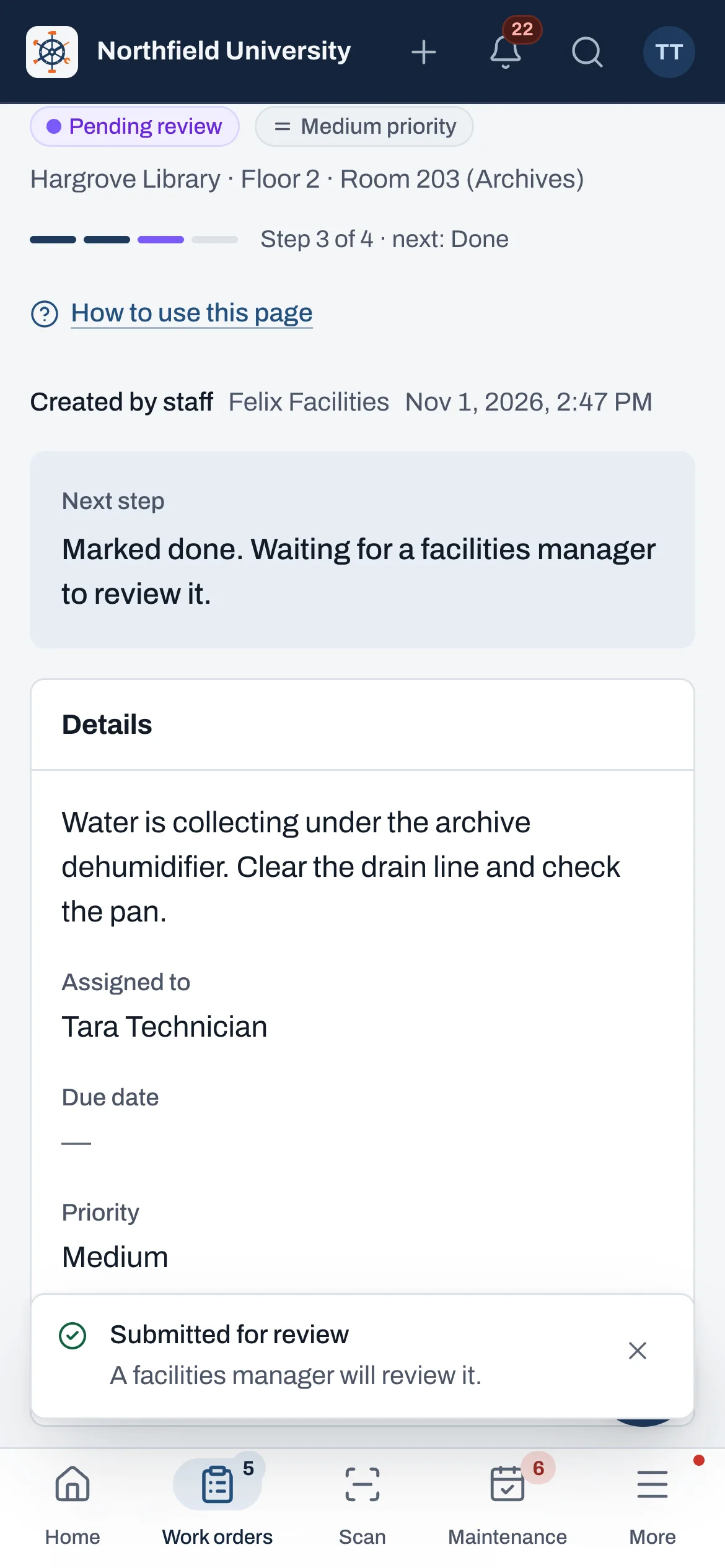
Step 10: Tap Submit for review.
Transcript
Show the transcript
Your jobs are one tap away. Tap Work orders at the bottom of the screen. The list starts with the work assigned to you.
Tap a job to open it. You'll see where it is and how urgent it is, and the Next step box tells you what to do.
Further down the job, Comments is where you ask your manager a question, add a photo, or say you can't make a booked time. Your manager is told about each new comment.
When you arrive, you can take a before photo. Then tap Start work, and your manager sees the job is in progress.
Stuck waiting on parts or access? Tap Put on hold and pick a reason, so your manager knows why. Tap Resume work when you can carry on.
When the work is finished, tap Mark done. A short form opens at the bottom of the screen.
First, the hours you worked on this job. Tap one of the quick choices, or Other to type an exact number. Hours are part of marking a job done, so they never get forgotten.
If the job's equipment was marked out of service, Mark done asks Is it working again? Choose Yes, it's working to put it back in service and stop its downtime clock, or No, still down to leave it as it is. If something broke while you were there, tick the box that says it isn't working to mark it out of service.
Then write a line about what you did, list any parts you used, and add a photo of the finished work.
Tap Submit for review. A facilities manager checks the work and approves it, and you're on to the next job.