Punch lists and assessments
Import an old punch list
Bring in punch lists you already have in Excel, PDF, Word or on paper, check each item, and make them a list.
- Who it's for
- Owner AdminsFacilities ManagersConstruction Quality Control Managers
- Where
- On a computer1:42 video
Steps
Step 1: On Punch lists, select Import a punch list.
Step 2: Add your old lists: Excel or CSV, PDF, Word, or photos of a paper list.
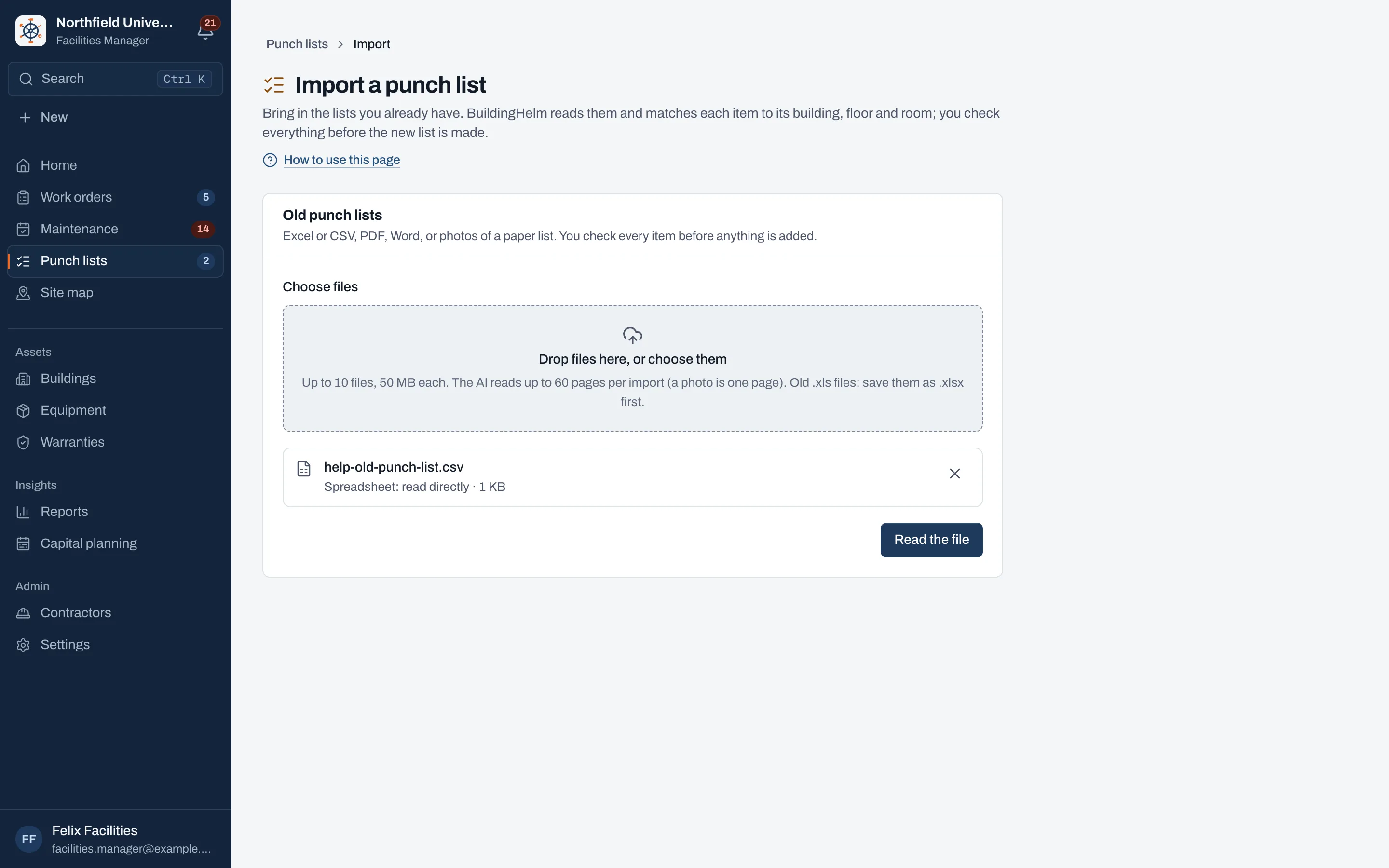
Step 3: Select Read the file.
Step 4: Check the list's name, building and due date.
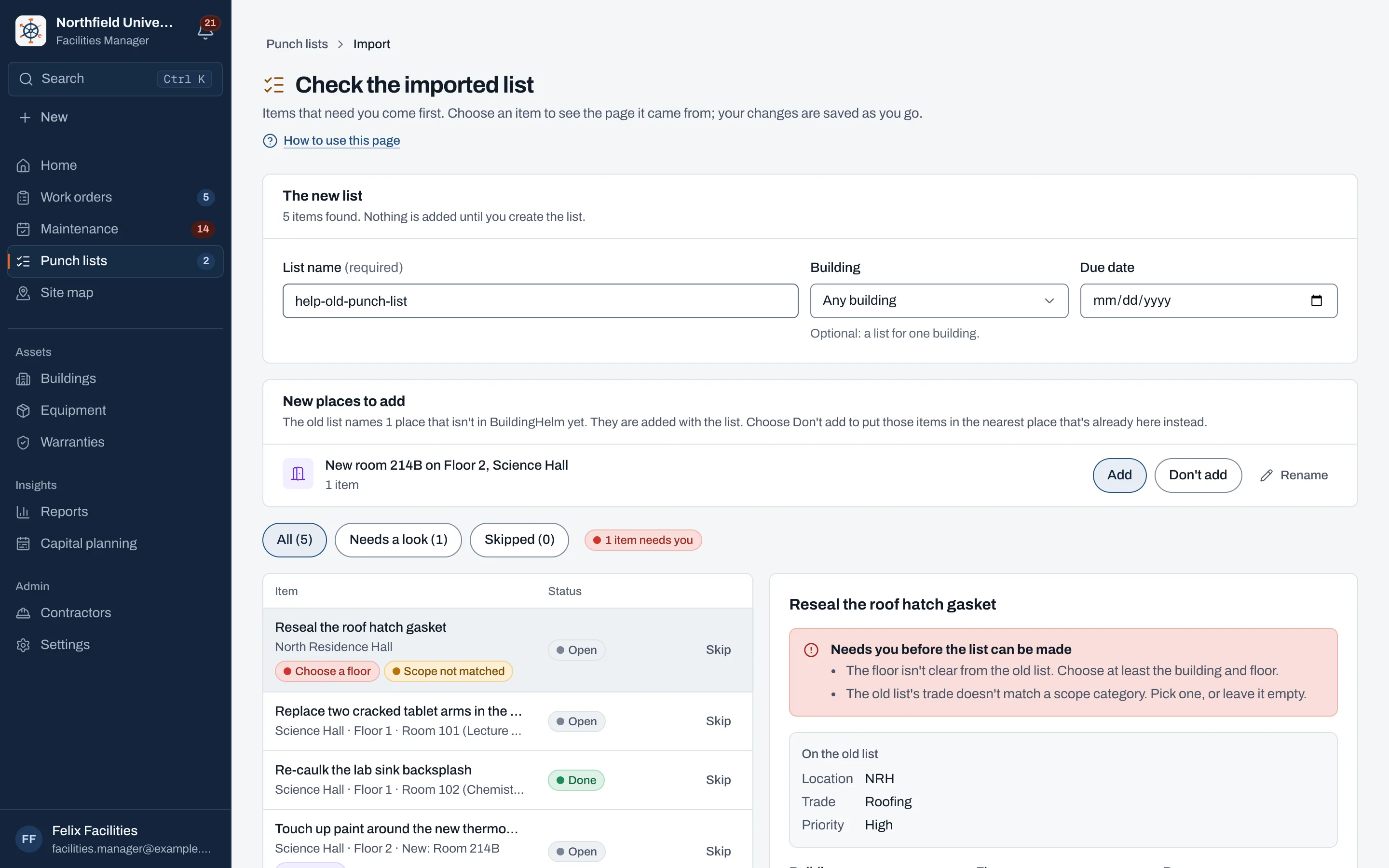
Step 5: Items that need you come first.
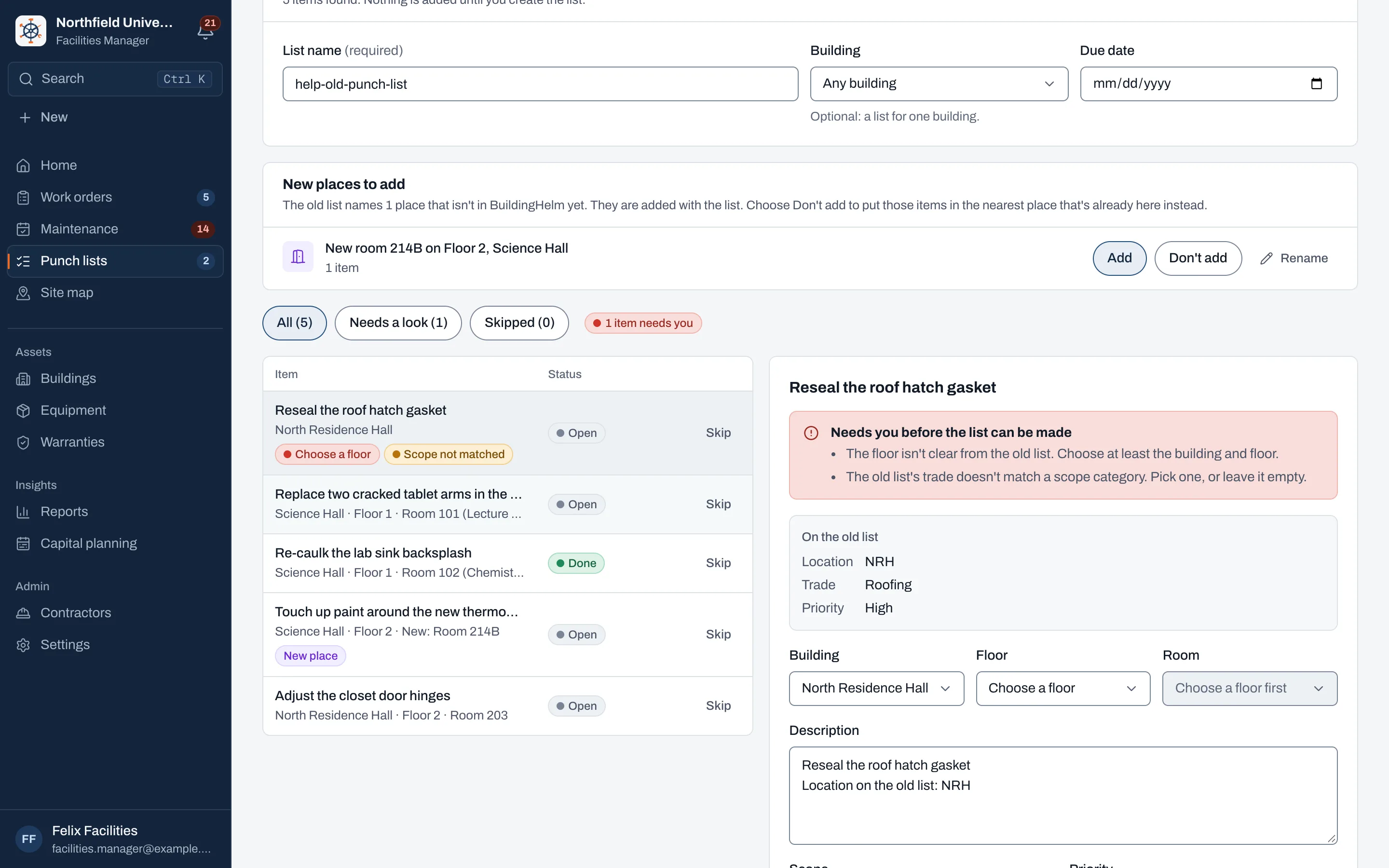
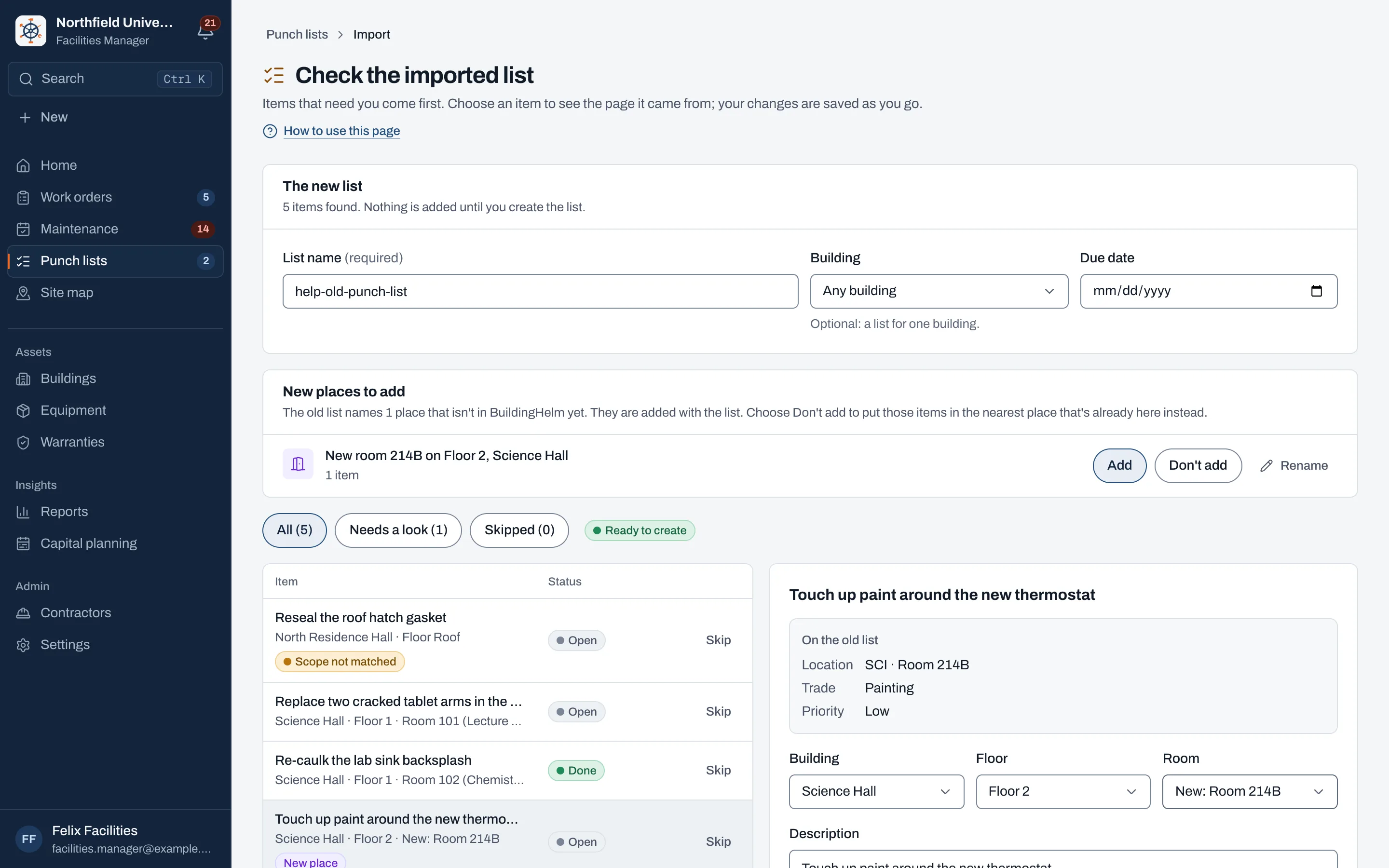
Step 6: Select an item to see what the old list said, and choose its floor and room.
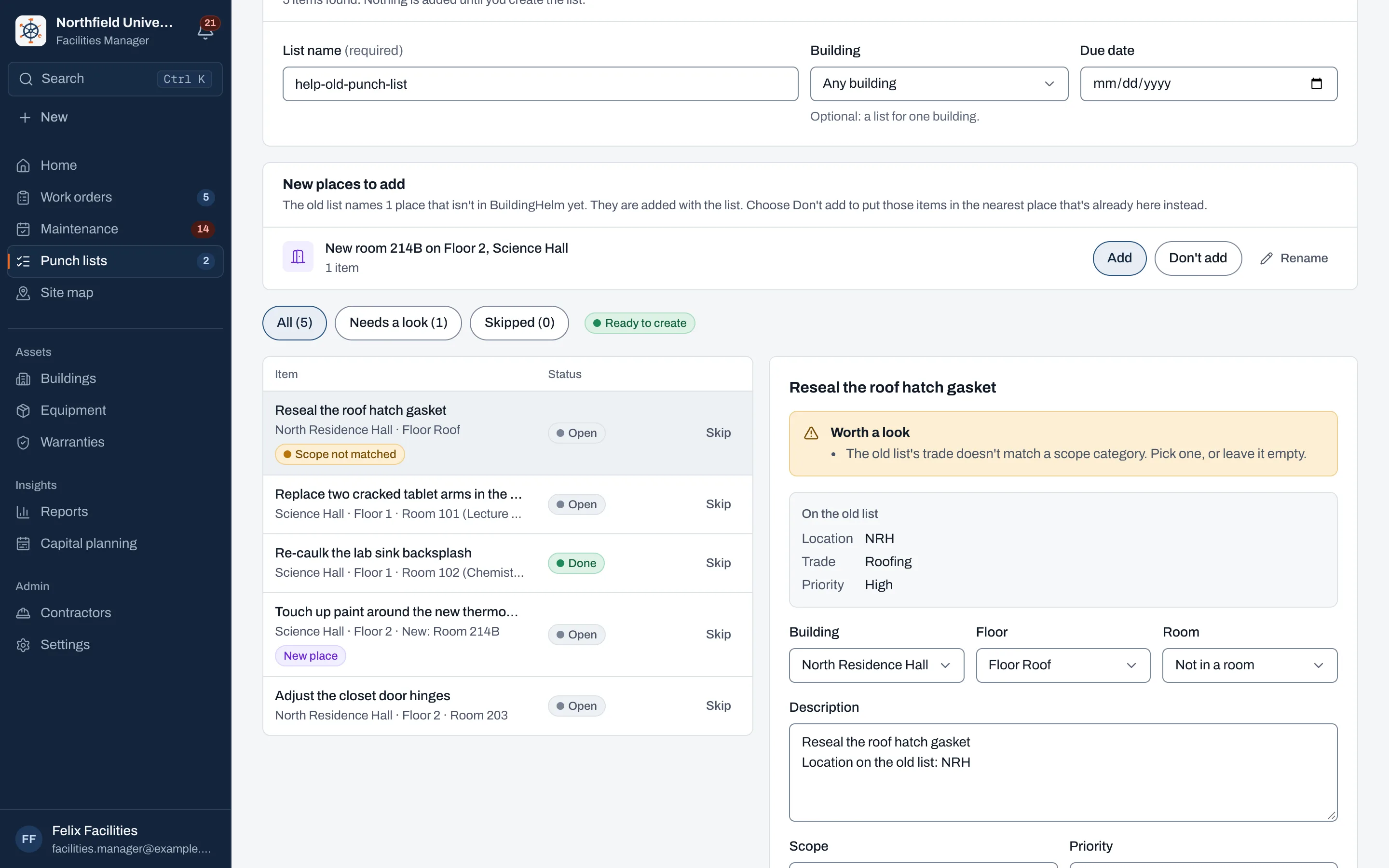
Step 7: A room that isn't in BuildingHelm yet is added with the list. Rename it, or choose Don't add.
Step 8: A room isn't listed? Choose + Add a room… at the bottom of the Room list.
Step 9: Equipment the old list names is linked. Choose other equipment, or N/A.
Step 10: When nothing needs you, select Create punch list.
Transcript
Show the transcript
Already have punch lists from a contractor, an old system or a clipboard? You don't have to type them in again. On Punch lists, select Import a punch list.
Add the files, up to ten at once. A spreadsheet is read straight away; a PDF, a Word file or a photo of a paper list is read by the AI, which also finds the photos on the page.
Select Read the file. Nothing is added to Building Helm yet: first you check what was found.
The list is named after the file or the title on the page. Choose a building if the list is for one building only; items are then matched inside it. Add a due date if there is one.
Each item is matched to its building, floor and room, its trade, its status and who it's assigned to. Items marked done on the old list come in as done. The ones that need you are at the top: here, an item with no floor.
Select an item to see what the old list said and, for a PDF or a photo, the page it came from. The roof hatch has no room, so choose its floor. Changes are saved as you go.
Room two fourteen B isn't in Building Helm yet, so it's listed under New places to add, and the item goes in the new room. Rename it, pick a room that's already there, or choose Don't add: the item then goes on its floor, with the old room number kept in its description. You can also skip any item you don't want.
If the right room isn't listed, choose Add a room at the bottom of the Room list, and type its number. It's added with the list, like the new places the old list named, and the other items on that floor can use it too. Building, Floor and Scope have the same choice.
When the old list names a piece of equipment, by its tag or its name, the item is linked to it. Check it under Equipment, choose another one, or leave it at N A when the item isn't about equipment.
When nothing needs you any more, select Create punch list, and every item is added in one go with its photos. You can open the new list right away. For this video, the import is discarded instead.