Punch lists and assessments
Verify and close punch items
Chart how a list is going, check finished items against their after photos, verify or reopen them, and export to PDF or Excel.
- Who it's for
- Owner AdminsFacilities ManagersConstruction Quality Control Managers
- Where
- On a computer1:10 video
Steps
Step 1: Open Punch lists from the menu on the left.
Step 2: Open the list.
Step 3: Under Status, choose Pending review.
Step 4: Open an item that's waiting for review.
Step 5: Use Comments and Schedule on the item.
Step 6: Check the after photo.
Step 7: Click Approve, then confirm.
Step 8: Back on the list, open the next item.
Step 9: Click Return and say what still needs doing.
Step 10: Export the list to PDF or Excel, one file per contractor if you like.
Transcript
Show the transcript
When someone marks a punch item done, it waits for you to check it. Open Punch lists to see how each list is coming along.
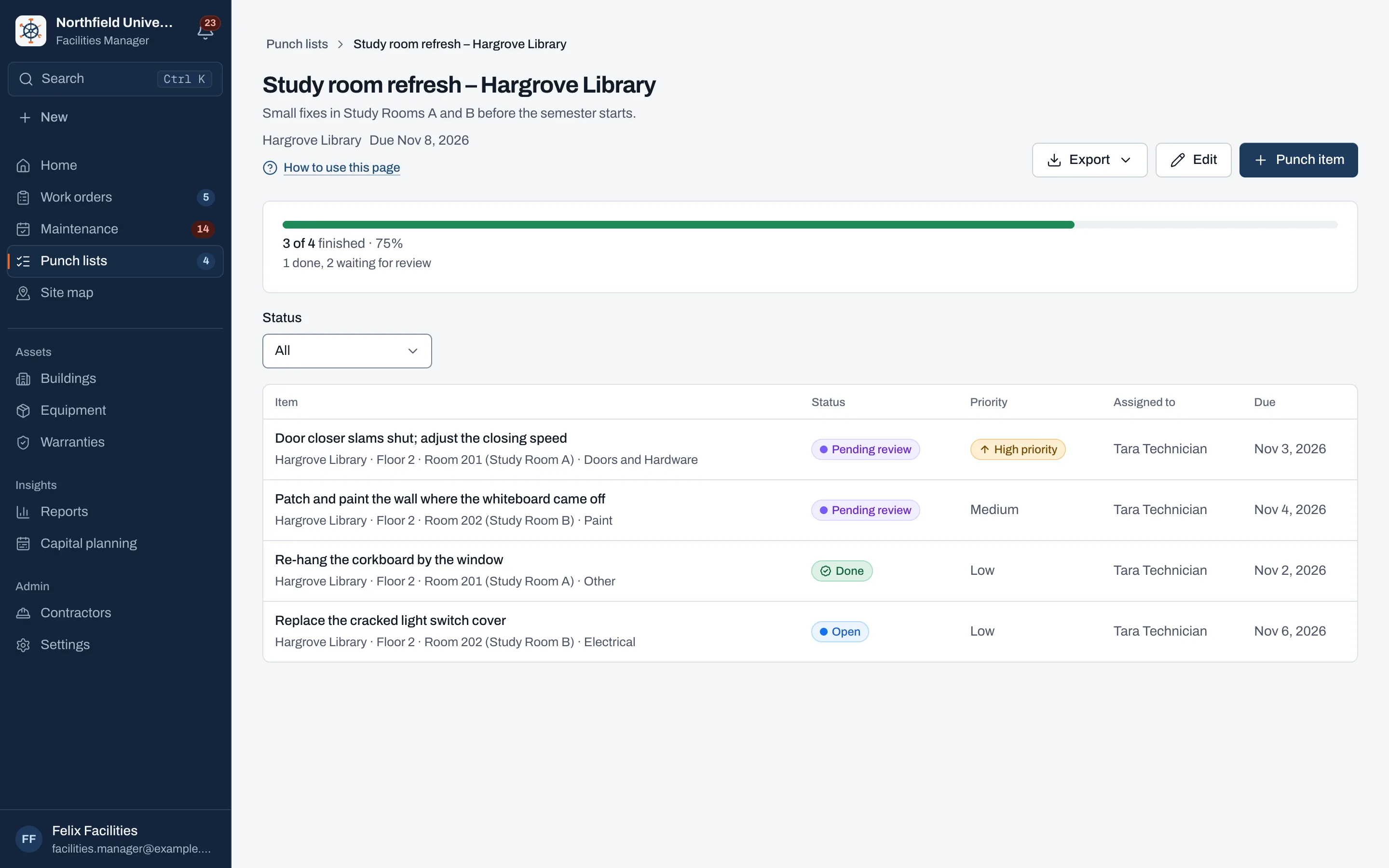
Open a list. The bar shows how many items are finished, and how many of those are done or still waiting for review. Below it, tiles count the items by status and a chart breaks them down by scope, assignee, floor, room or priority; choose a tile or a row to filter the list.
Choose Pending review under Status to see only the items waiting for you.
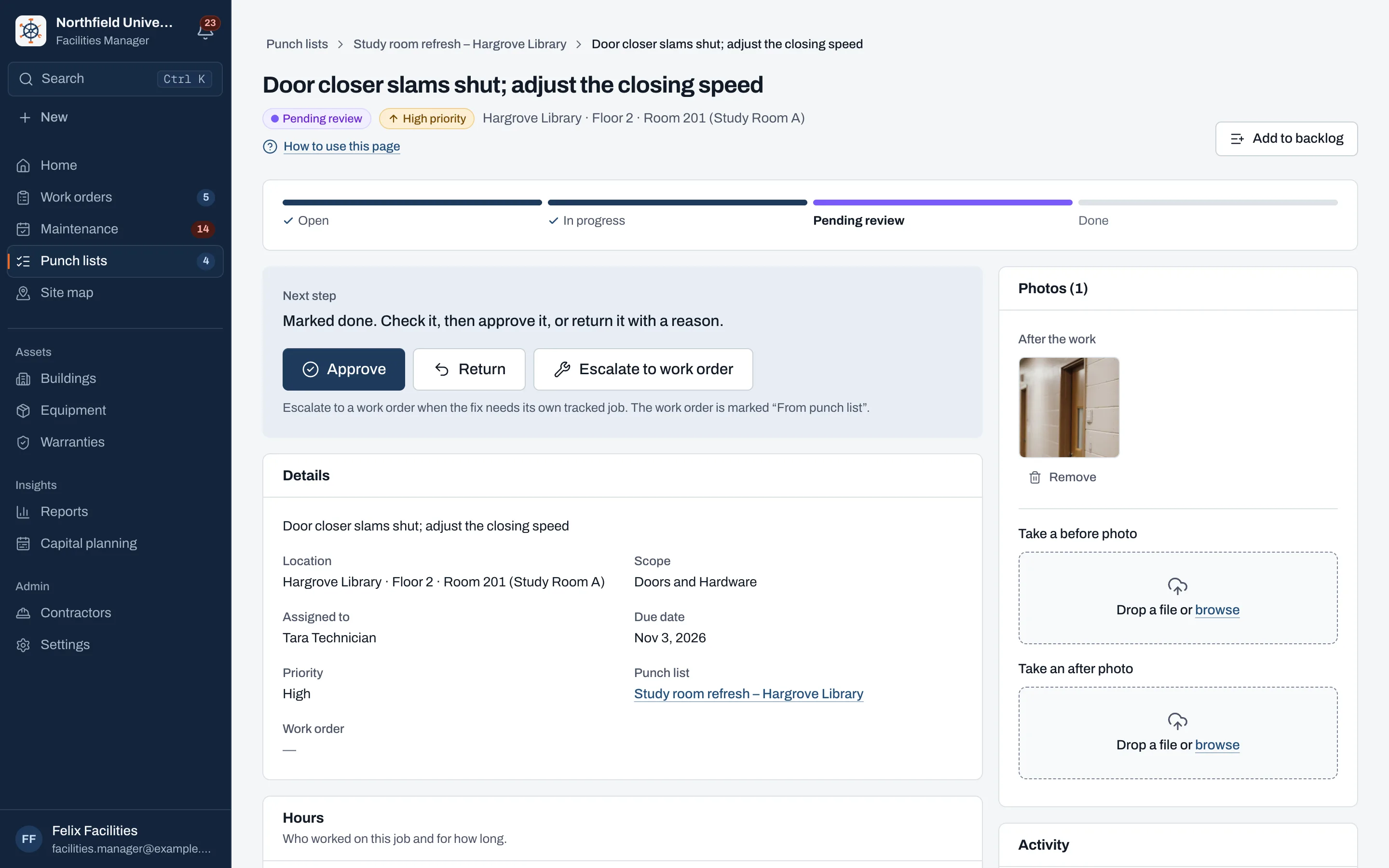
Open an item. The Next step box says it was marked done, and asks you to approve it or return it.
Each punch item has the same Comments and Schedule boxes as a work order. A contractor can propose one visit for several of its items, and you accept it or propose another time.
Compare the after photo with what was asked for. The work can't be marked done without one.
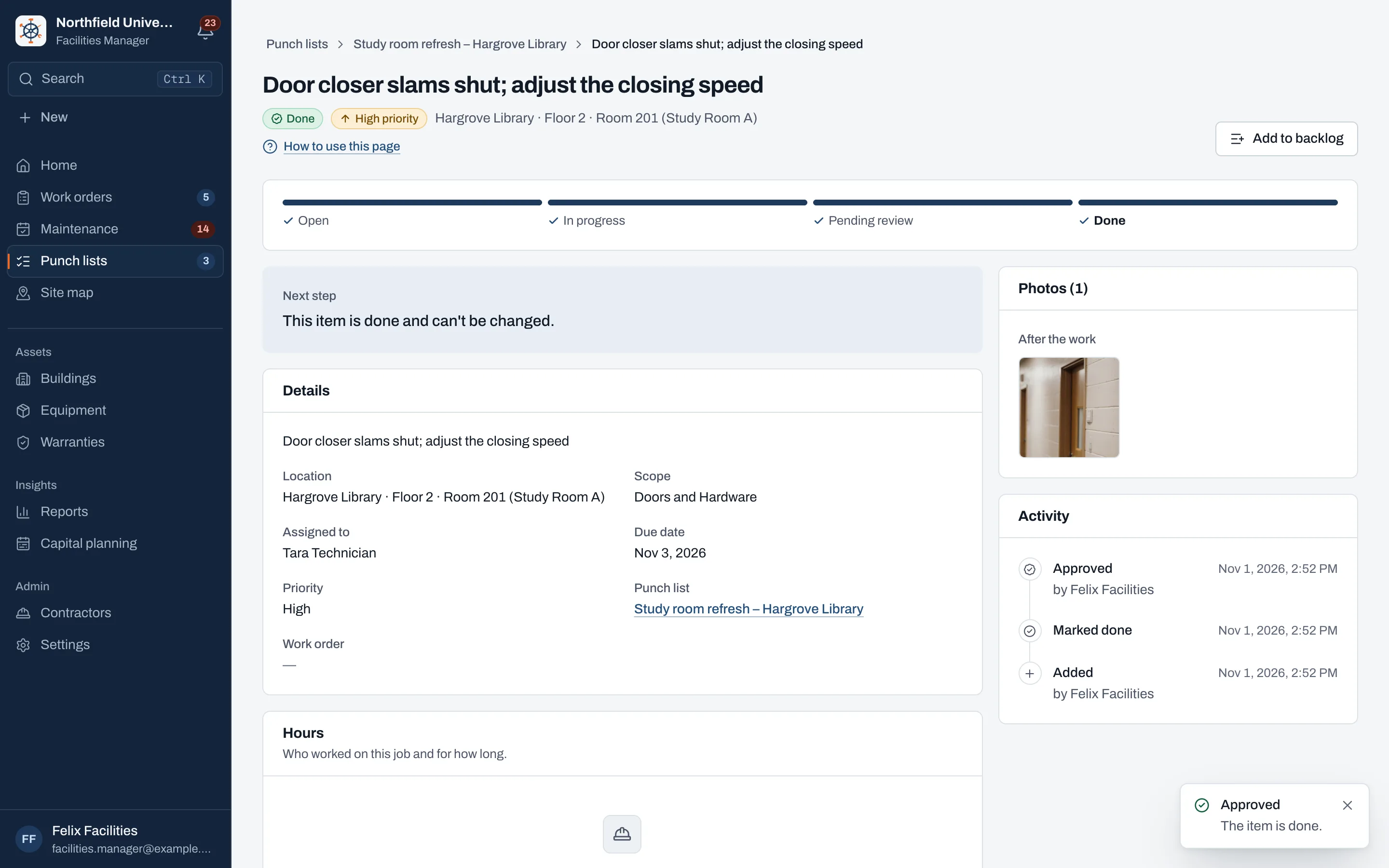
If the work is right, click Approve and confirm. The item becomes Done, and it can't be changed after that.
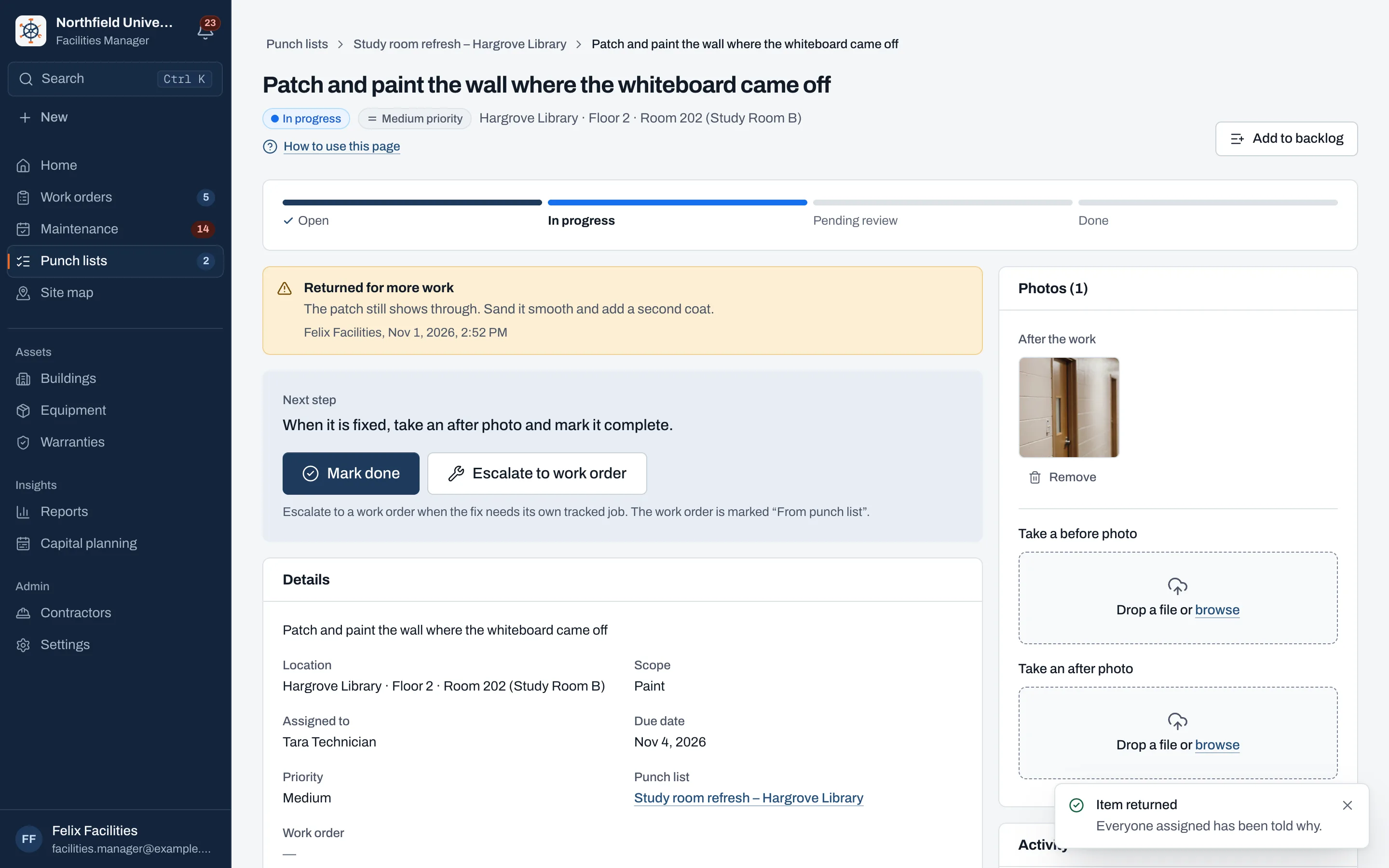
Back on the list, open the next item. This one isn't finished yet.
Click Return and say what still needs doing. The item goes back to In progress, and everyone assigned to it is told why.
To share a list with a contractor or bring it to a closeout meeting, tap Export at the top of the list. It starts with what is filtered on your screen, and you choose what to include, PDF or Excel, and with photos or without. With one file per group, each contractor gets a file of their own, and they all download together in one zip.