Getting started
Add and invite your team, and choose roles
Add the people on your team, give each one a role, and invite them when you're ready; you can assign them work before they join.
- Who it's for
- Owner Admins
- Where
- On a computer1:26 video
Steps
Step 1: Open Members from the Admin section of the menu.
Step 2: See everyone, their role and their status.
Step 3: Give each person the role that fits their job.
Step 4: Select Add a person.
Step 5: Fill in their name, role and details.
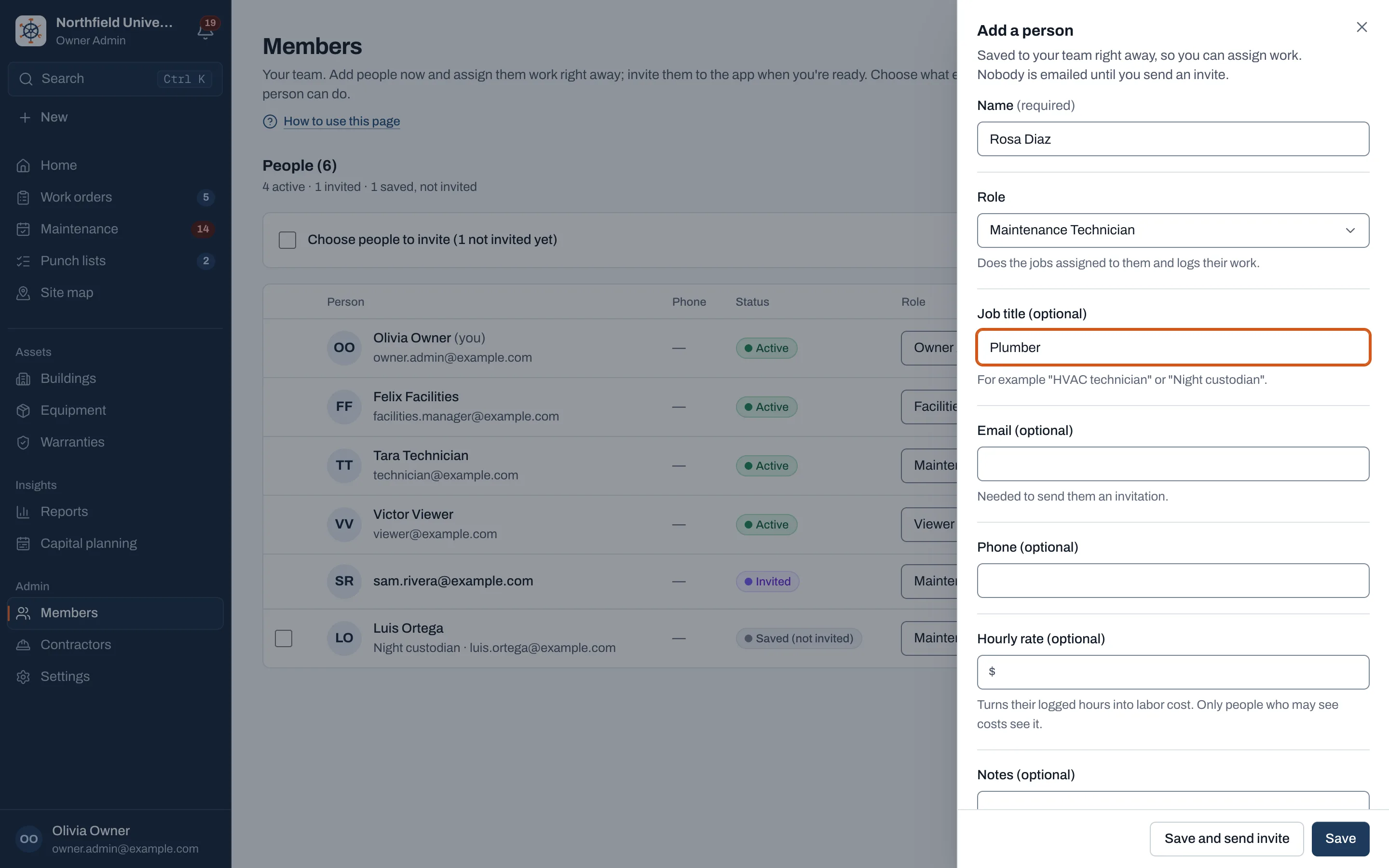
Step 6: Select Save, or Save and send invite.
Step 7: Send invites when you're ready.
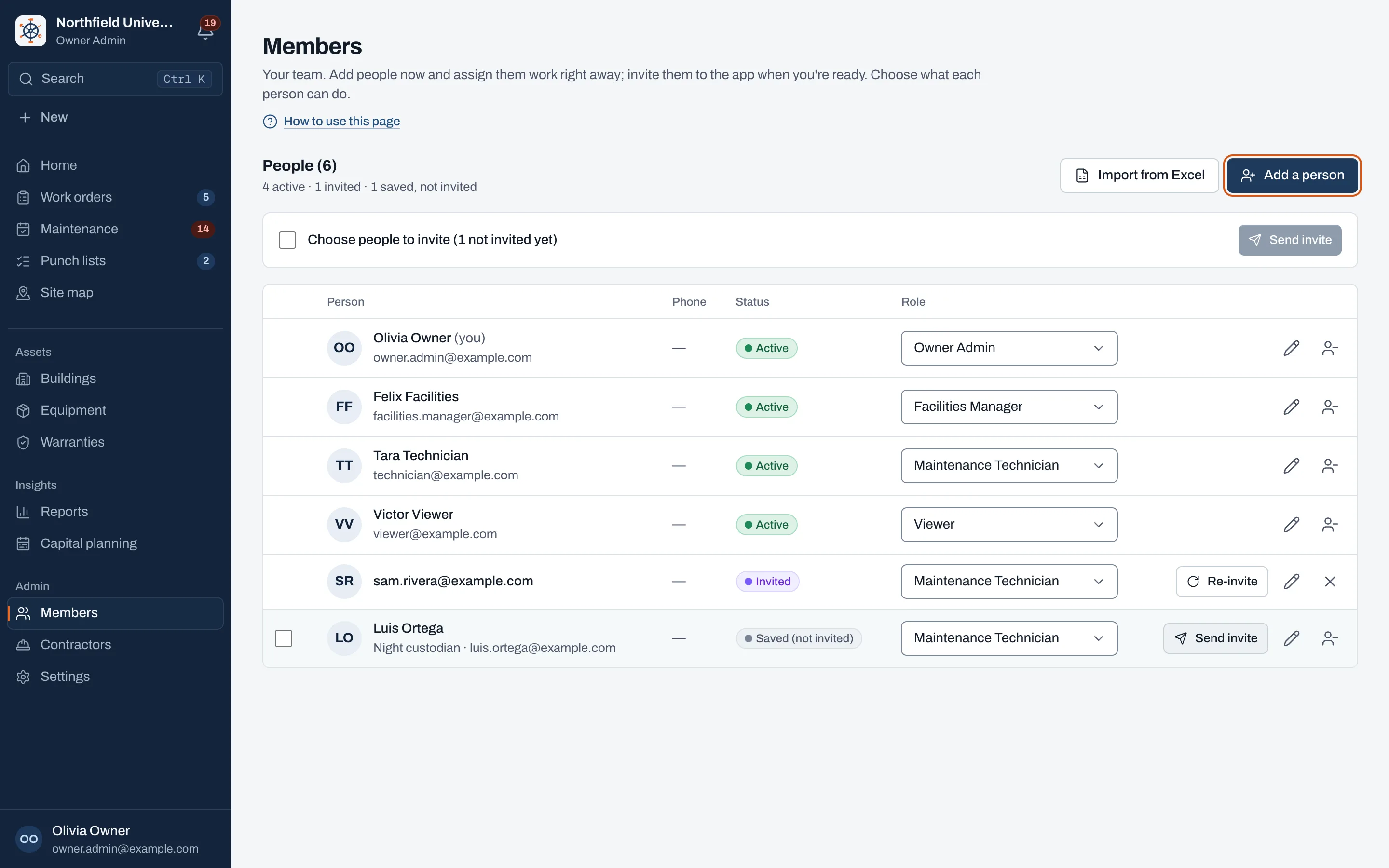
Step 8: Invitations stay in the list until accepted.
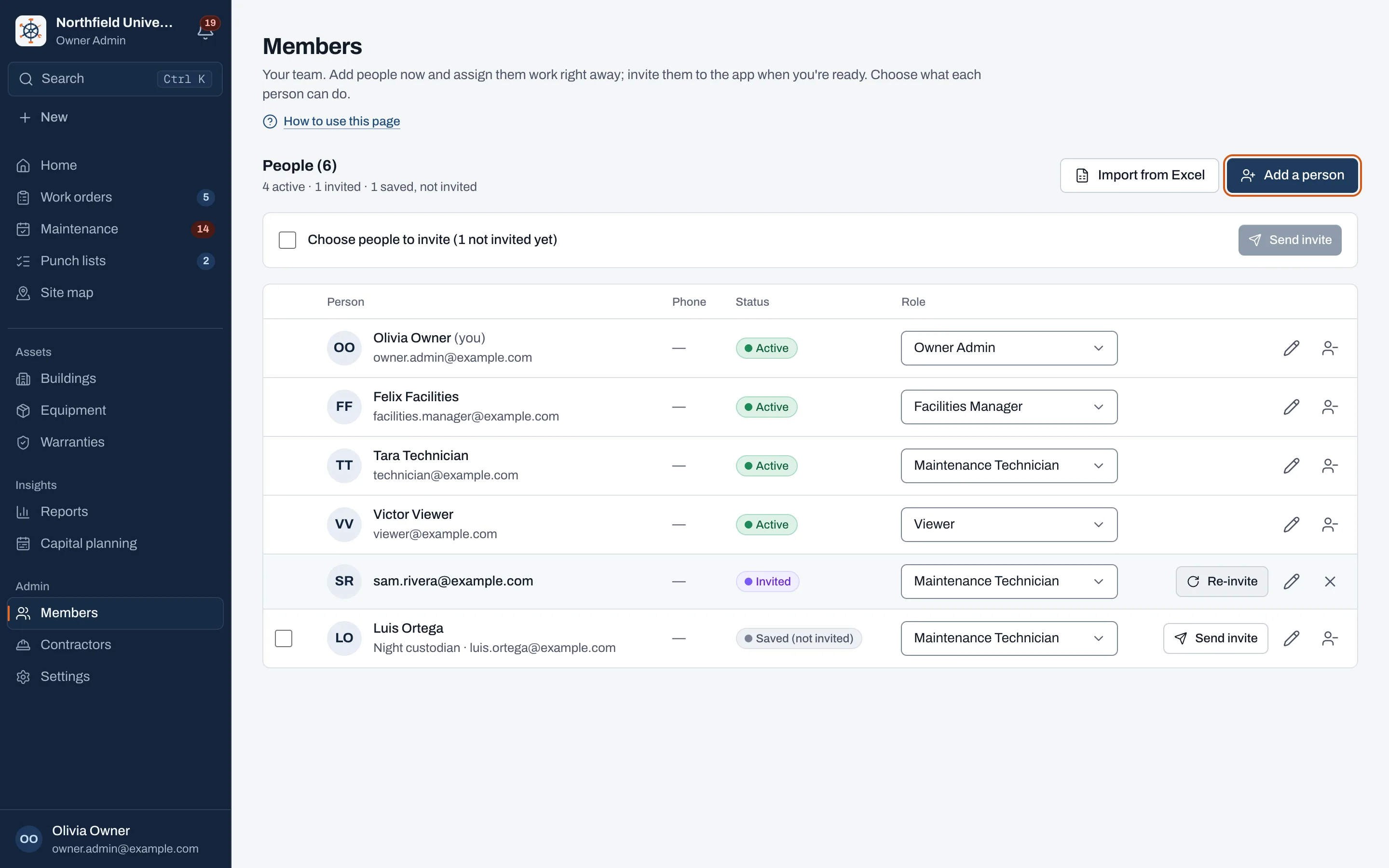
Step 9: See who has two-factor sign-in on.
Step 10: Add your whole team from Excel.
Transcript
Show the transcript
Only an Owner Admin can add and invite people. Open Members, under Admin in the menu.
Everyone on your team is listed here, with their job title, their role, and whether they're Active, Invited, or saved but not invited yet.
Each person has one role. Owner Admins run the account, Facilities Managers run the work, Maintenance Technicians do the jobs, and Viewers can look without changing anything.
To add someone, select Add a person. You don't have to invite them yet: they're on your team right away, and you can assign them work.
Type their name and choose their role. Job title, email, phone and hourly rate are optional. The rate turns their hours into labor cost, which only Owner Admins and Facilities Managers see.
Save keeps them on your team without sending anything. Save and send invite also emails the invitation; for that you need their email.
People you saved show as Saved, not invited. When you're ready, select Send invite next to their name, or tick several people and send them all at once.
Invited people show as Invited until they sign in with that address and accept. An invitation lasts 30 days, and Re-invite sends it again. Work you assigned them becomes theirs when they join.
The Status column also shows who has two-factor sign-in on. If someone loses their phone, the shield button next to their name resets it or signs them out on every device, and both are written to the audit log.
To add everyone at once, select Import from Excel and fill in the template. You see a preview first, and nobody is invited by an import.