Admin
Choose your notifications
Choose what reaches you in the bell, by email or by text message, set quiet hours for texts, and, as an Owner Admin, set the starting choices for everyone.
- Who it's for
- Owner AdminsFacilities ManagersConstruction Quality Control ManagersMaintenance Technicians
- Where
- On a computer1:03 video
Steps
Step 1: Click the bell to see what's new.
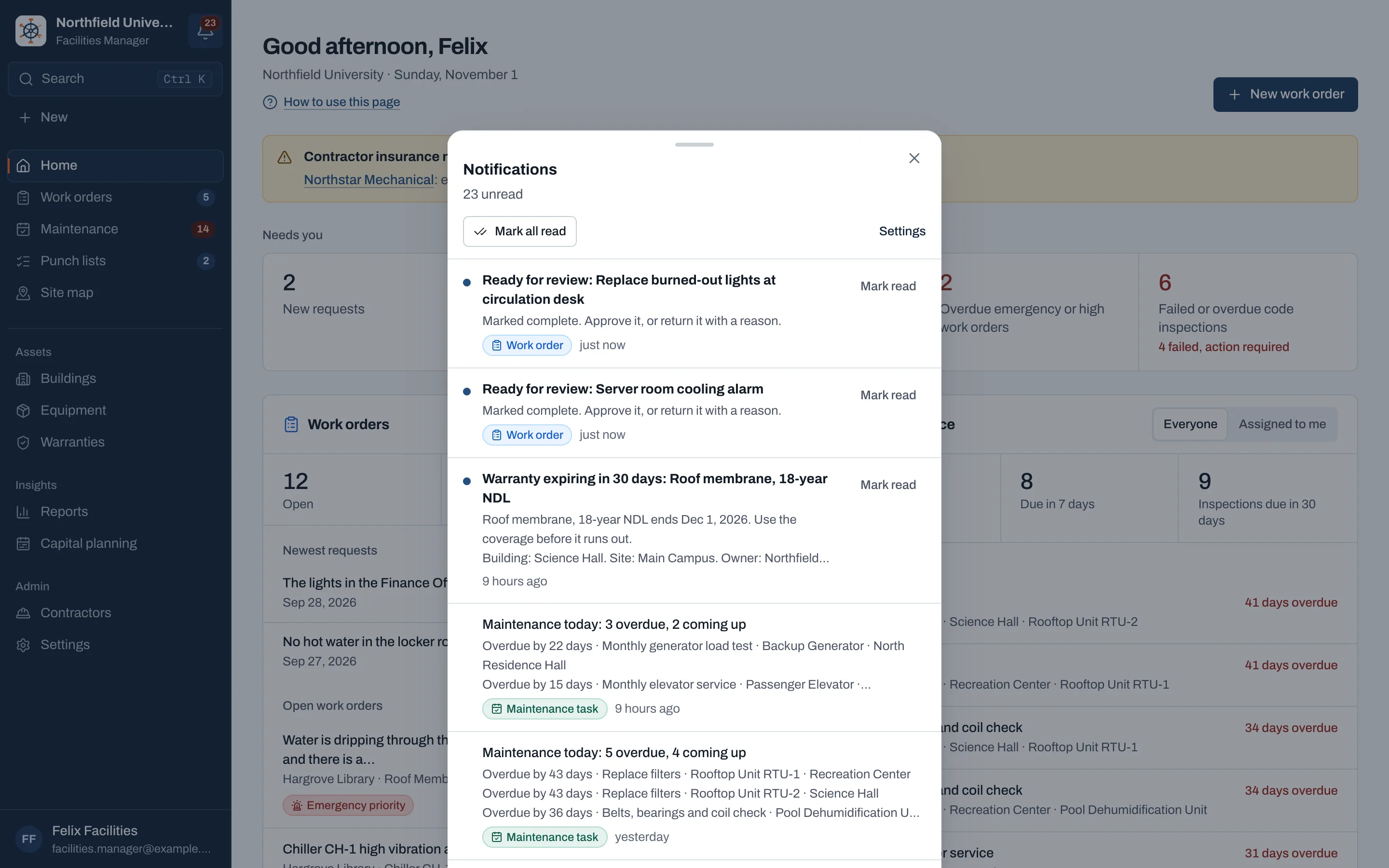
Step 2: Click View all notifications.
Step 3: Click a notification to open what it's about.
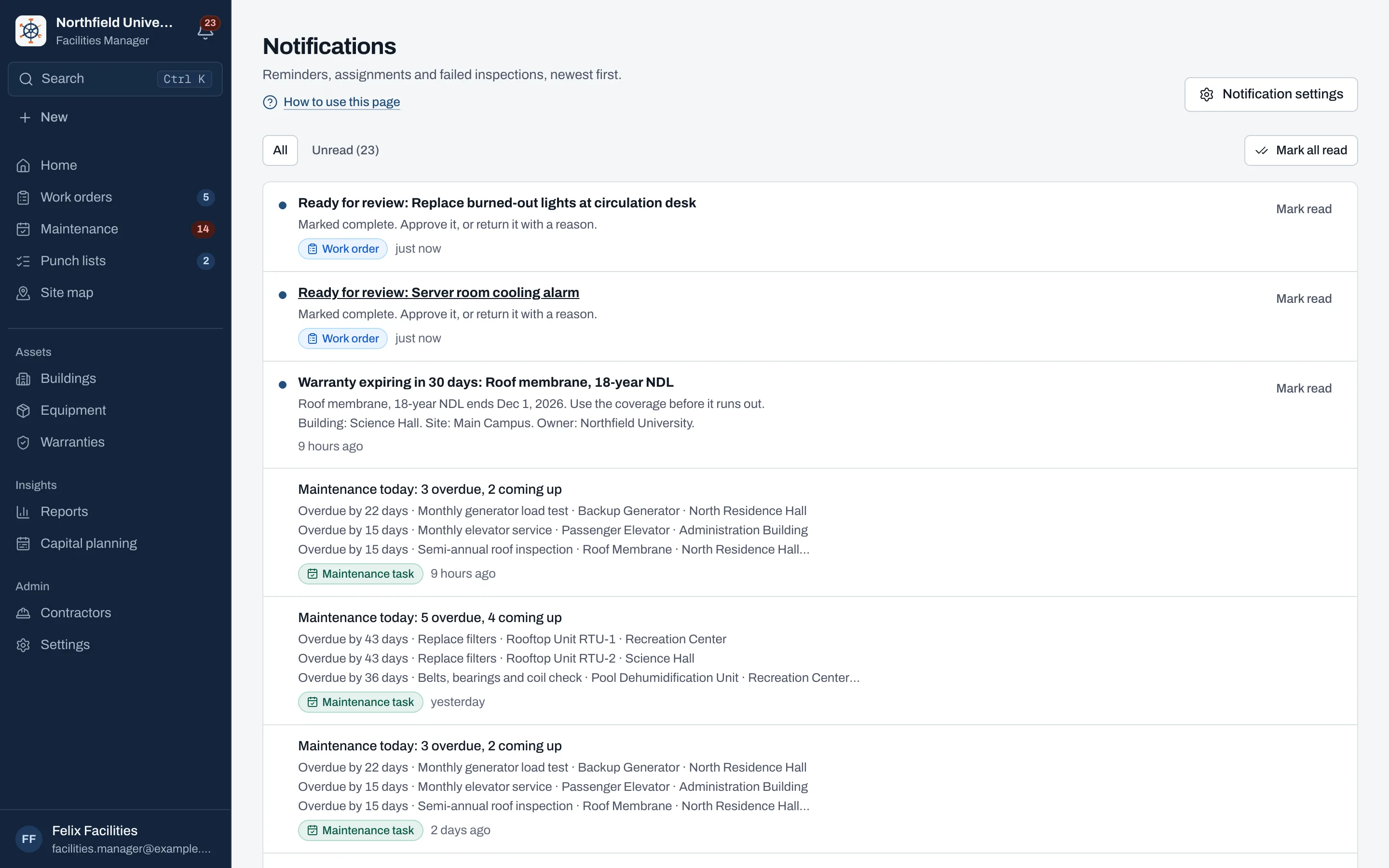
Step 4: Mark notifications as read, or show only unread ones.
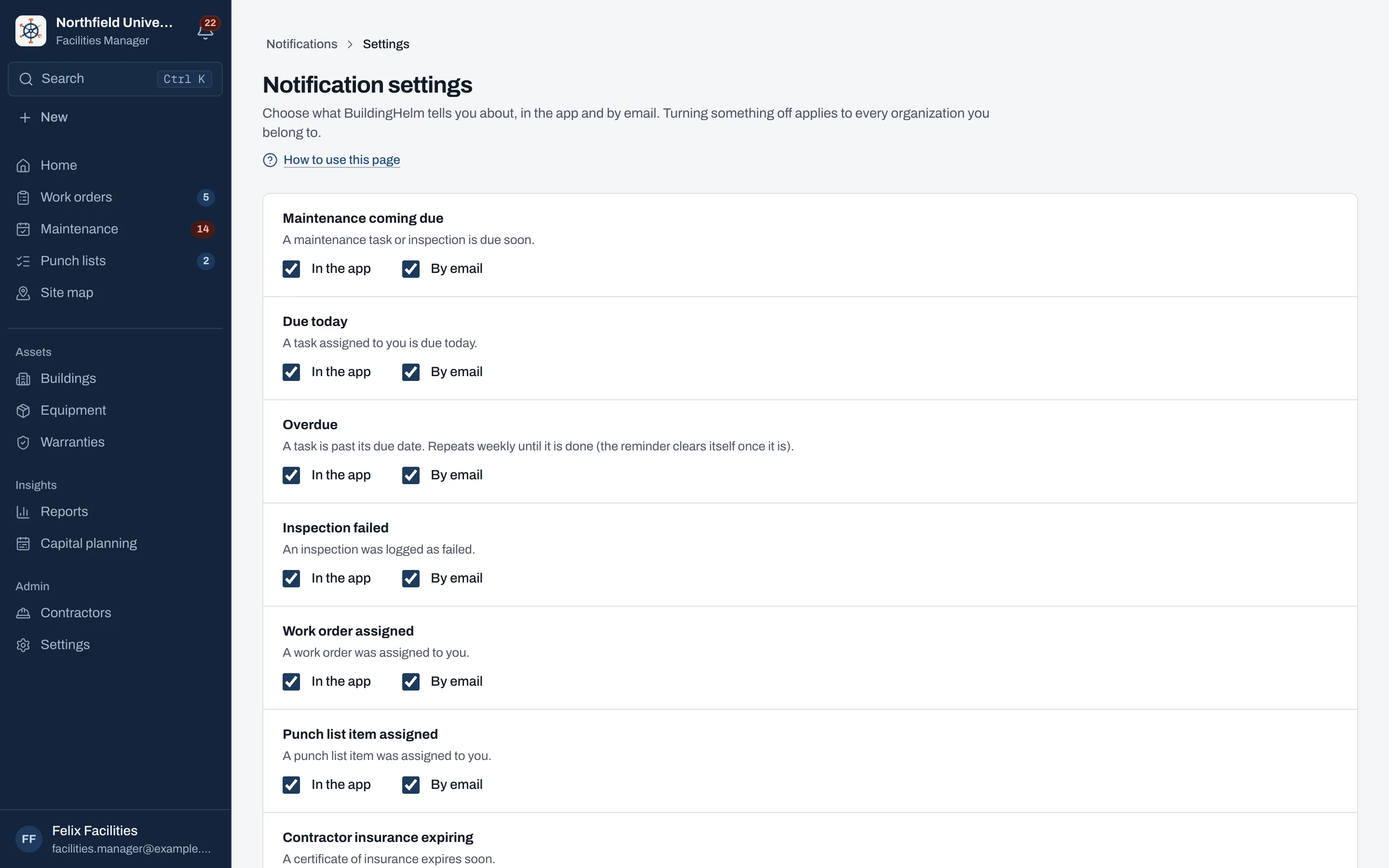
Step 5: Click Notification settings.
Step 6: Each kind has three switches: Bell, Email and Text.
Step 7: Comments and schedule changes are in the list too.
Step 8: Flip a switch: it saves at once.
Step 9: Maintenance reminders come as one daily summary.
Step 10: Add your mobile number to get texts.
Step 11: Owner Admins set notifications for everyone.
Step 12: One switch turns off every notification.
Transcript
Show the transcript
Building Helm tells you when something needs you, like work to review or a failed inspection. The bell shows how many are unread. Click it to see the newest.
Click View all notifications to open your inbox. The newest are at the top, and unread ones are in bold.
Click a notification to go straight to the job it's about. Opening it marks it as read.
Already dealt with one? Click Mark read, or Mark all read to clear the list. Unread shows only what's left.
To choose what reaches you, click Notification settings. It opens Notifications in Settings, which is also in your account menu and in the bell.
Notifications are grouped by kind, such as Work orders and requests. Each has three switches: the bell, email and text message. A lock means your admin set that one for everyone.
New comment and the schedule notices, such as Time proposed, Time accepted and Booked on a job, each have their own Bell, Email and Text switches. Internal notes reach the owner's staff only.
Turn off Email for anything you'd rather see only in the bell. Each switch saves the moment you flip it. Use the starting choices puts all of yours back.
Maintenance reminders arrive together, as one summary a day. Each line follows these settings, so turning off an email here drops those lines from the summary email.
For text messages, add your mobile number at the top of the page and type the 6-digit code we text you. Then turn on Text for the kinds you want. Quiet hours hold texts overnight; email and the bell are never held.
Owner Admins also get the Everyone tab. It has the texting switch with this month's texts, each person's settings, and the starting choices, where a lock sets a kind for everyone.
At the top of the Everyone tab, All notifications turns off bell alerts, emails and texts for everyone at once; anything that would have gone out meanwhile is skipped, not sent later. Sign-in and invitation emails still go, and vendors without an account still get the emails about their jobs and bids. Admins see a banner on every page until you turn notifications back on, and everyone's own choices are kept for then.