Admin
Settings and drop-down lists
Set your organization's name, logo and time zone, and edit the drop-down lists your team picks from.
- Who it's for
- Owner AdminsFacilities Managers
- Where
- On a computer1:03 video
Steps
Step 1: Open Settings from the menu on the left.
Step 2: Check your name, place and time zone under General.
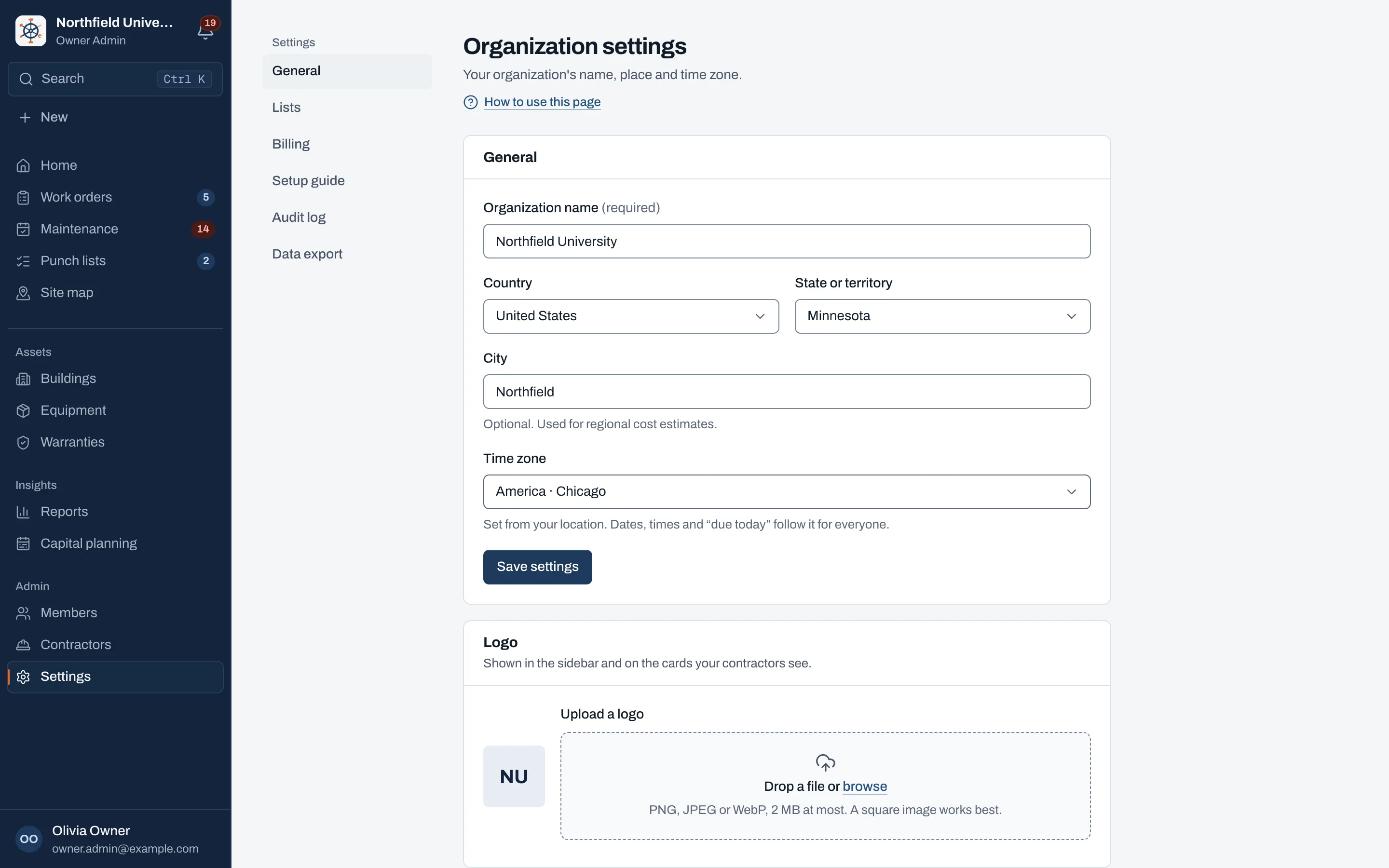
Step 3: Add your logo and set when reminders go out.
Step 4: Check Emails sent for you.
Step 5: Choose who must use two-factor sign-in.
Step 6: Click Lists.
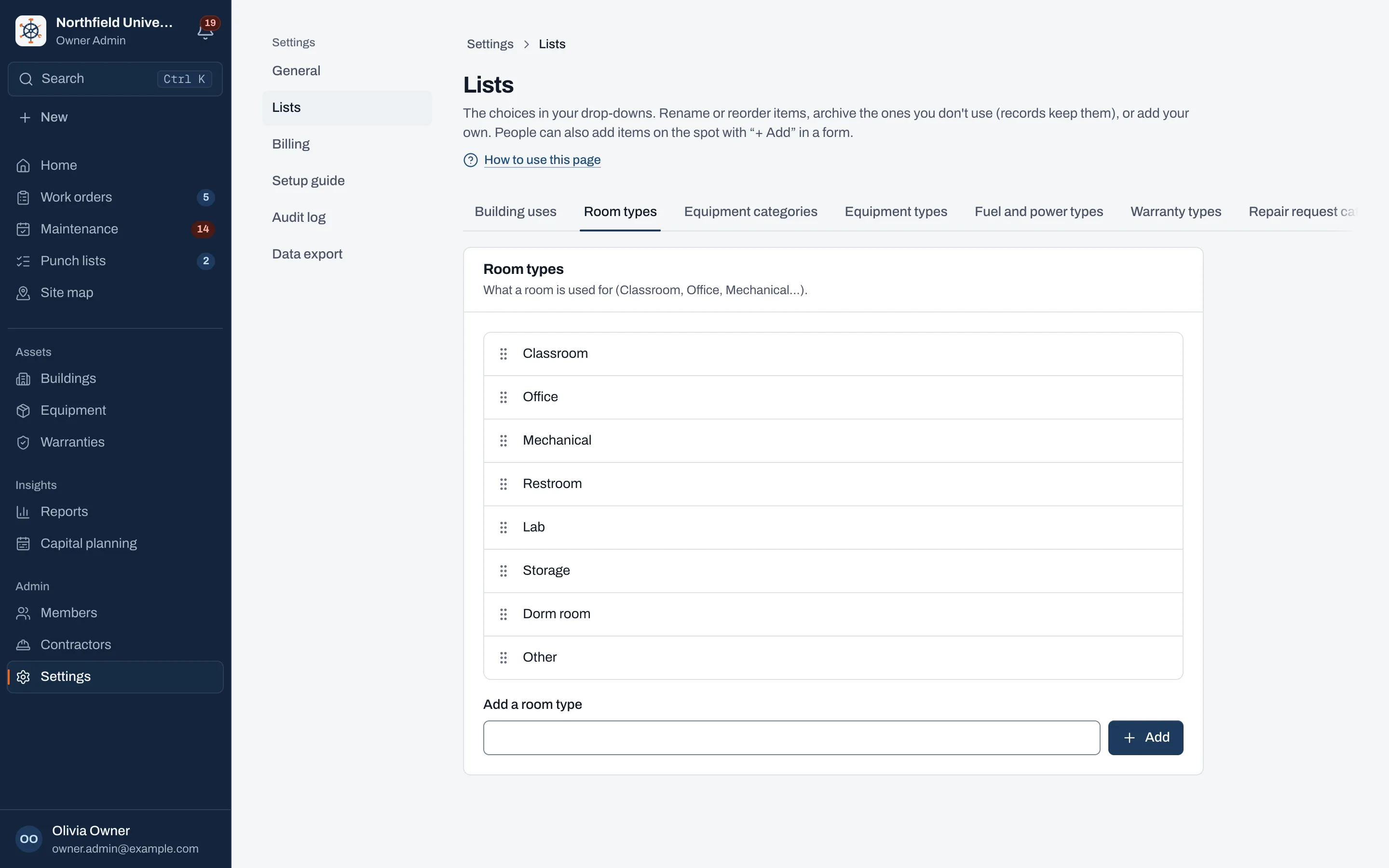
Step 7: Choose a list from the tabs.
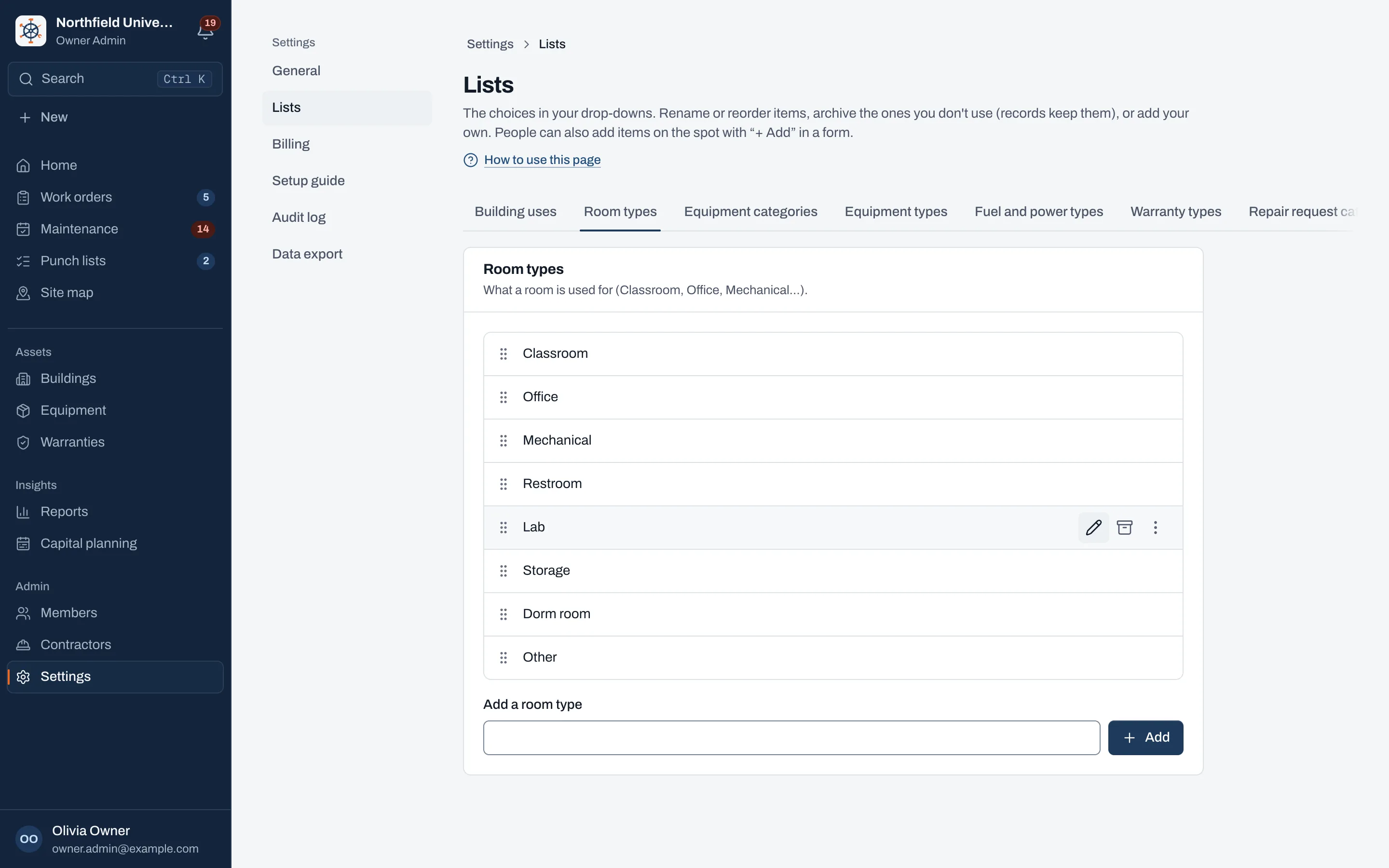
Step 8: Rename, reorder or archive an item.
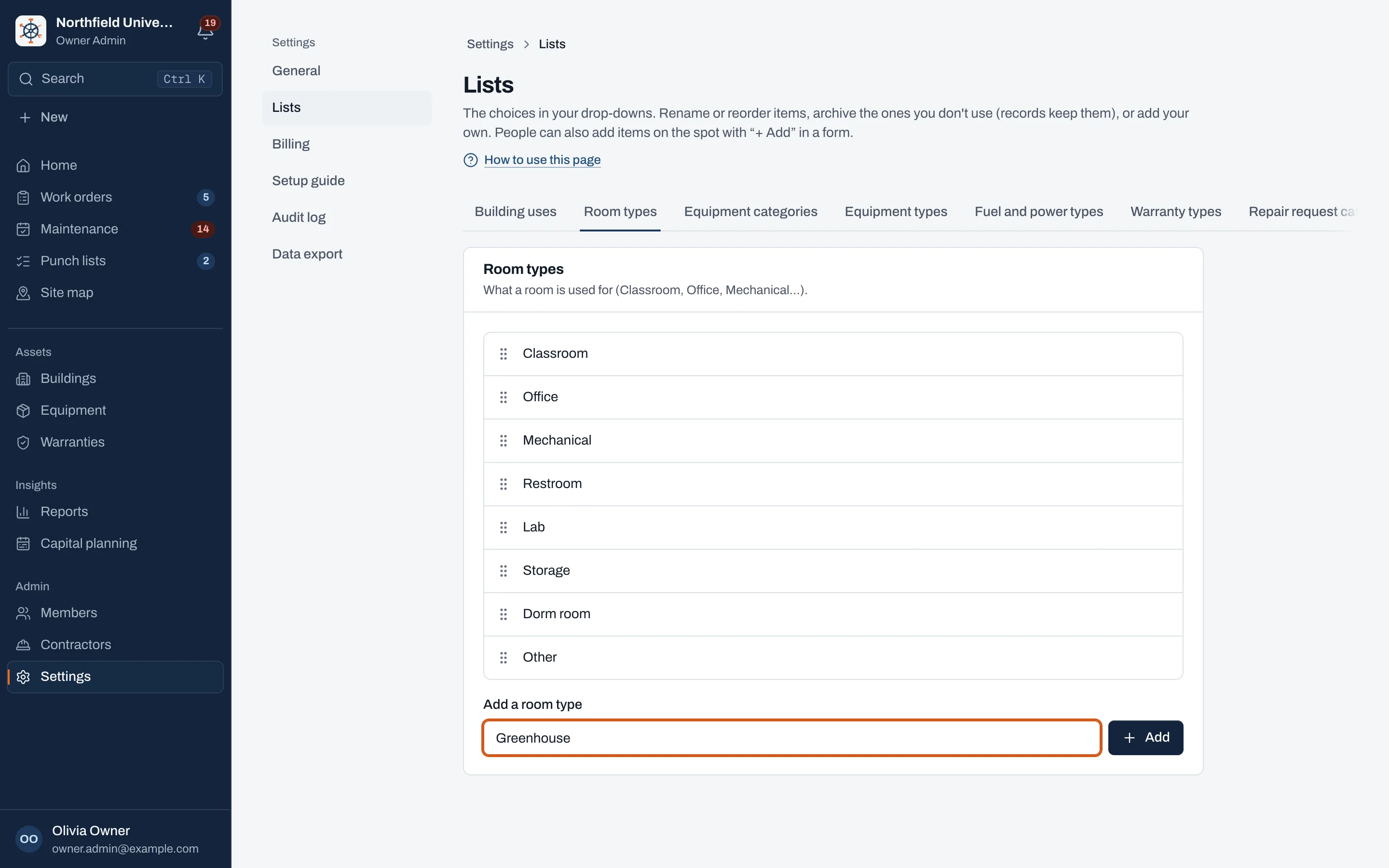
Step 9: Type a new item and click Add.
Transcript
Show the transcript
Settings is where you shape Building Helm for your organization. Open it from the menu on the left. The tabs down the side lead to each part.
General holds your organization's name, place and time zone. The time zone matters: it decides what today and overdue mean for your whole team, and the times shown in emails.
Add your logo for the sidebar and the cards your contractors see. Further down, Reminders and Due soon set how early people hear about upcoming maintenance.
Emails Building Helm sends for you, to vendors, to people who report a problem and to people you invite, show your logo and come from your name, like Northfield University via Building Helm. Enter a Reply-to email and save it, and a confirmation email goes to that address, so replies start arriving once its link is opened. This is how your emails will look shows a sample, with Sent with Building Helm at the bottom.
Under Sign-in security, an Owner Admin can require two-factor sign-in, for managers or for everyone, and sign people out automatically after a time without activity.
Lists holds the choices in your drop-downs, such as room types and equipment categories. Facilities Managers can edit them too.
Choose a list from the tabs. Its items are shown in the same order your team sees them.
Point at an item to rename it, or drag it to a new place. Archive the ones you don't use: records that already have them keep them, and you can restore them later.
To add your own, type it in and click Add. It shows up in every drop-down right away, and your team can also add one on the spot from a form.