Getting started
Your home dashboard
What Home shows each morning: what is overdue, what is due this week, new requests and the work assigned to you.
- Who it's for
- Owner AdminsFacilities ManagersConstruction Quality Control ManagersMaintenance TechniciansViewers
- Where
- On a computer1:09 video
Steps
Step 1: Open Home, the first item in the menu.
Step 2: While you are setting up, follow the setup checklist.
Step 3: Start with Needs you.
Step 4: Read the Work orders panel.
Step 5: Switch between Everyone and Assigned to me.
Step 6: Read the Maintenance panel.
Step 7: Glance at the buildings strip.
Step 8: Fix anything listed under Missing details.
Step 9: Start a job with New work order.
Step 10: Select a number to open that list.
Transcript
Show the transcript
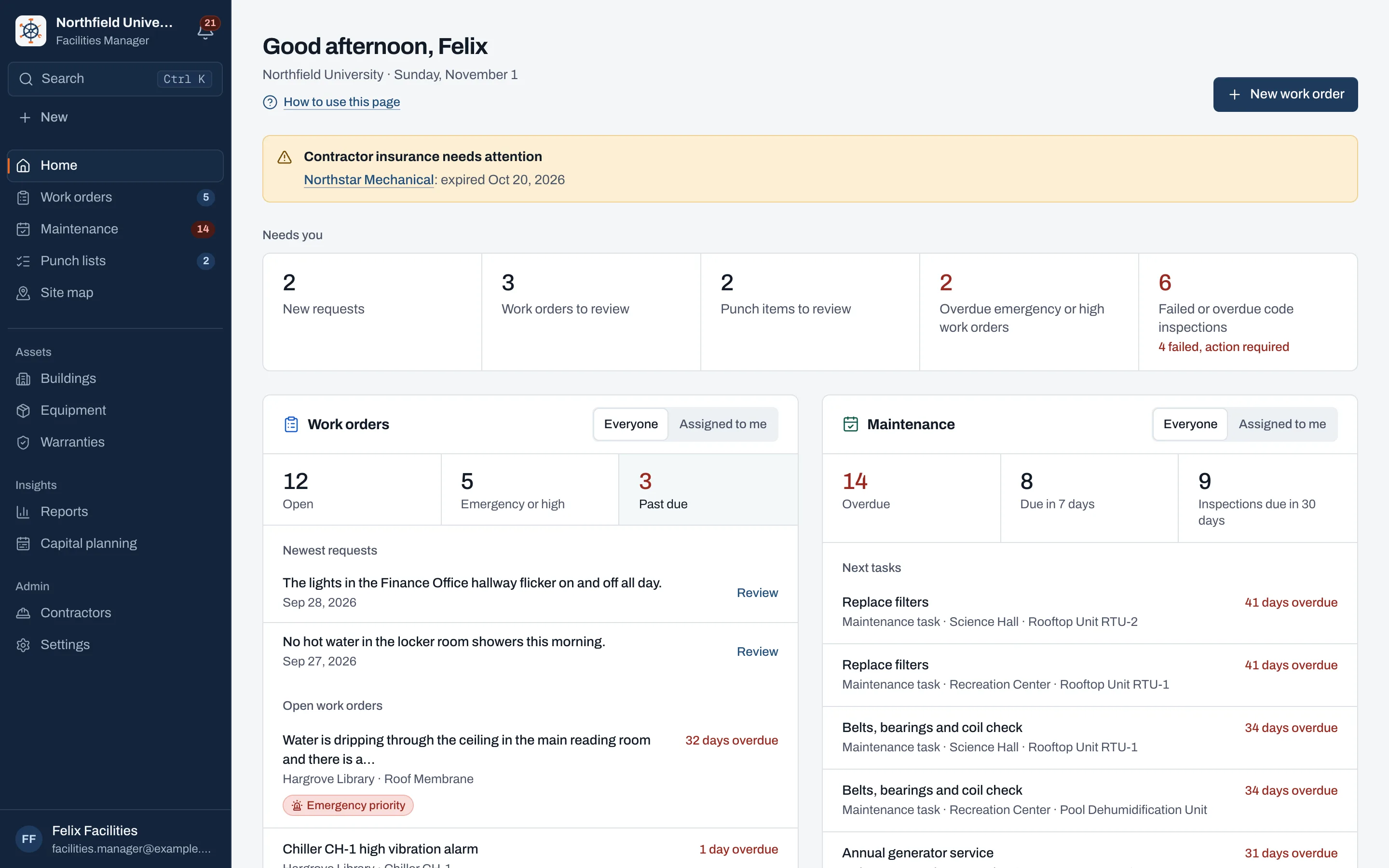
Home is your view of today. It shows what needs attention across your sites, so it's the best place to start the day.
In a new organization, Home shows a setup checklist with a progress bar. Each step has a link that takes you straight to it, and a note such as Add 3 more rooms tells you how much is left. Owner Admins and Facilities Managers both see it.
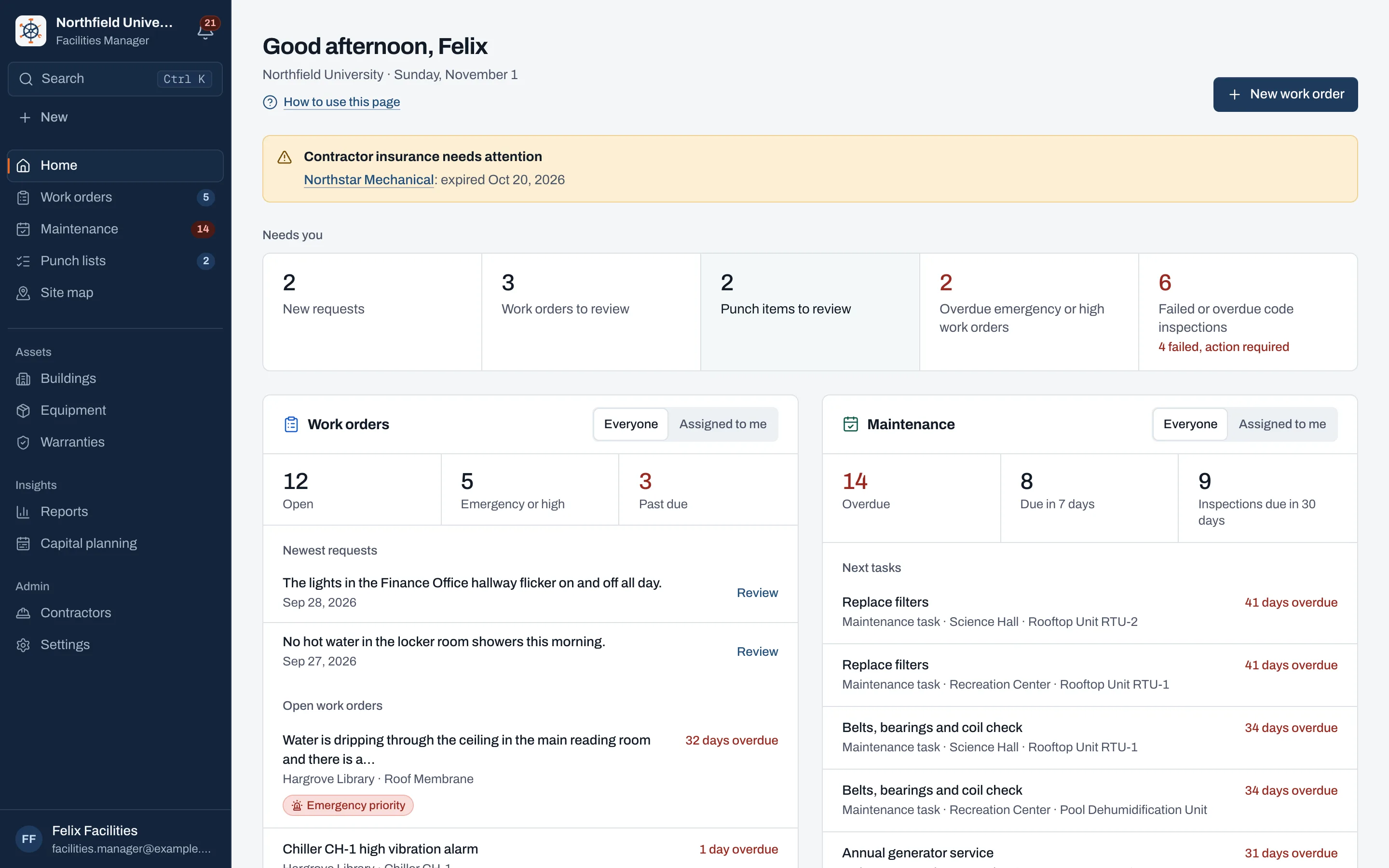
Needs you comes first. It counts new requests, work and punch items waiting for your review, overdue emergency or high jobs, and failed or overdue code inspections.
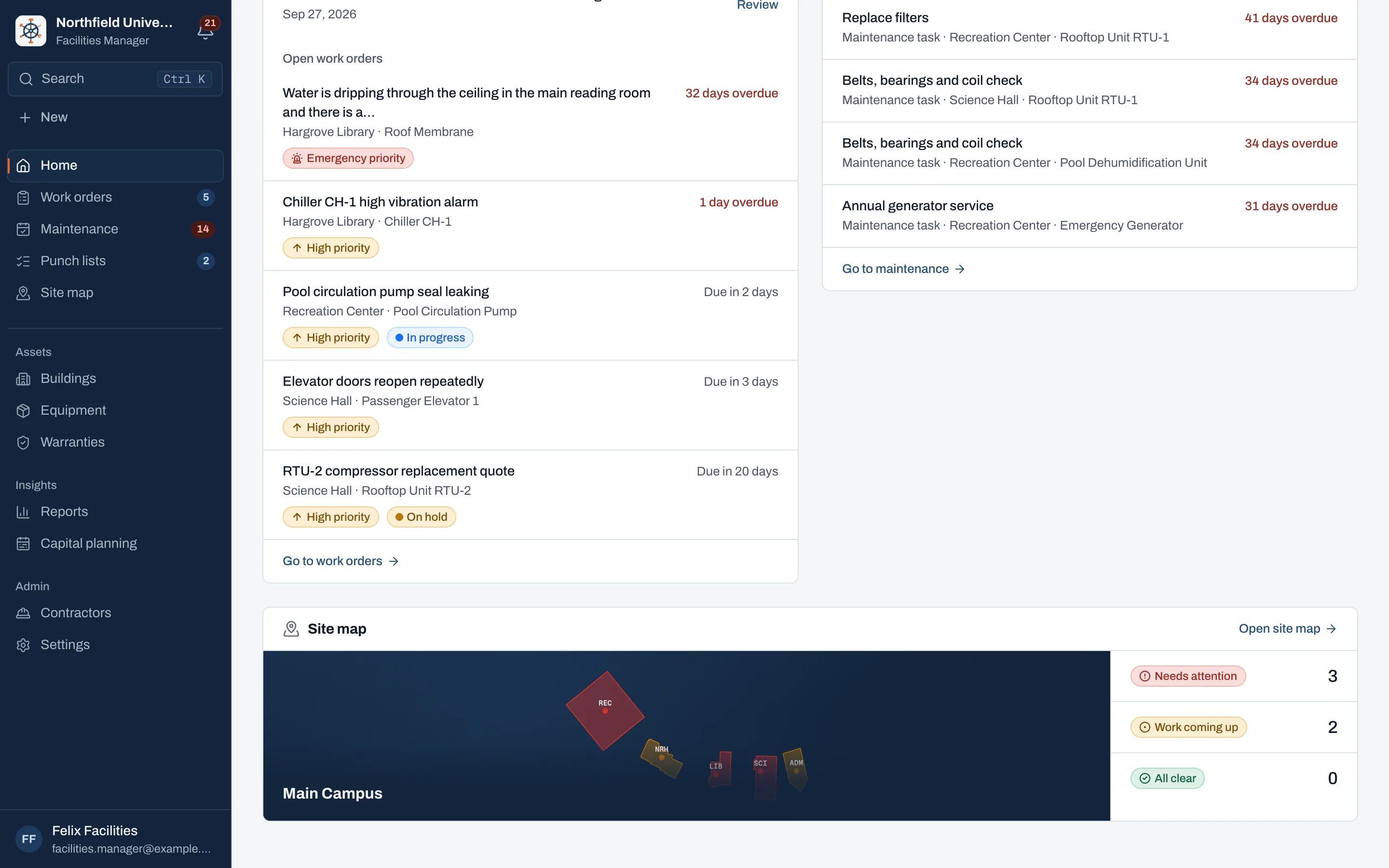
The Work orders panel shows how many jobs are open, how many are emergency or high priority, and how many are past due. Below are the newest requests and the open jobs with their due dates.
Switch to Assigned to me to see only your own jobs. Everyone brings back the whole team's work.
The Maintenance panel does the same for scheduled work: what is overdue, what is due in the next seven days, and the inspections coming up. Your next tasks are listed below.
Further down, a row of buildings shows which ones need attention and how many jobs are open. Click one to open it, or use All buildings to see them all.
When records have a blank worth filling, a Missing details card lists them: equipment with no model or install date, and buildings with no photo. Select Fix next to a line to open the list, filtered to only those records.
Spotted something on your walk? New work order at the top of Home starts a job straight away.
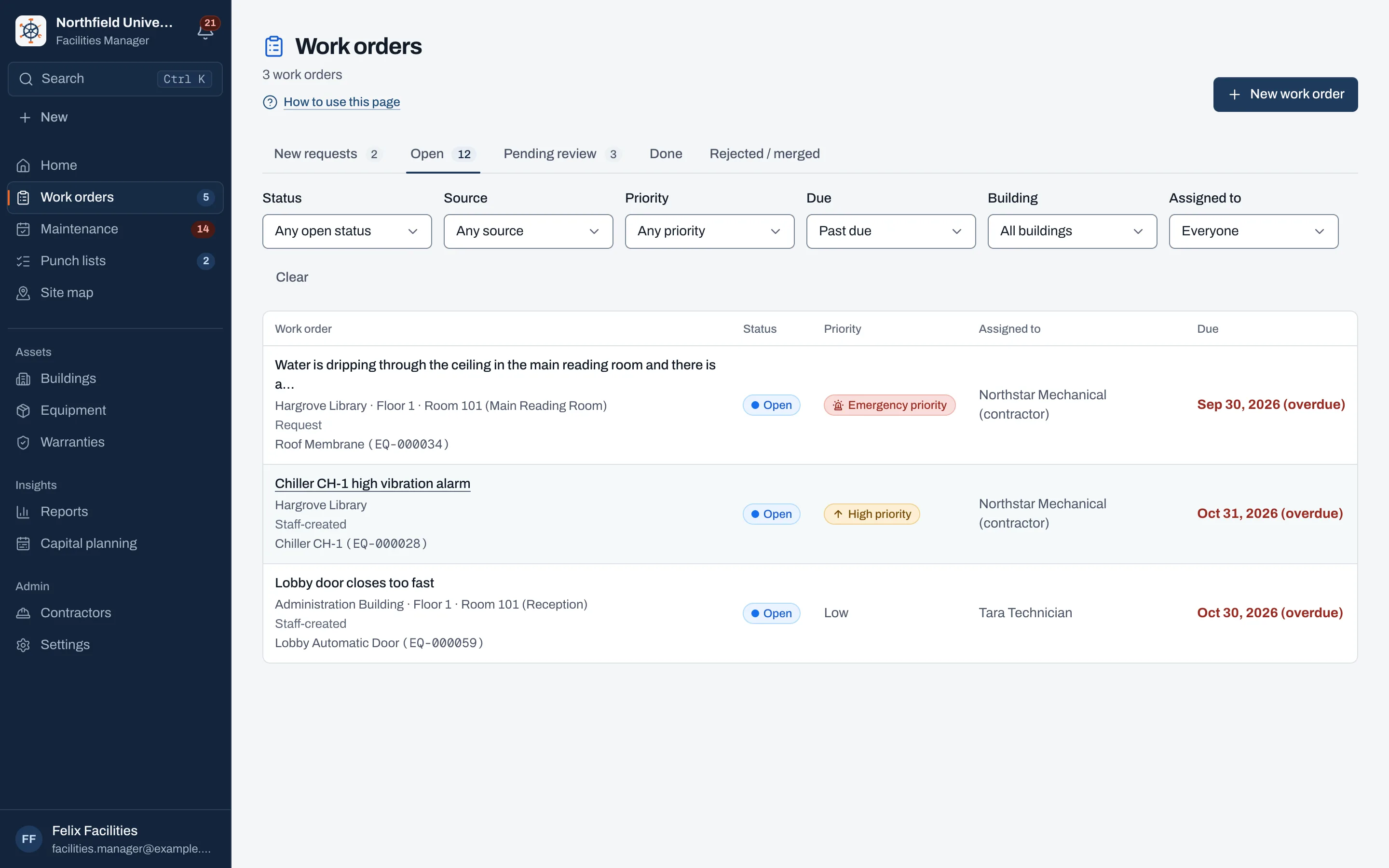
Every number on Home is a link. Select Past due, and the work order list opens with only the late jobs.