Getting started
A tour of BuildingHelm
A few minutes on the main areas: work orders, maintenance, punch lists, your buildings and equipment, and the reports.
- Who it's for
- Owner AdminsFacilities ManagersConstruction Quality Control ManagersMaintenance TechniciansViewers
- Where
- On a computer2:55 video
Steps
Step 1: Start on Home.
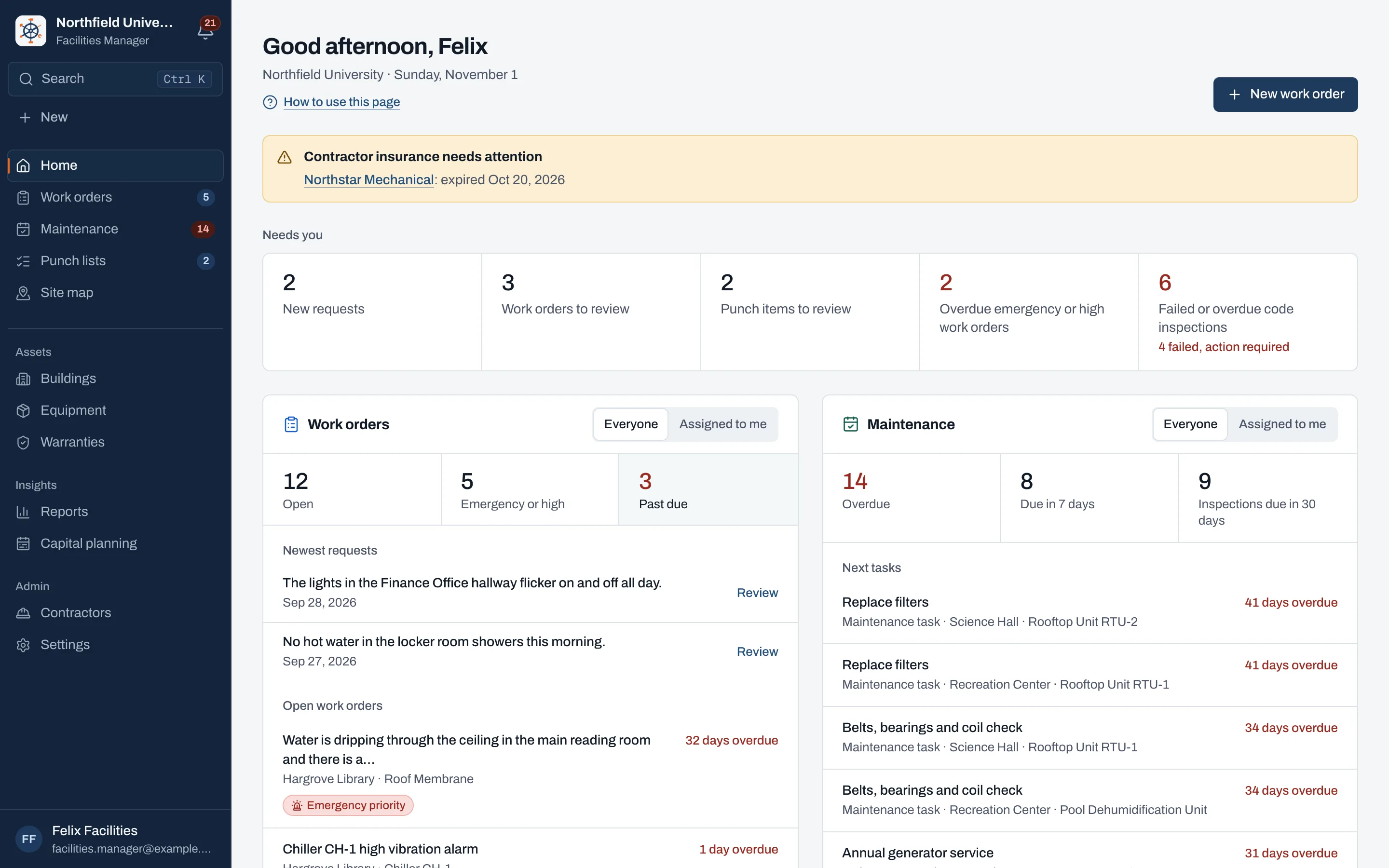
Step 2: Check Needs you first.
Step 4: Open Work orders.
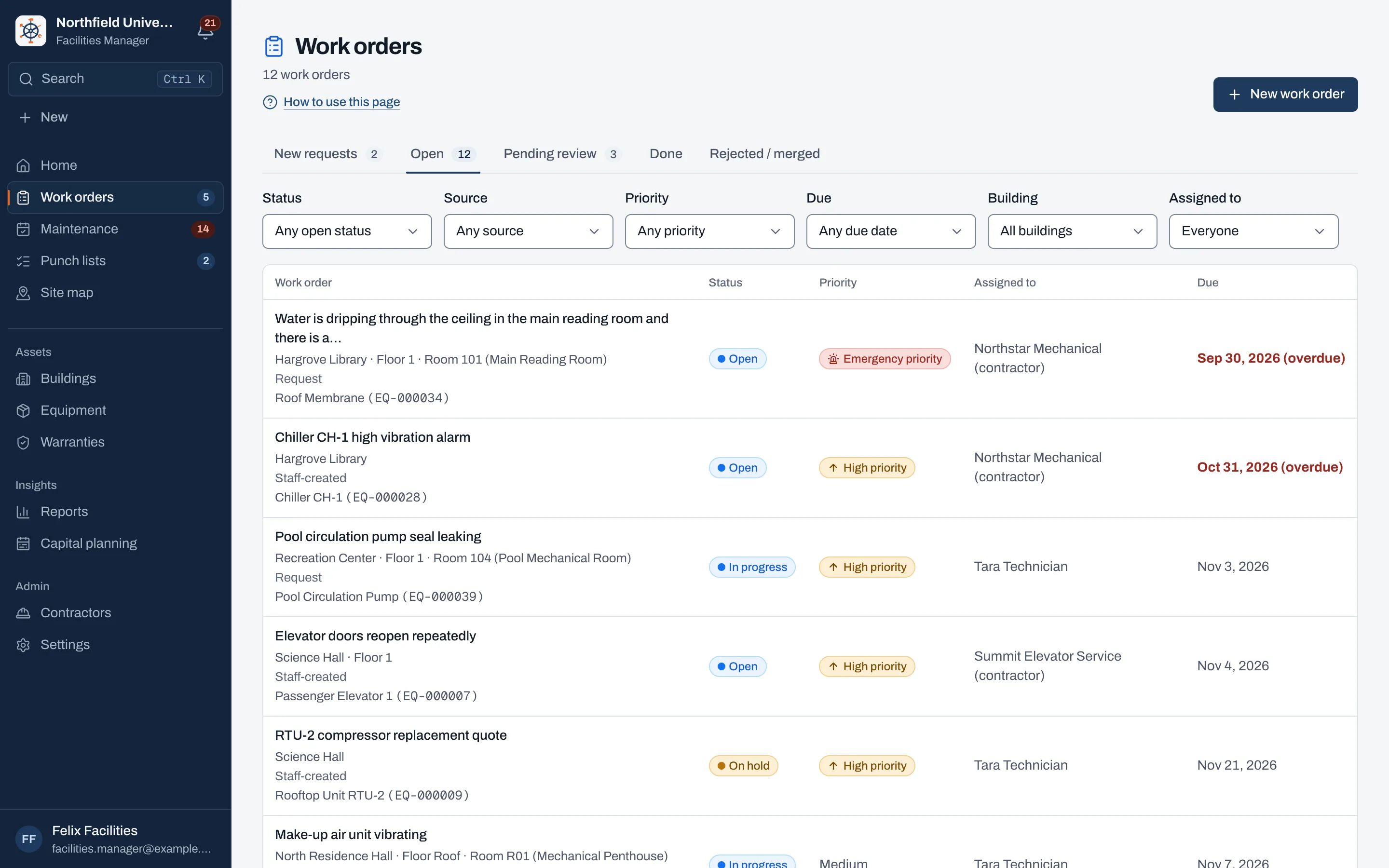
Step 5: Review what people report under New requests.
Step 6: Open a job to see where it stands.
Step 7: Scroll down for hours, photos and activity.
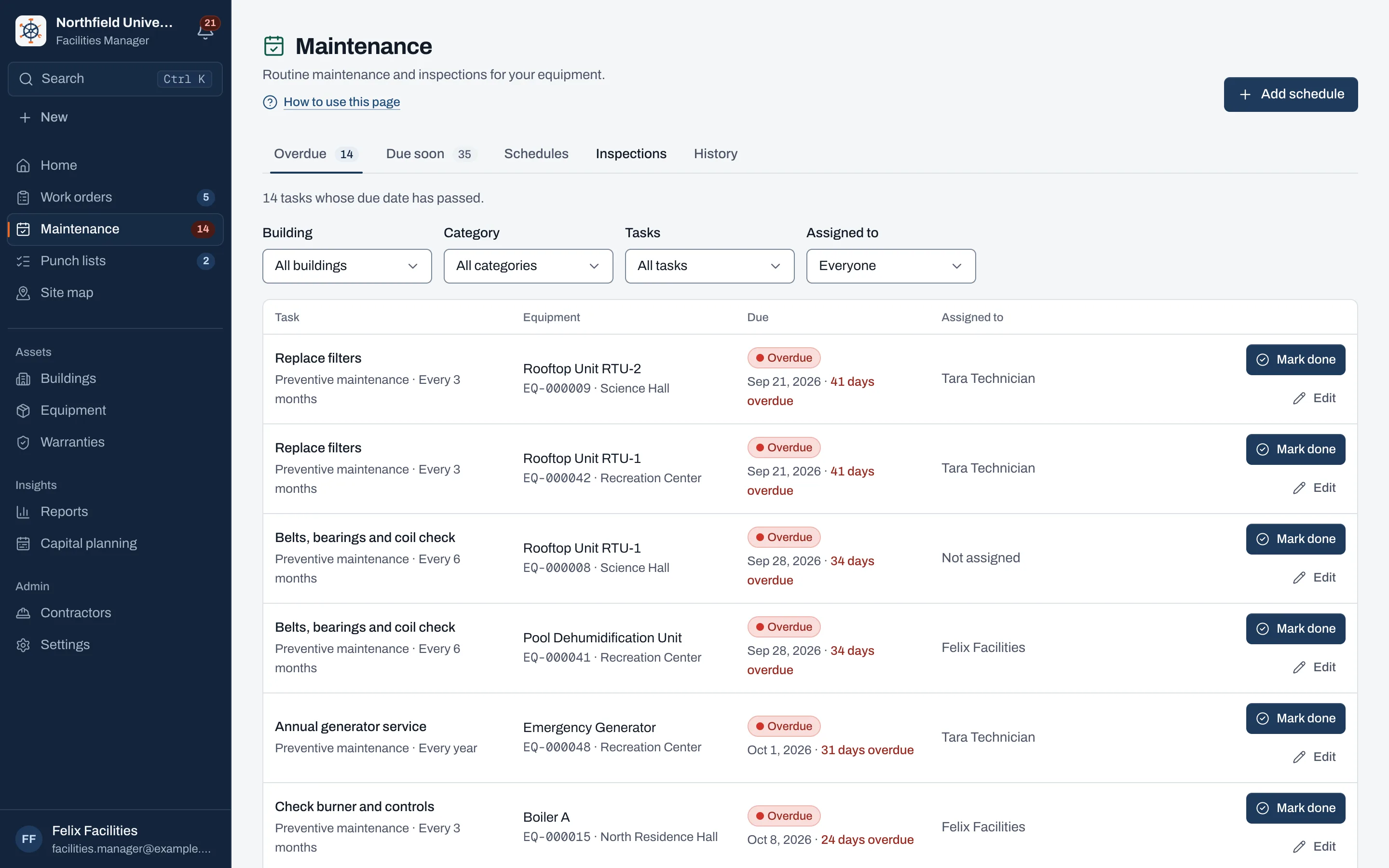
Step 8: Open Maintenance for scheduled work.
Step 9: Use Punch lists for turnovers and renovations.
Step 10: See every building under Buildings.
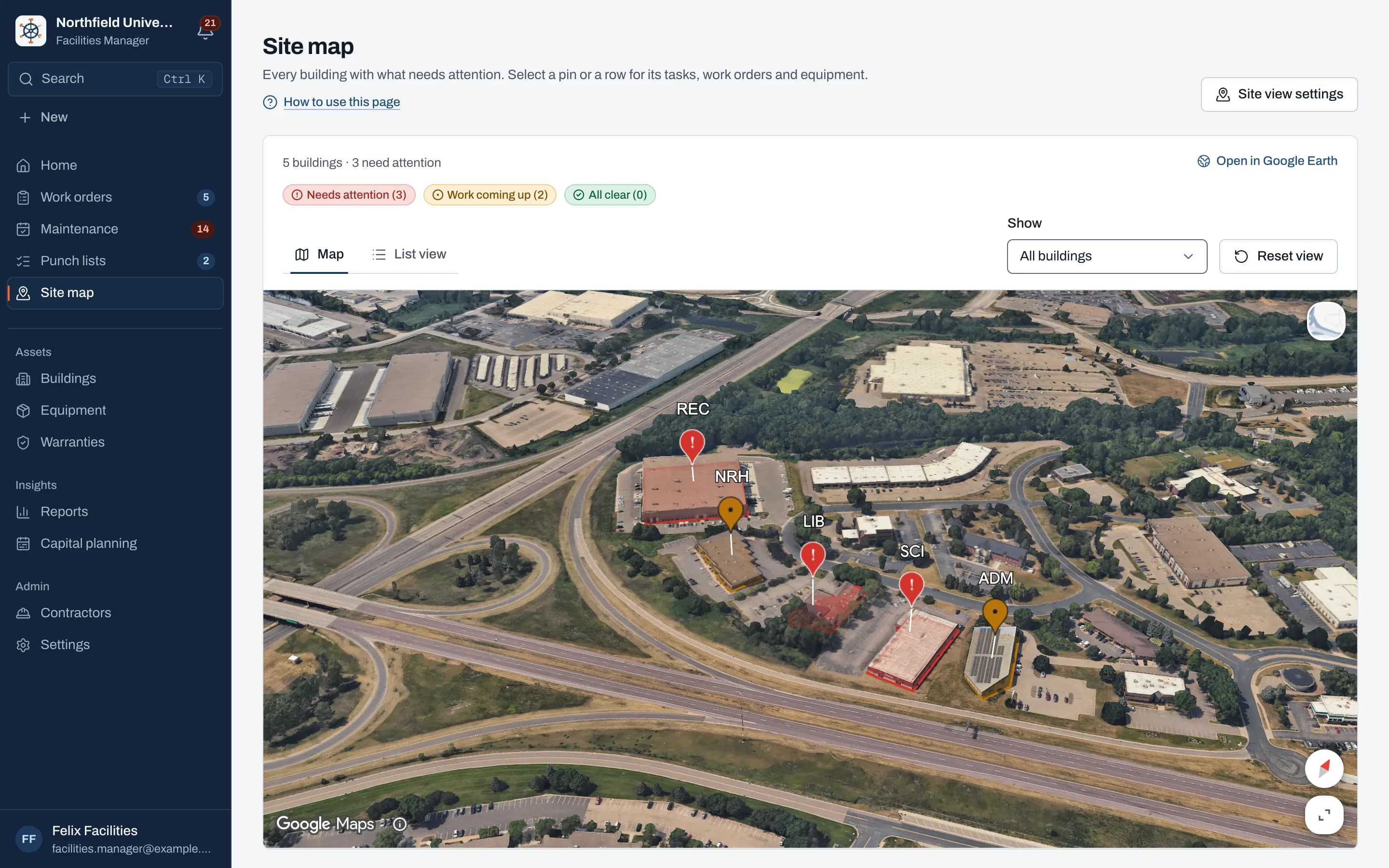
Step 11: Open a building from Buildings.
Step 12: Open a piece of equipment.
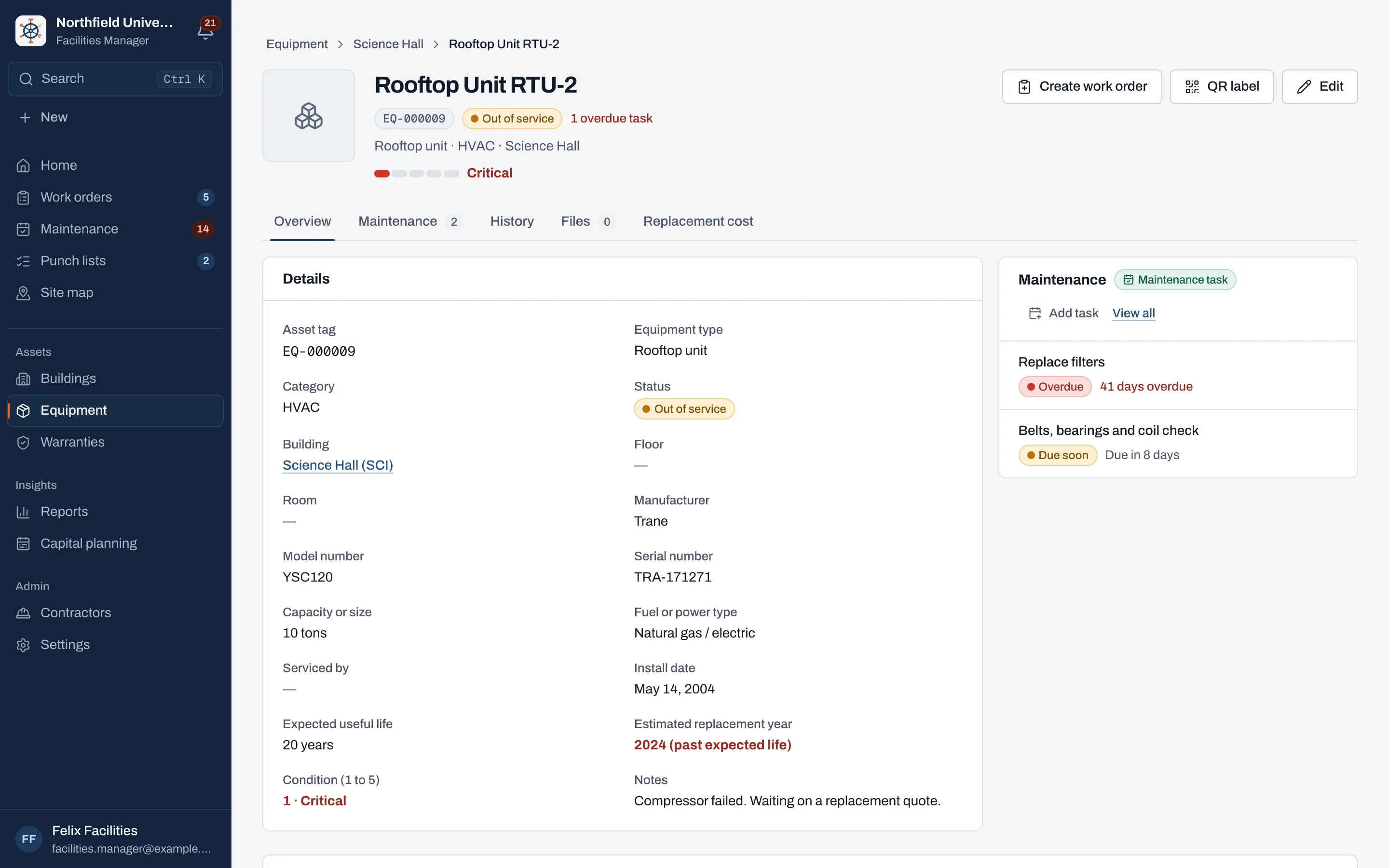
Step 13: Check its maintenance, history and files.
Step 14: Track coverage in Warranties.
Step 15: Open Reports, and the Compliance report.
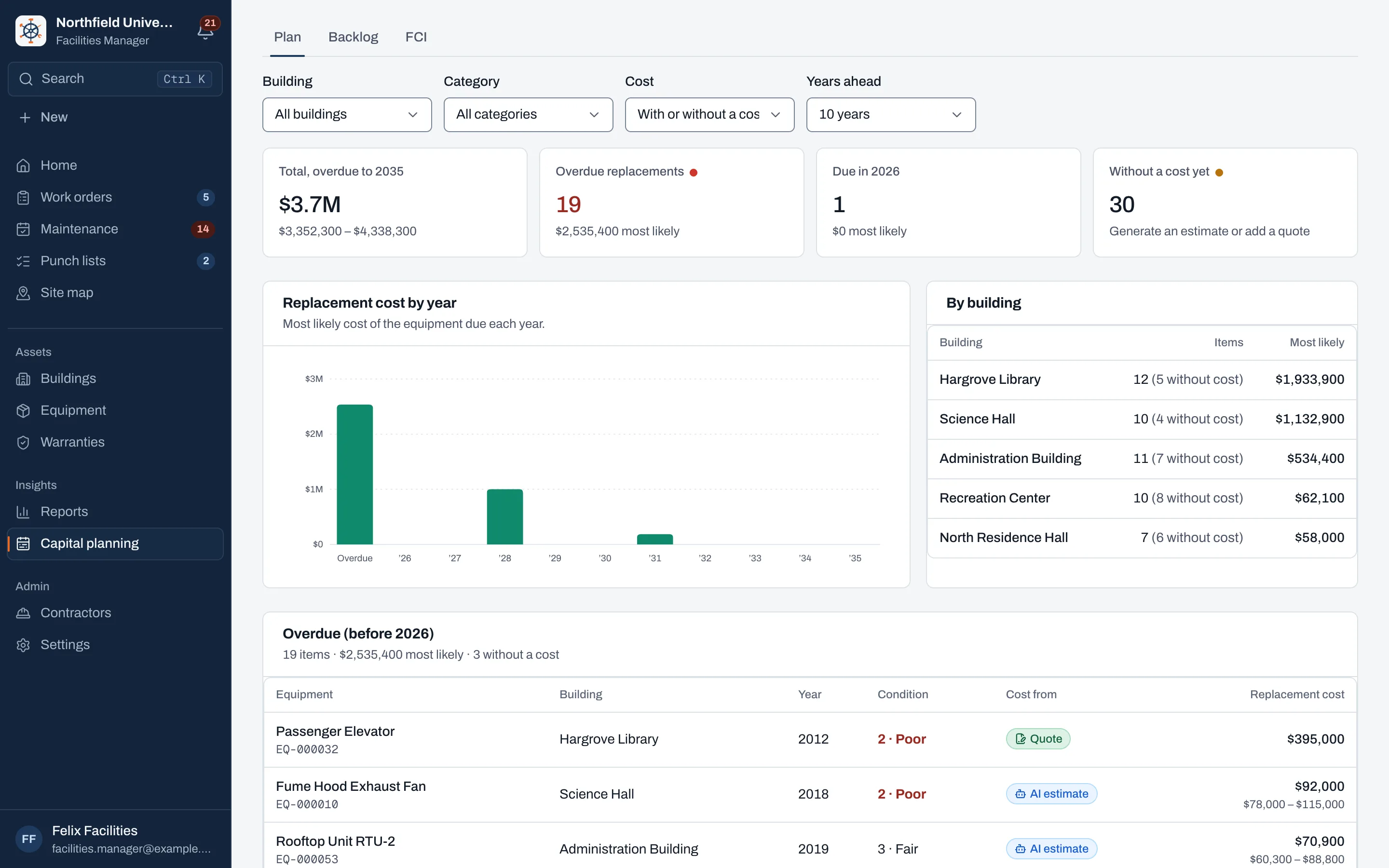
Step 16: Plan replacements in Capital planning.
Step 17: Compare buildings on the FCI tab.
Step 18: Use New and Search from any page.
Transcript
Show the transcript
Welcome to Building Helm. This short tour walks through the main areas, so you know where everything lives. It starts on Home, the page you see each morning.
Needs you lists what is waiting for you: new requests, finished work to review, and anything overdue. Each number opens the list behind it.
The menu on the left holds everything else. Your daily work is at the top, then your buildings and equipment, then reports and capital planning.
Work orders is where every repair lives. New requests from the people in your buildings arrive in their own tab, and open jobs, work to review and finished work each have one too.
Anyone in your buildings can report a problem from the QR codes on your doors or your request link, with no account needed. Each request waits here until you approve it as a work order, merge it or turn it down.
Open any job to see where it is, how urgent it is and who is on it. The Next step box always says what should happen now.
Further down are the hours logged, the photos and the full history of the job, so nothing gets lost between shifts.
Maintenance holds the planned work: filter changes, service visits and inspections. Overdue tasks come first, and the Inspections tab keeps your required code inspections together.
Punch lists group the small things to fix before a move-in or after a renovation. Each list shows how far along it is.
Buildings shows every building as a card with what needs attention. Click Floor plans on a card to see the drawing, with its equipment and open work orders.
Each building has its own page, with its photo and details at the top, then its open work orders, maintenance, punch list, floors and equipment. Its floor plans, drawings and documents are on its Drawings and Documents tab.
Every piece of equipment has a page too, with its nameplate details, its condition and when it should be replaced. The QR label on the unit opens this page from a phone.
Its tabs keep the maintenance schedule, the repair history and the manuals together, so the next technician knows what was done.
Warranties tracks what is still covered and warns you before coverage ends. Check it before you pay for a repair, and keep your claims here too, from the first call to the outcome.
Reports shows how the work is keeping up: open jobs, maintenance, punch items, hours and spending. The Compliance report lists every code inspection with its certificates, ready for an inspector.
Capital planning turns the age and cost of your equipment into a replacement plan, year by year. Use it to make the case for next year's budget.
The FCI tab compares your buildings by condition: the repairs you have put off, against what each building would cost to replace.
From any page, New creates a work order, a punch item or a building, and Search finds any room, equipment or job by name, or by its number, like WO-1042. Each area has its own short guide here in the Help Center.