Getting started
Set up your site, buildings and rooms
Add buildings, floors and rooms one by one, import them from a spreadsheet with a preview that flags problems first, or import a building's documents.
- Who it's for
- Owner AdminsFacilities ManagersConstruction Quality Control Managers
- Where
- On a computer1:21 video
Steps
Step 1: Open Buildings from the menu.
Step 2: Use Manage site to edit your site or add another.
Step 3: Select Add a building, then enter a name and abbreviation.
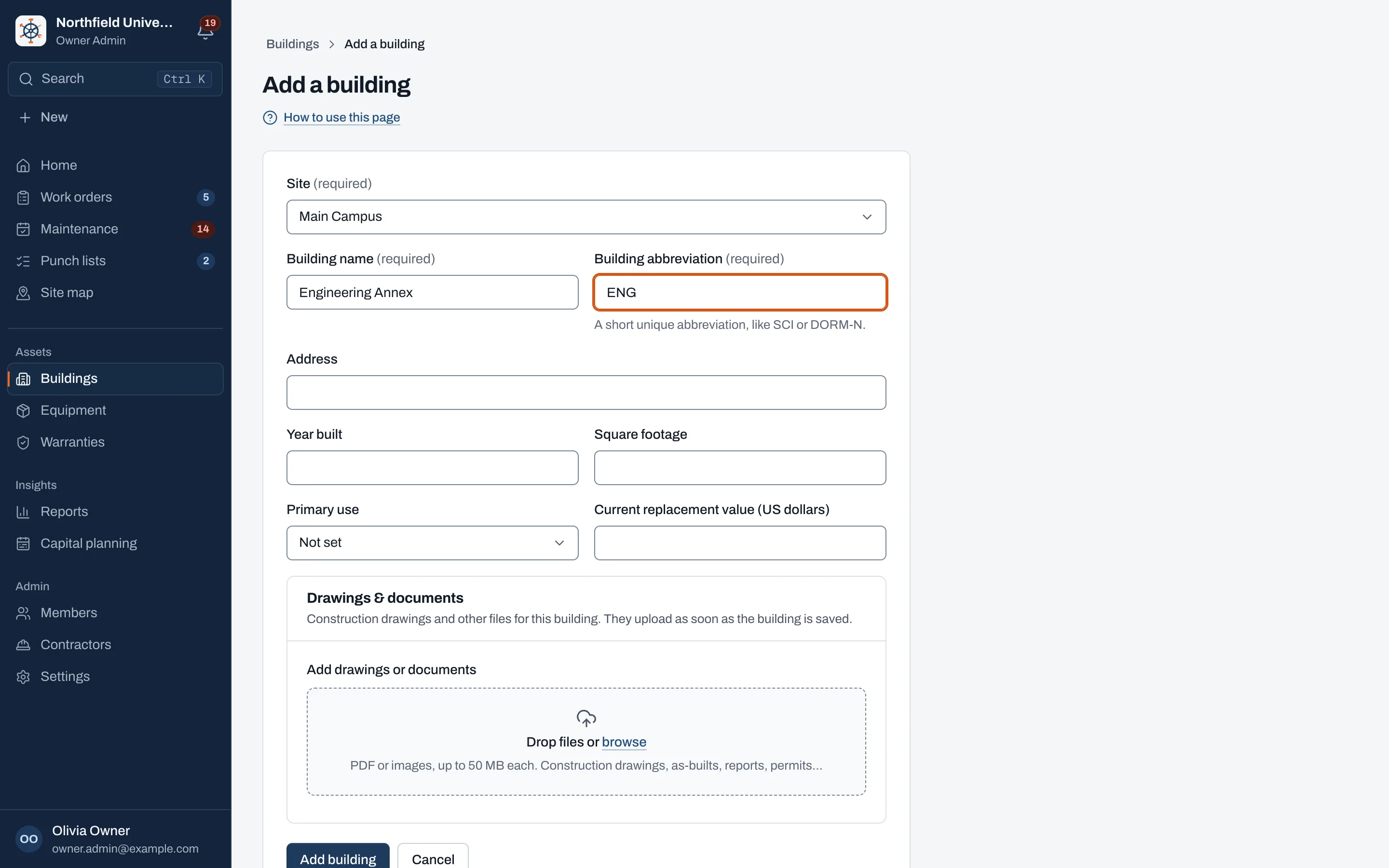
Step 4: Add what you know, then select Add building.
Step 5: Select Add a floor and name it.
Step 6: Select Add a room, then enter its number, name and type.
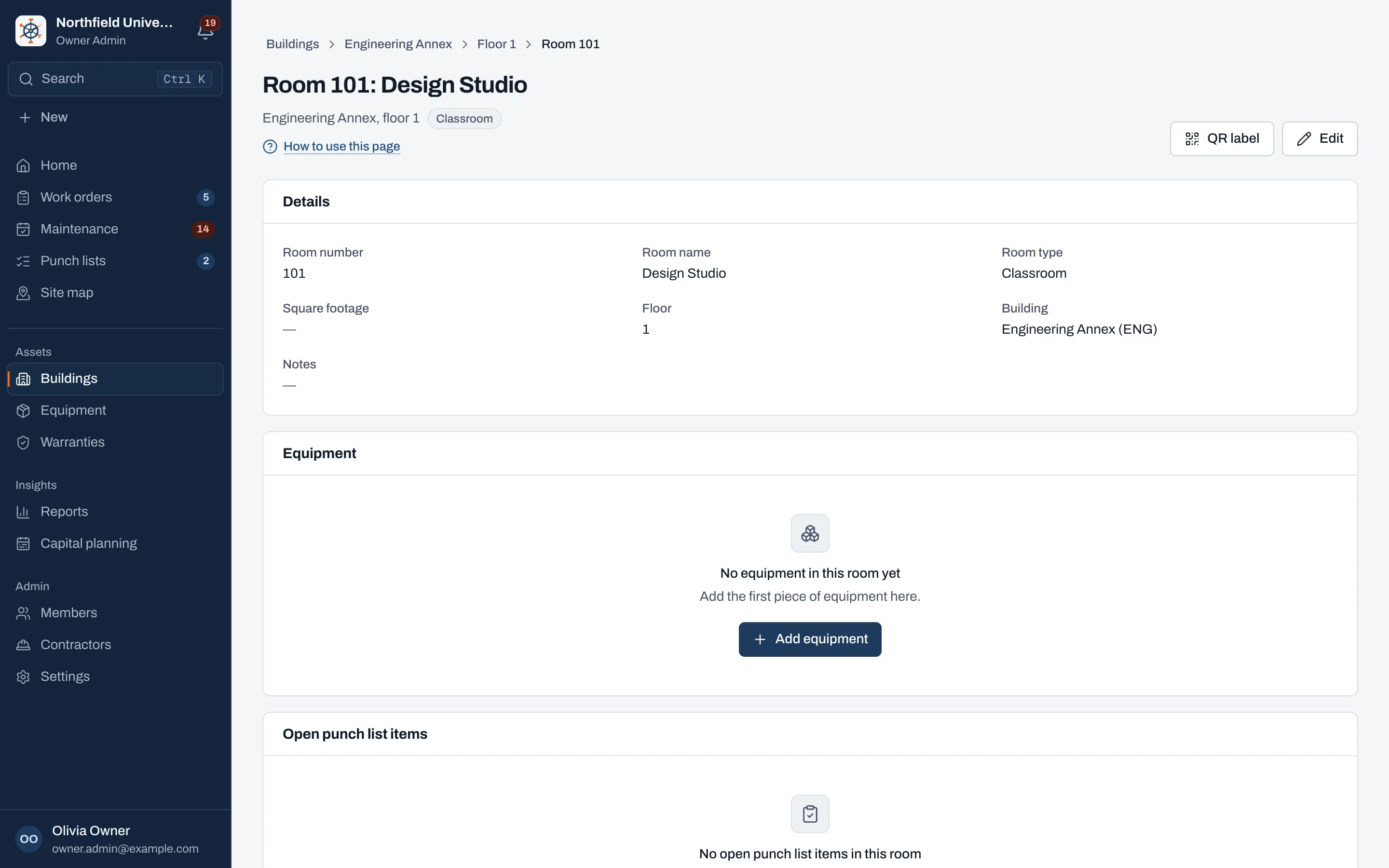
Step 7: Forgot one? Choose + Add building or + Add room in the list.
Step 8: Watch the setup checklist count your progress.
Step 9: For many rooms at once, select Import on Buildings, then Spreadsheet import.
Step 10: Choose your file and select Check the file.
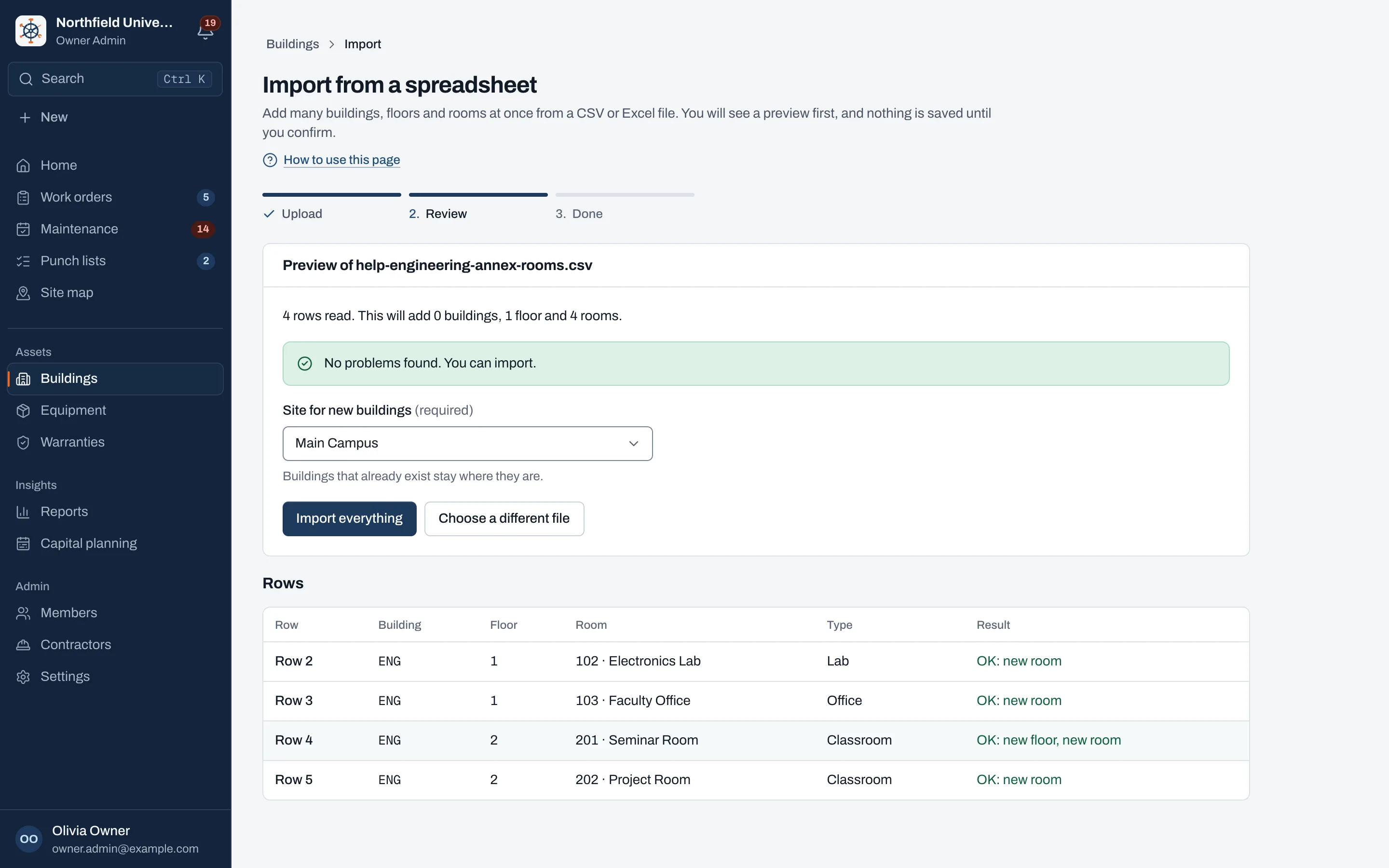
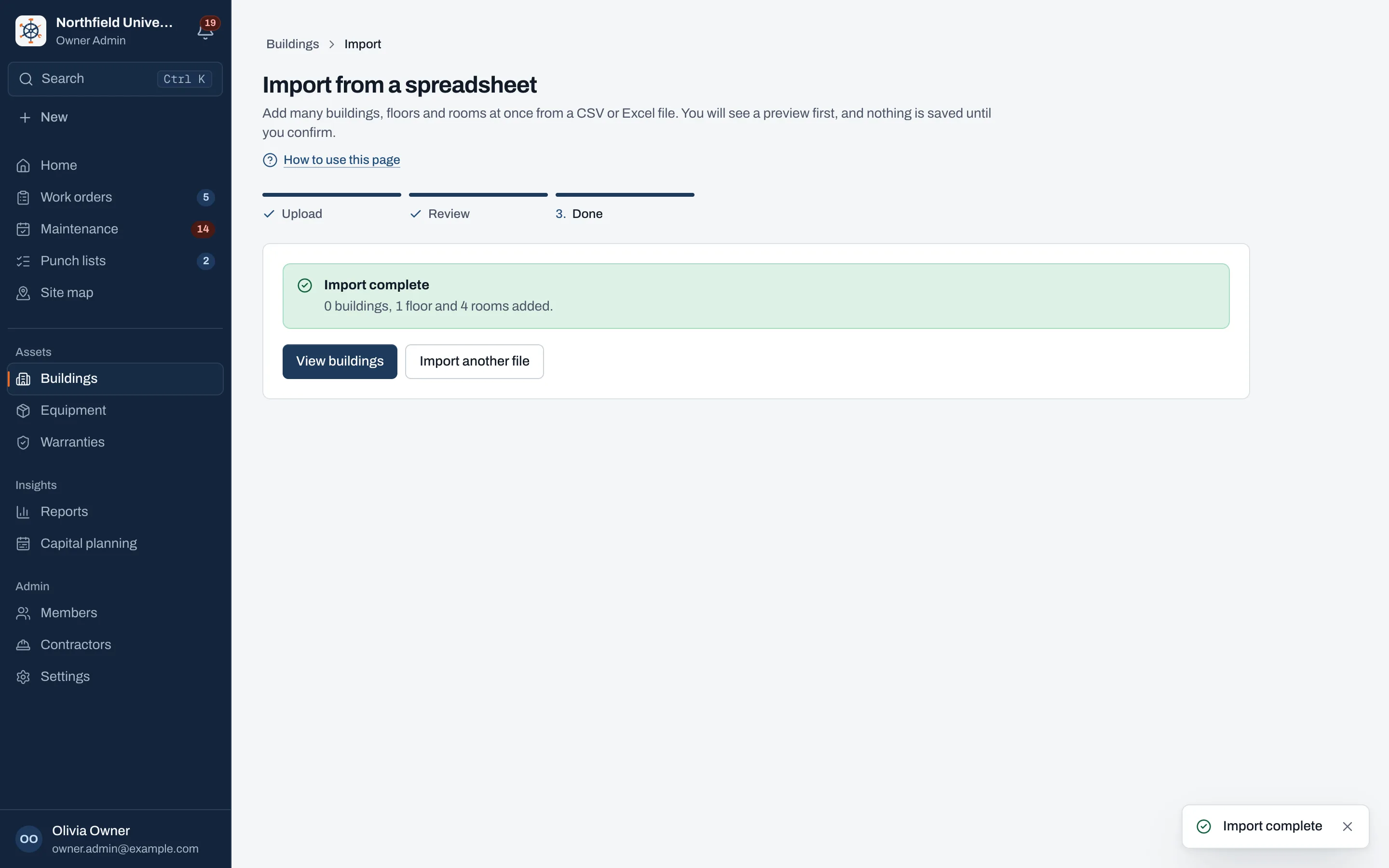
Step 11: Select Import everything.
Transcript
Show the transcript
Building Helm follows your site the way you walk it: a site holds buildings, a building holds floors, and a floor holds rooms. It all starts on the Buildings page.
Your site is already set up. Manage site lets you change its name and address, or add a second site.
Select Add a building. Give it a name and a short abbreviation, which appears across your lists and must be unique.
Add the year built and the primary use if you know them, then select Add building. The building gets its own page.
Next, add its floors. Use the names people say out loud, like Basement, 1 or Roof, and Building Helm puts them in order.
On each floor, add the rooms: the number, a name if it has one, and the type. Requests, equipment and punch items are all tracked by room.
You don't have to leave a form to add a missing place. At the bottom of a Building or Room list, choose + Add building or + Add room, fill in the short pop-up, and the new place is selected for you.
The setup checklist counts a step as done once you have at least 1 building, 5 rooms and 5 pieces of equipment. Until then it says how many are left, like Add 3 more rooms. A Finish setting up banner on other pages links back to it, and its X hides it until you close your browser.
Have a lot of rooms? Import them from a spreadsheet instead. Download the template, fill in one row per room, and upload it here.
Choose your file and select Check the file. You see a preview of every row, and any problems are flagged before anything is saved.
When there are no problems, select Import everything. The new floors and rooms are added in one go.