Assets
Print QR labels and scan them
Print QR labels for rooms and equipment on standard label sheets, then scan one to open the record or report a problem.
- Who it's for
- Owner AdminsFacilities ManagersConstruction Quality Control ManagersMaintenance Technicians
- Where
- On a computer1:11 video
Steps
Step 1: Open Equipment from the menu on the left.
Step 2: Filter the list, then click QR labels for these.
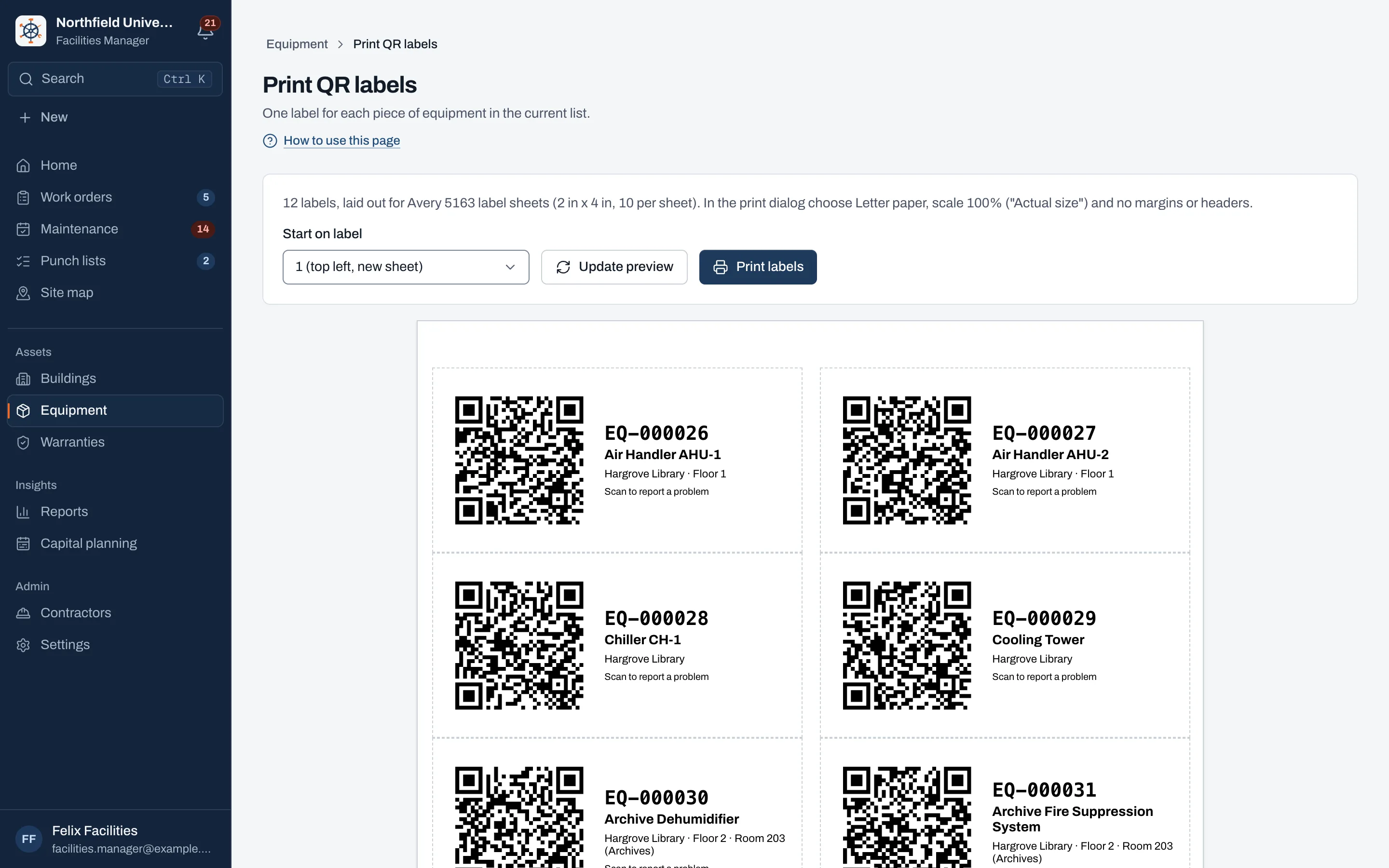
Step 3: Using a started sheet? Choose where to start.
Step 4: Click Print labels.
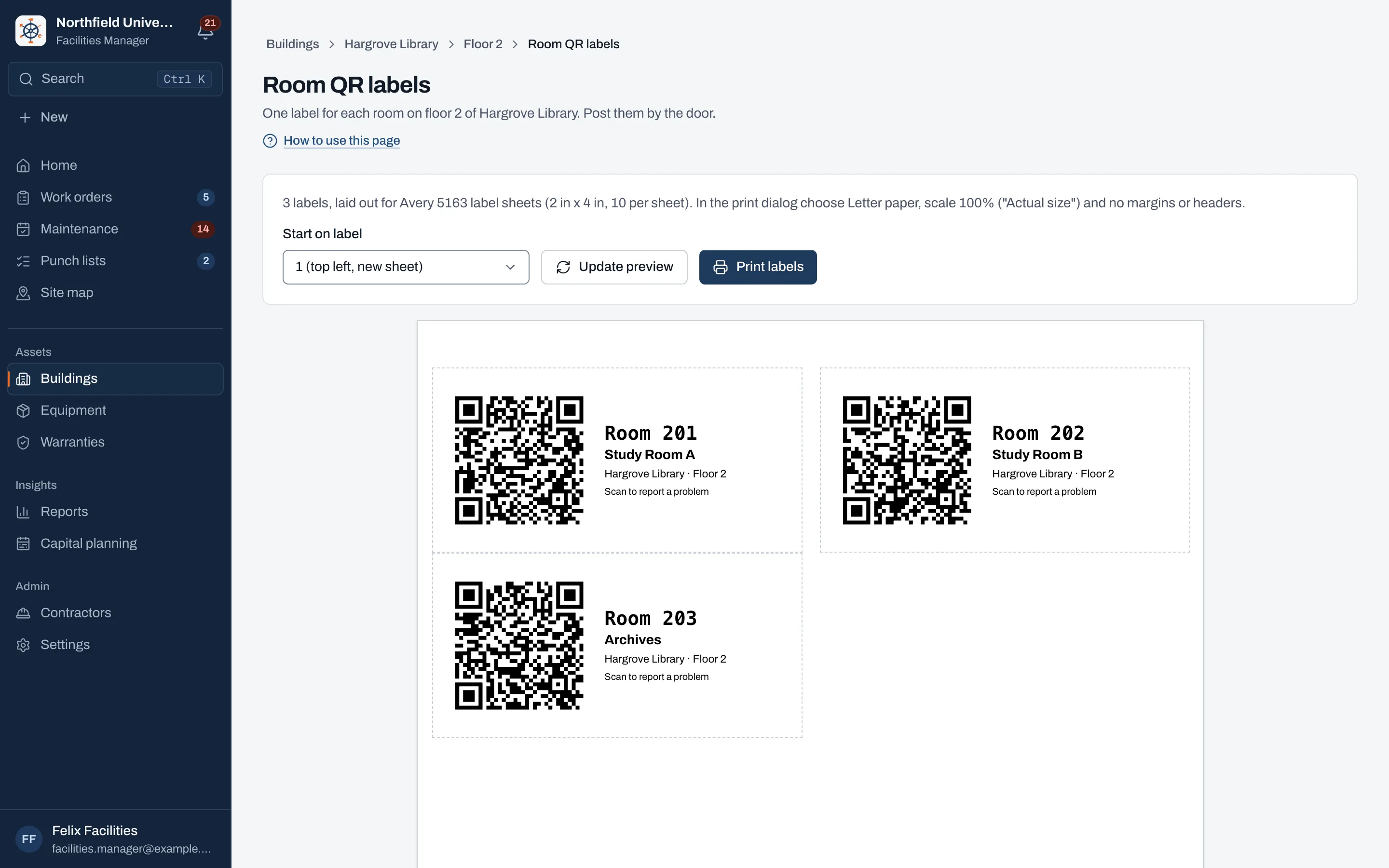
Step 5: For room labels, open a floor and click Room QR labels.
Step 6: Open Scan. Technicians have it in their tab bar.
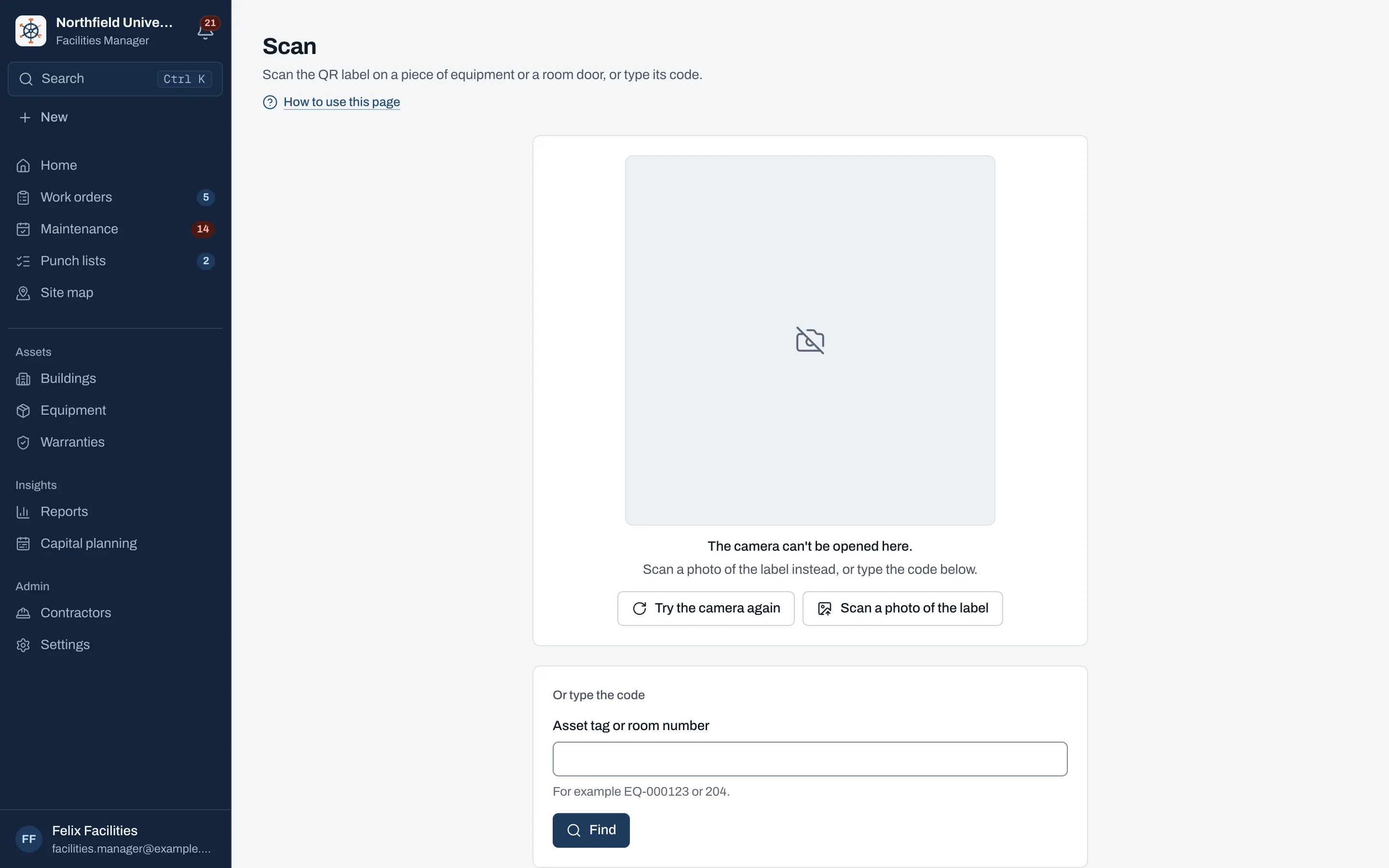
Step 7: Or type the asset tag or room number, and click Find.
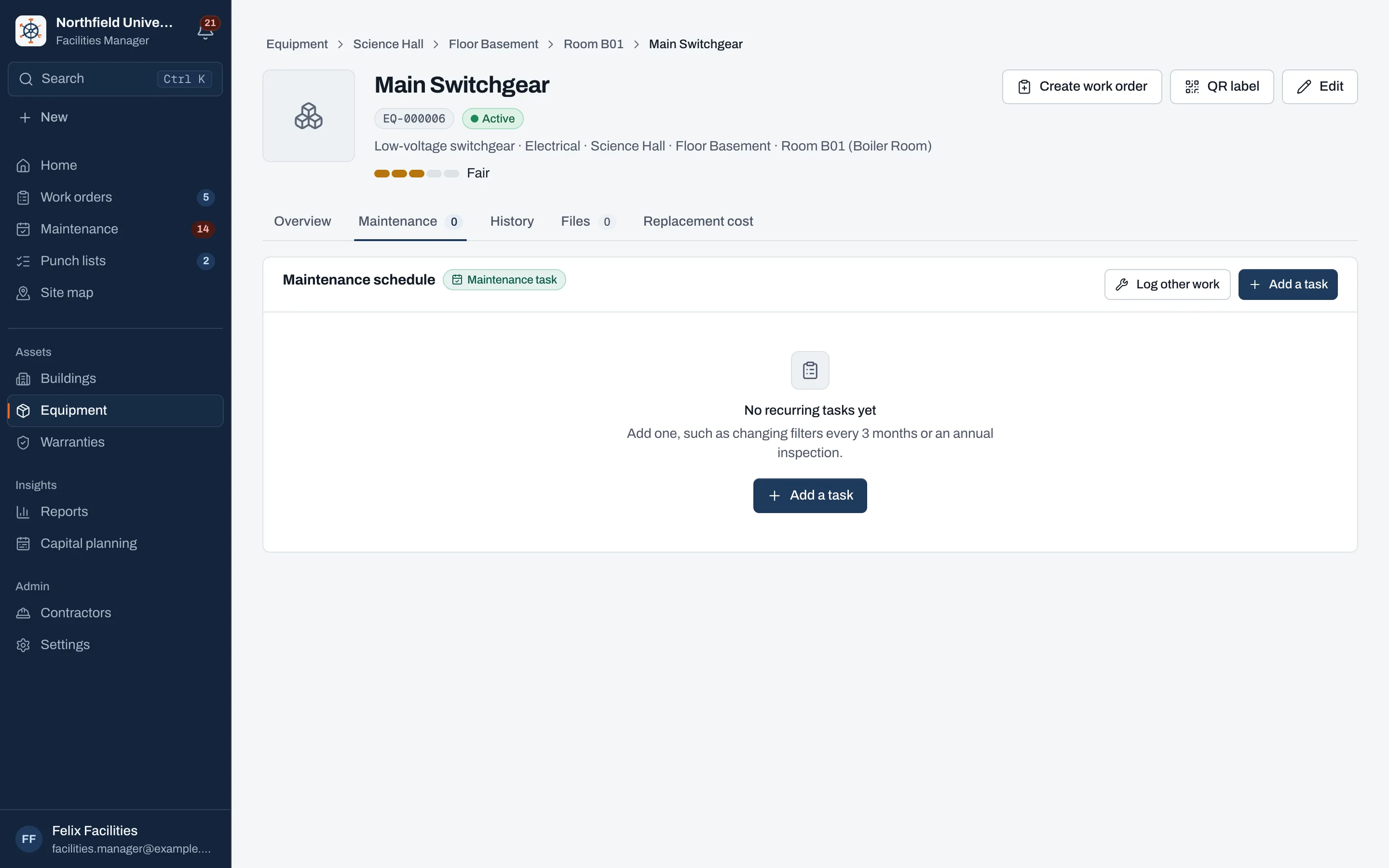
Step 8: The code opens the equipment's Maintenance tab.
Step 9: Mark Print QR labels as done on the setup checklist.
Transcript
Show the transcript
Every piece of equipment and every room can have its own QR label. Start from the equipment list.
Filter the list, for example to one building, then click QR labels. You get one label for each piece of equipment in the list.
The labels are laid out for Avery 5163 sheets, ten to a page. If you're using a sheet you already started, choose the first free label and update the preview.
Then click Print labels. In the print dialog, choose Letter paper at 100 percent, with no margins or headers.
Room labels come from each floor's page. Post them by the door. Staff who scan one can add a punch item for that room, and anyone else gets the repair request form.
To scan a label, technicians tap Scan in the bar at the bottom of their phone, and the camera opens. On a computer, or when the camera is blocked, the page tells you so.
You can always type the code instead: an asset tag, or a room number. A torn or faded label never stops the job.
A scan opens the equipment's Maintenance tab. When one of your tasks on it is due, its completion form opens straight away.
Building Helm can't tell when you have printed labels, so the setup checklist's Print QR labels step is ticked by hand with Mark as done. Only Owner Admins can tick it, along with Share your repair request link. Facilities Managers see both steps but can't tick them.