Work orders
Receive repair requests with QR codes and a request link
Share your request link or put QR codes on doors, so anyone in your buildings can report a problem without an account.
- Who it's for
- Owner AdminsFacilities Managers
- Where
- On a computer1:15 video
Steps
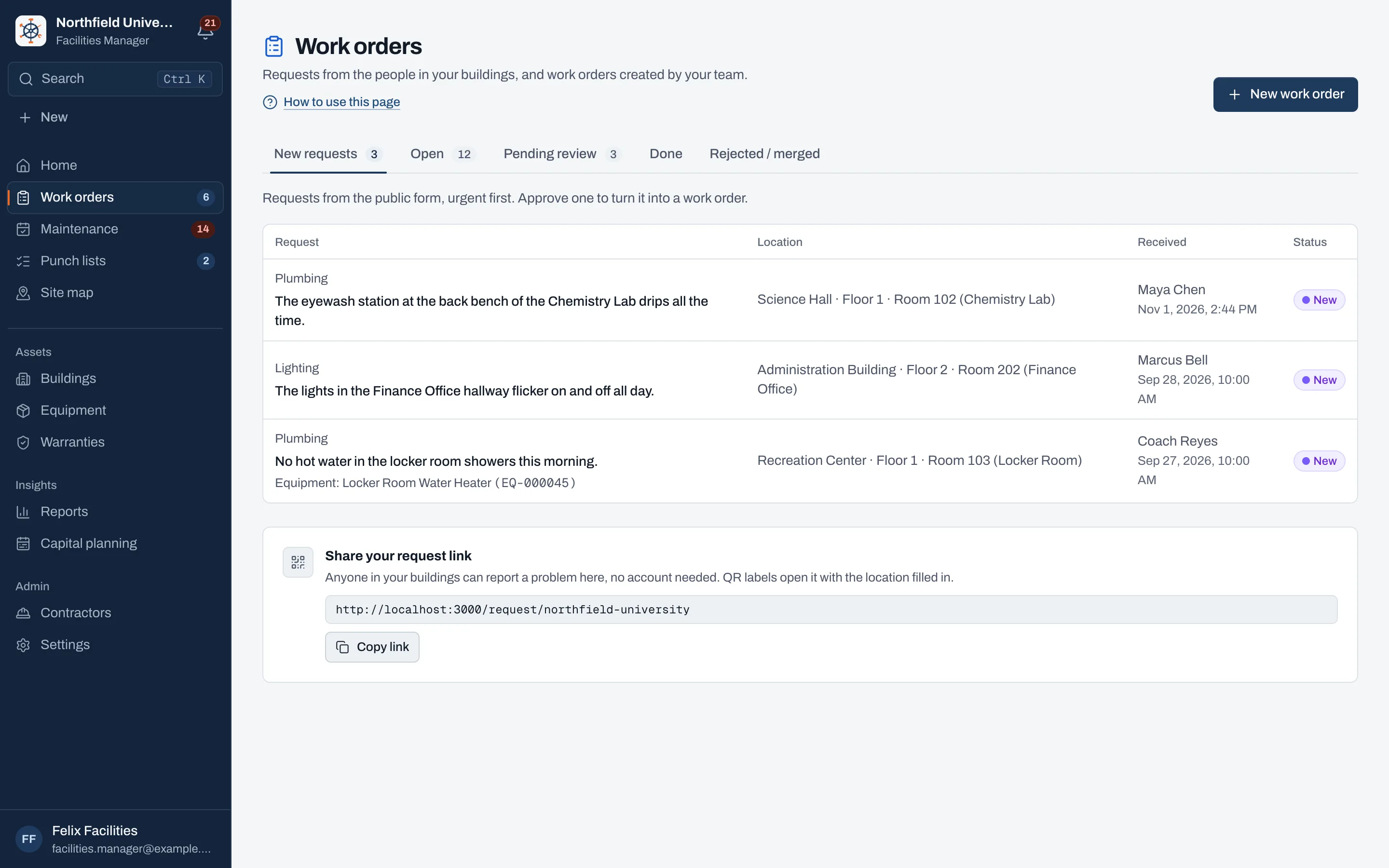
Step 1: Open Work orders, then the New requests tab.
Step 2: Copy your request link.
Step 3: On a room's page, click QR label.
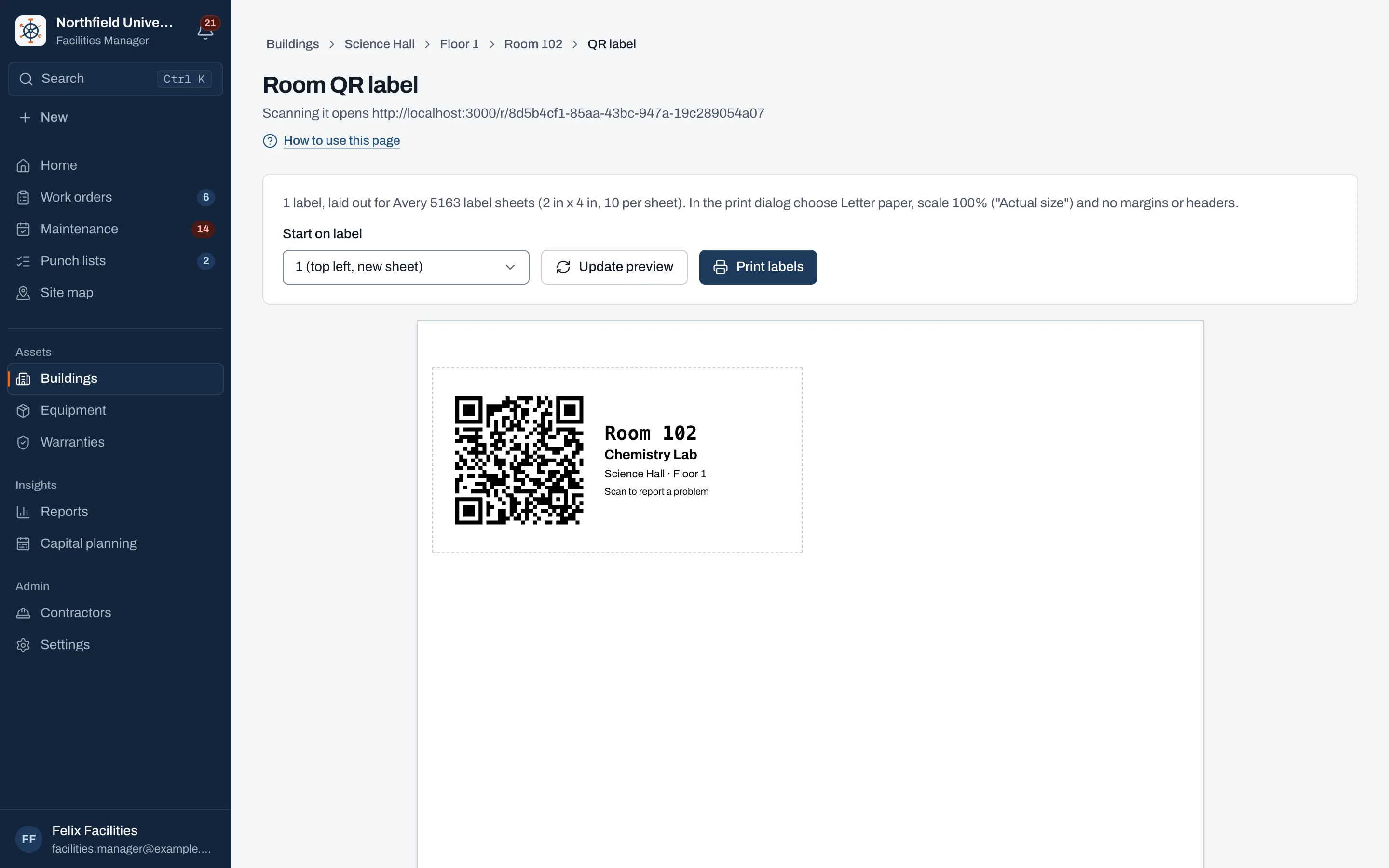
Step 4: Click Print labels, then put them up.
Step 5: Requesters first say where the problem is.
Step 6: Then they choose a category and describe the problem.
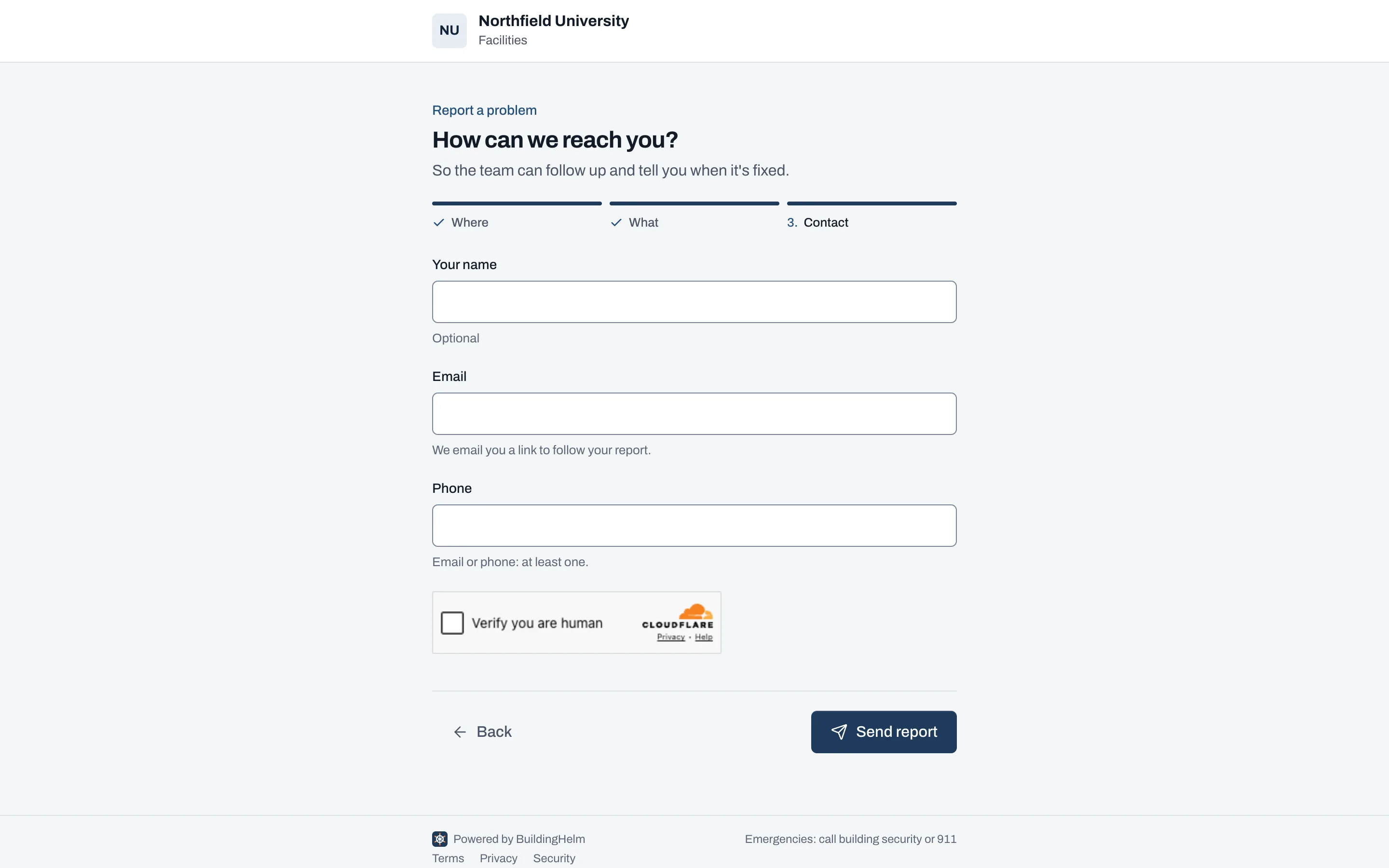
Step 7: Last, they leave an email or phone number and send it.
Step 8: The Request sent screen gives them a tracking link.
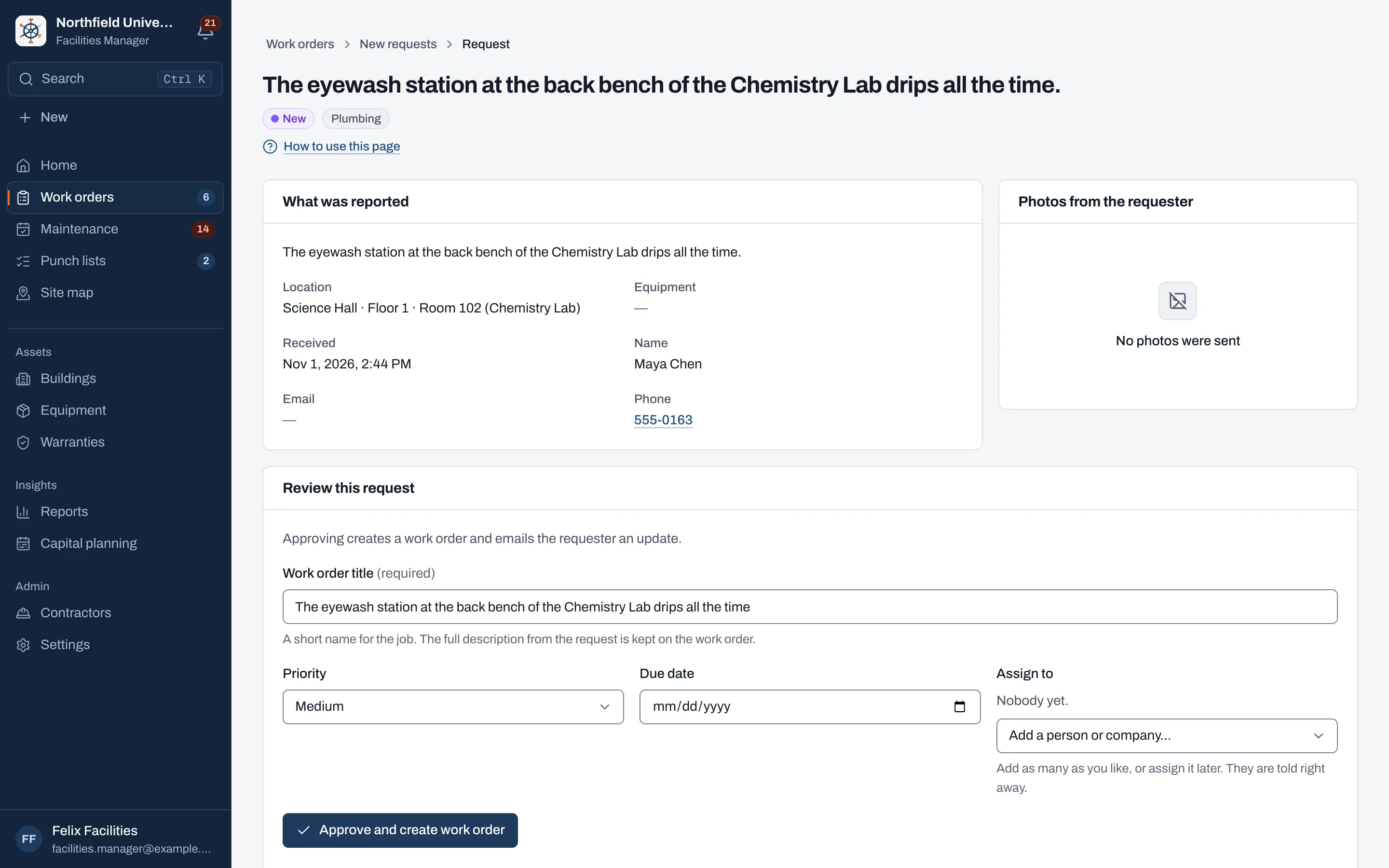
Step 9: New reports appear under New requests. Open one to review it.
Transcript
Show the transcript
Anyone in your buildings can report a problem without an account, and every report lands in Work orders. Open it from the menu, then select the New requests tab.
Below the list is your request link. Copy it into your website, email signature or newsletter, so everyone knows where to report a problem.
For doors and equipment, use QR labels. Every room and every piece of equipment has one. Scanning it opens the same form with the location already filled in.
Labels are laid out for standard label sheets. Click Print labels and stick them where people will see them. You can also print a whole floor, or all your equipment, at once.
Here's what a requester sees when they open the link or scan a label. It takes about a minute. First, they say where the problem is.
Next, they pick a category, describe the problem and can add photos. If they tick This is urgent, the report goes to the top of your list.
Last, they leave an email or a phone number and select Send report. A quick check keeps out spam.
They then see Request sent, with a tracking link to copy or open. If they left an email, we send the link by email too. If not, they can still add an email there with Email me updates, to get a message each time the status changes.
Each report shows up here under New requests, urgent ones first. Open one to see what was reported, then approve it, merge it with a duplicate or reject it.