Assets
Add equipment with a nameplate scan
Photograph a nameplate to fill in the make, model and serial number, and get an AI estimate of when it needs replacing and what it may cost.
- Who it's for
- Owner AdminsFacilities ManagersConstruction Quality Control Managers
- Where
- On a phone1:22 video
Steps
Step 1: Tap More, then Equipment.
Step 2: Tap Add equipment.
Step 3: Tap Scan nameplate and take a photo of the plate.
Step 4: Check each field, fix anything that's wrong.
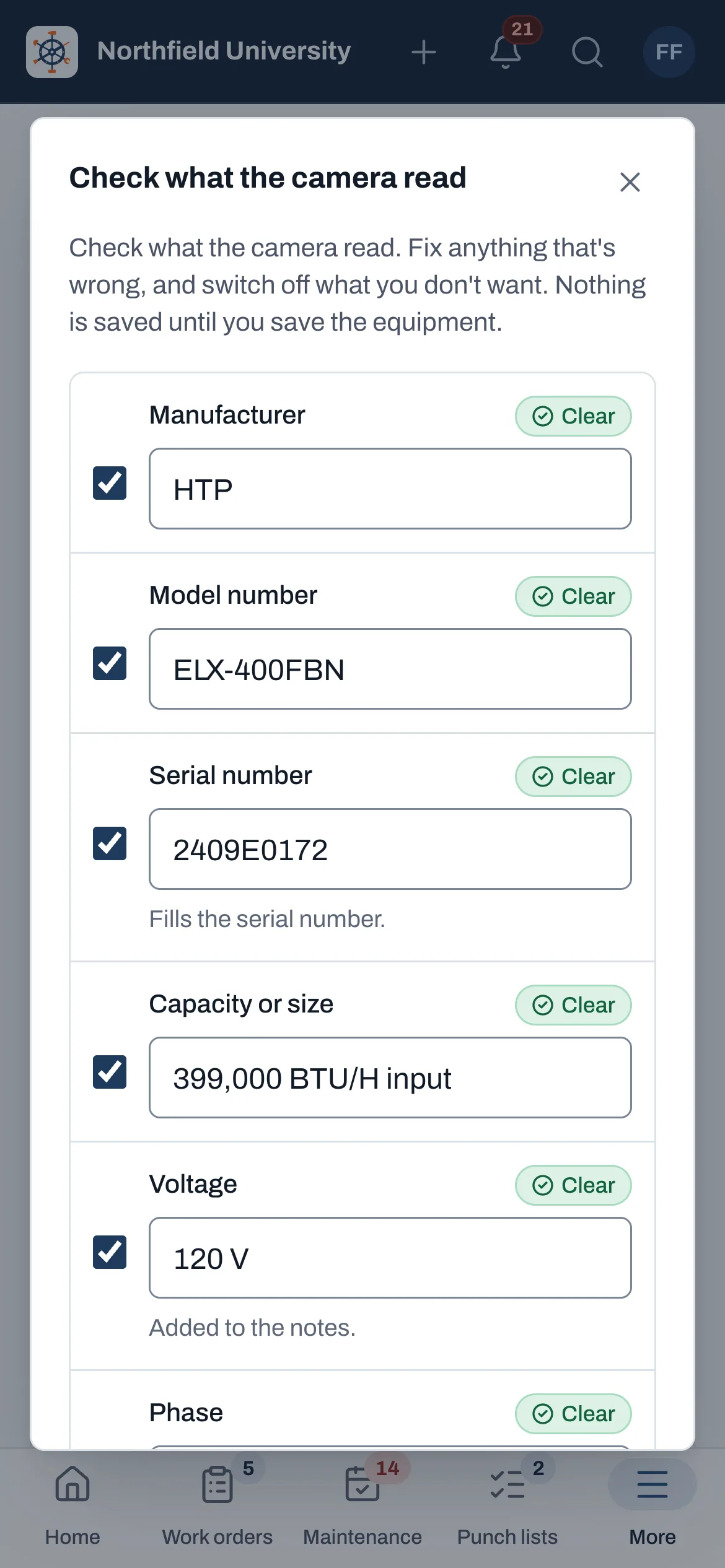
Step 5: Tap Fill the form.
Step 6: Choose the type, then the building, floor and room.
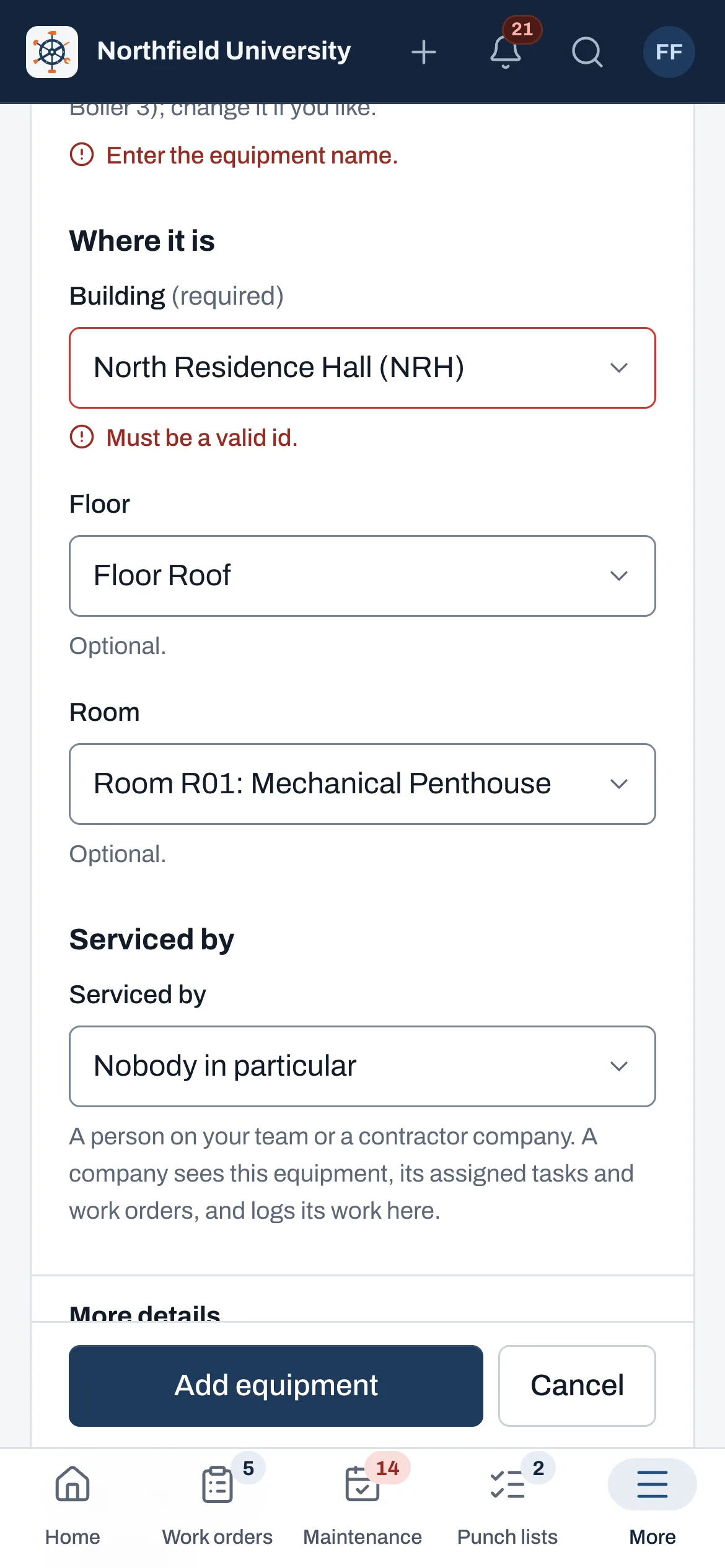
Step 7: Tap Add equipment.
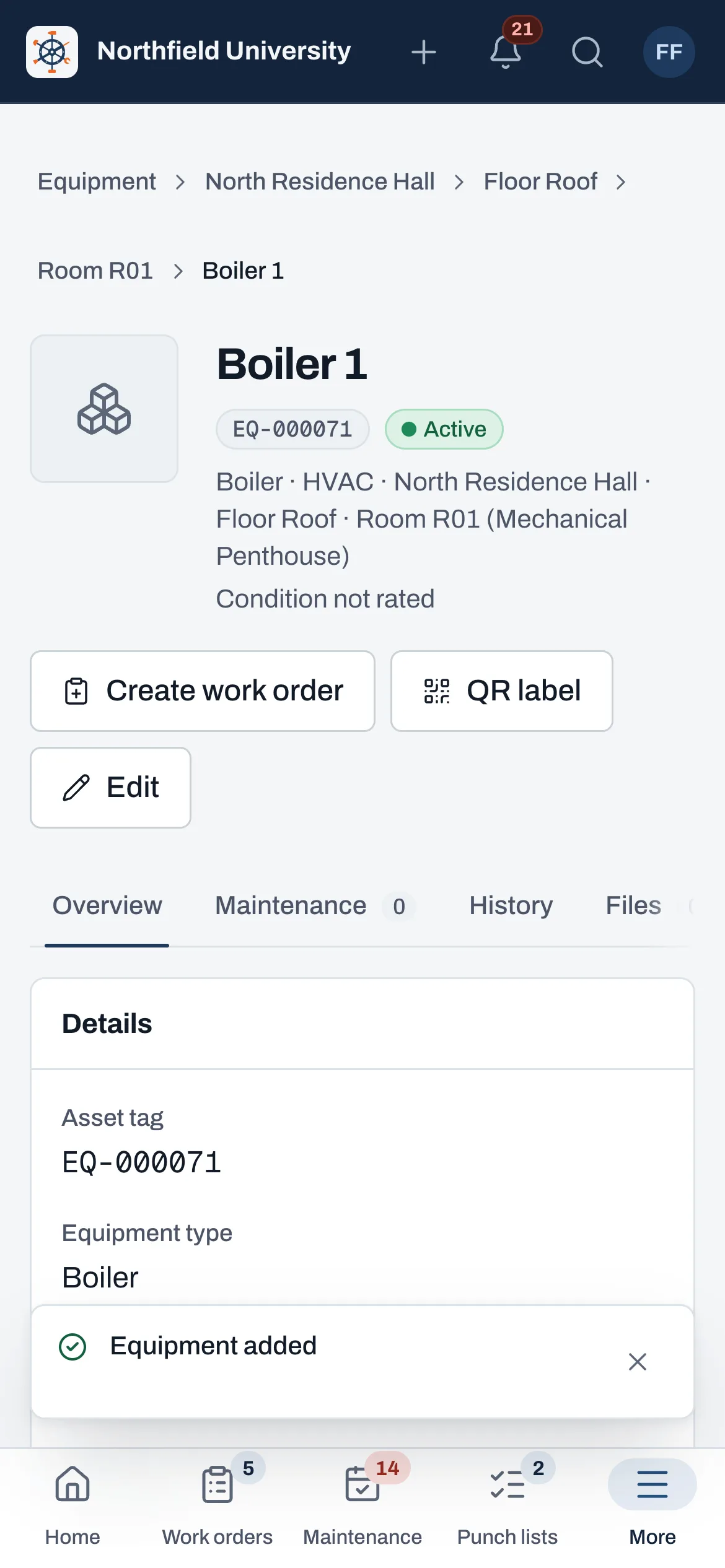
Step 8: When it breaks, choose Mark out of service.
Step 9: Read the Downtime card, then mark it working again.
Step 10: Home flags equipment that is missing a model or install date.
Step 11: Open Replacement cost and tap Generate replacement estimate.
Step 12: Read the low, most likely and high cost.
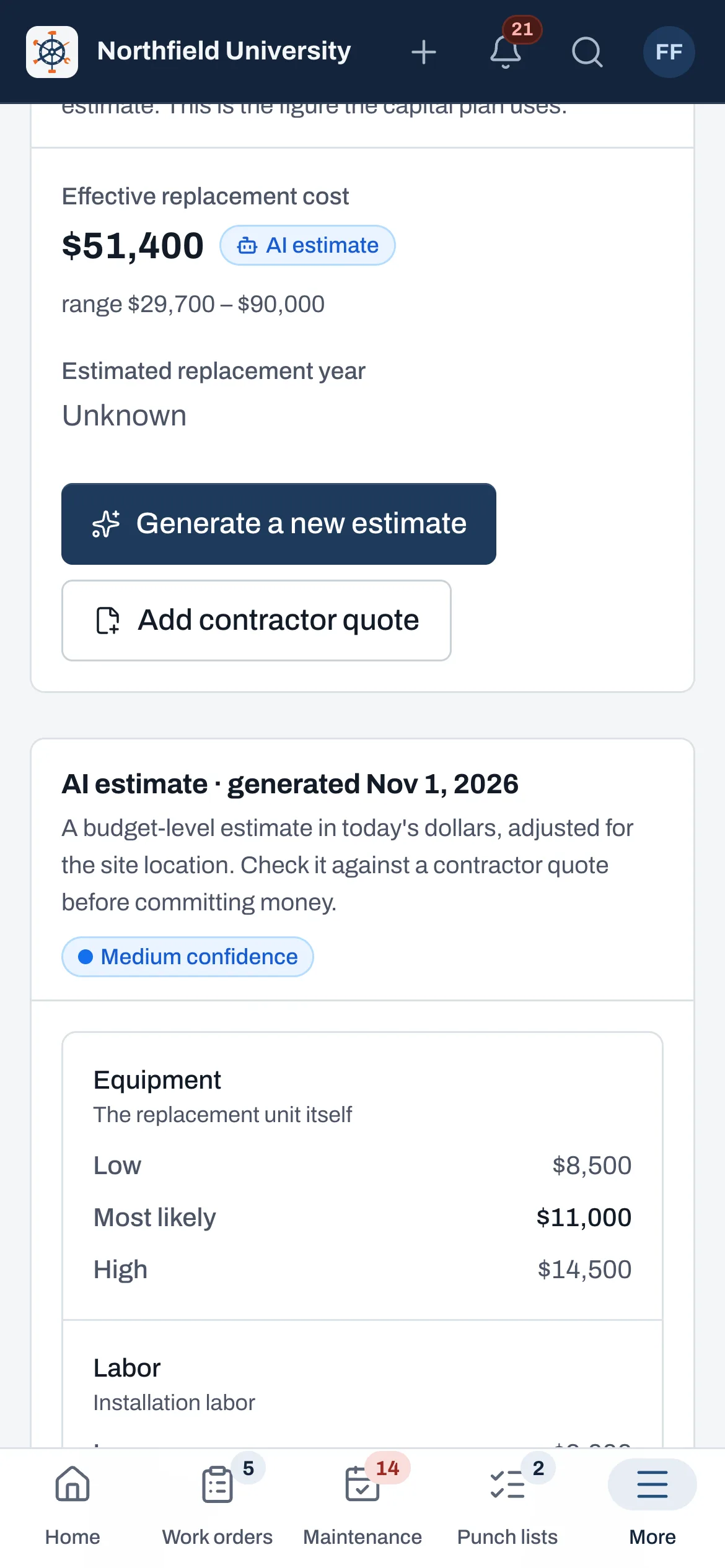
Transcript
Show the transcript
On your phone, equipment is under More. Tap More, then Equipment.
Tap Add equipment. You can type everything in, but the quickest way is to scan the nameplate.
Tap Scan nameplate and take a photo of the metal plate. AI reads the make, model, serial number and size for you, in a few seconds.
Nothing is filled in until you've checked it. Each field says how sure the read was. Fix anything that's wrong, and switch off what you don't want.
Tap Fill the form. If the model is in the catalog, its size, fuel and expected life come along too.
Choose the type and where it is. If the building or room isn't in the list yet, choose + Add building or + Add room at the bottom and fill in the short pop-up. Building Helm suggests a name from the type and the building, and you can change it.
Tap Add equipment. It gets an asset tag and its own page, with a QR label ready to print.
When equipment stops working, choose Mark out of service. Say whether it is Planned, a shutdown you scheduled, or Unplanned, a breakdown, and add a reason if you like. Its downtime clock starts at once.
The Downtime card counts the hours the equipment has been out of service, with planned and unplanned time shown apart. When it is fixed, choose Mark as working and answer Yes, it's working. Marking a job done asks the same question, so the clock rarely gets left running.
Later, Home's Missing details card counts equipment with no model or no install date, with a Fix link that opens only those items. Filling them in helps vendors order parts and helps plan replacements.
To plan for replacing it, open Replacement cost and tap Generate replacement estimate. AI prices it from the equipment's details and your site location, which can take up to a minute.
The estimate gives a low, most likely and high cost, line by line, with its assumptions. When you add a real contractor quote, the quote always comes first.