Work orders
Review and approve finished work
Check the hours, notes and after photos on finished jobs, then approve them or send them back with a reason.
- Who it's for
- Owner AdminsFacilities Managers
- Where
- On a computer1:05 video
Steps
Step 1: Open Work orders, then Pending review.
Step 2: Open the finished job.
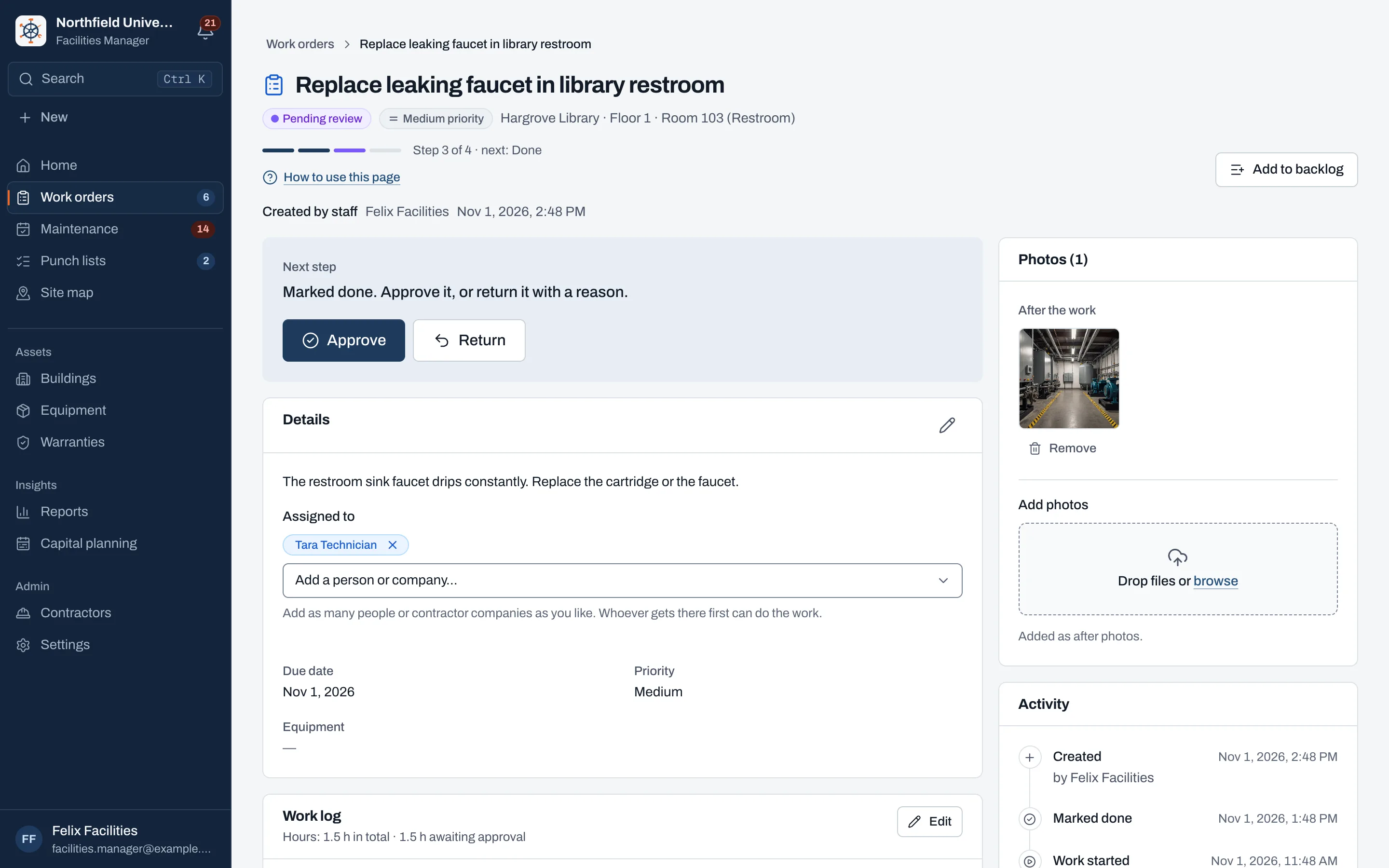
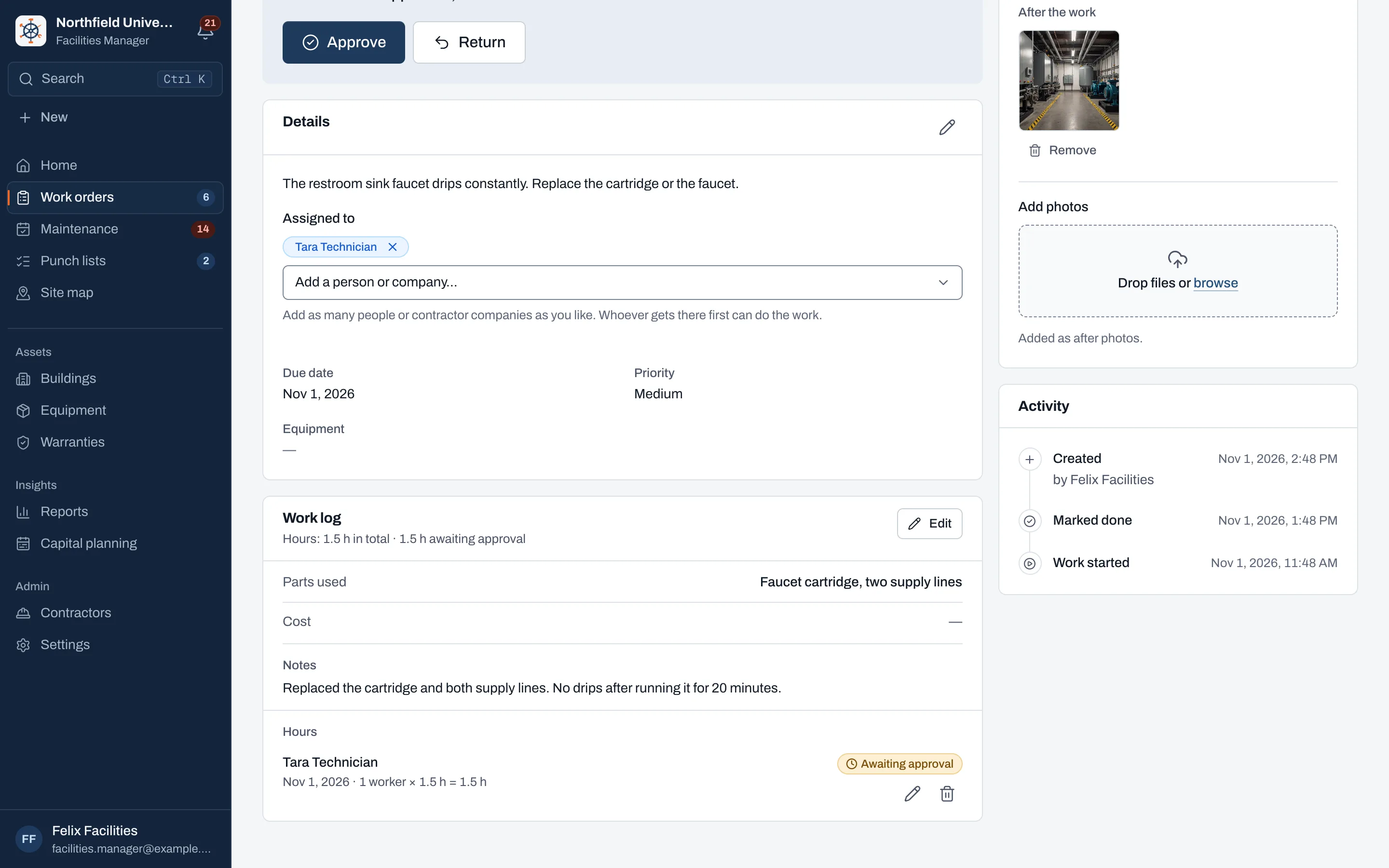
Step 3: Check the parts, notes and hours in the work log.
Step 4: Read the checklist, and create a follow-up job.
Step 5: Look at the after photo.
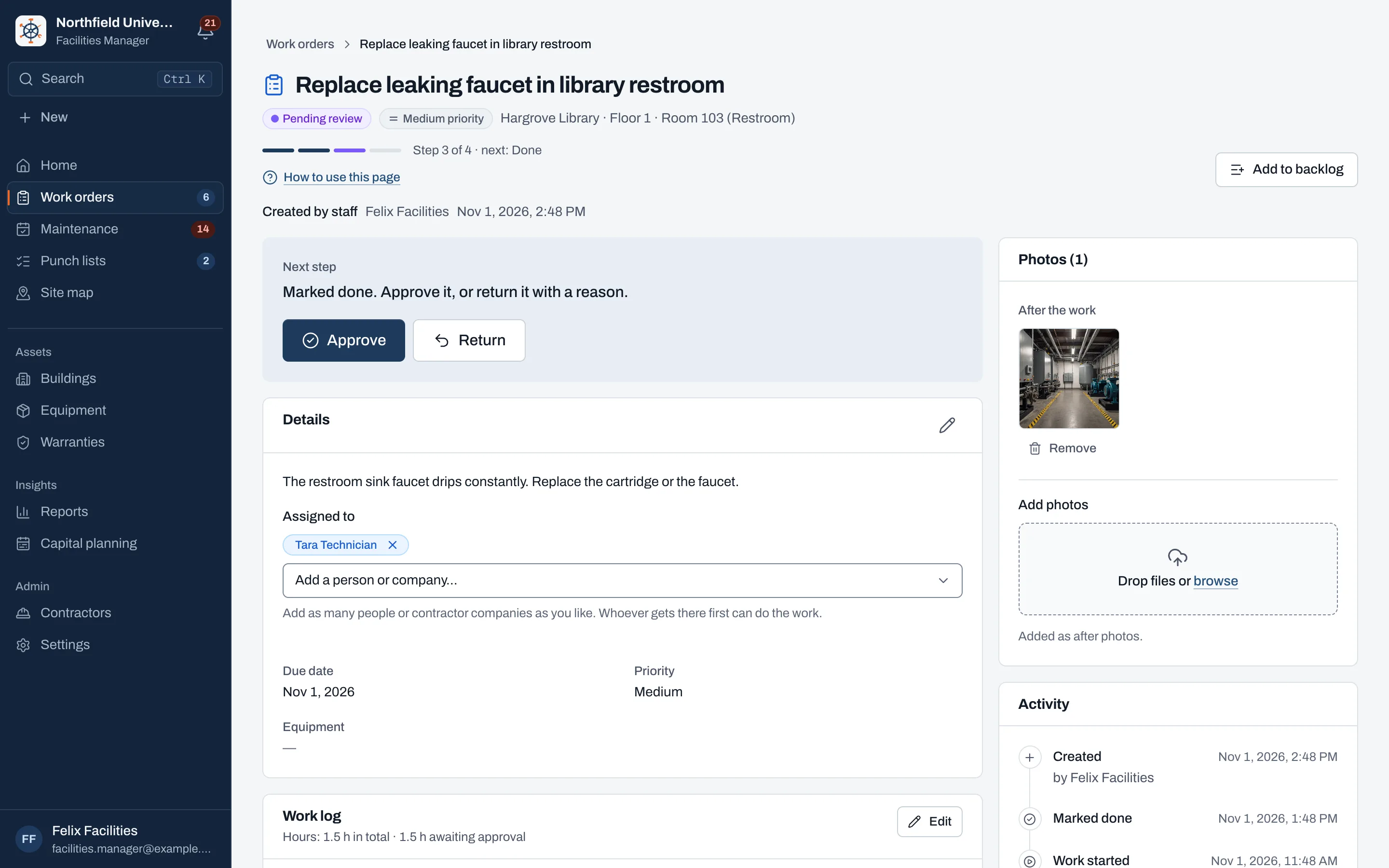
Step 6: If something still needs doing, click Return and say what.
Step 7: Click Approve.
Step 8: Confirm, and the job is Done.
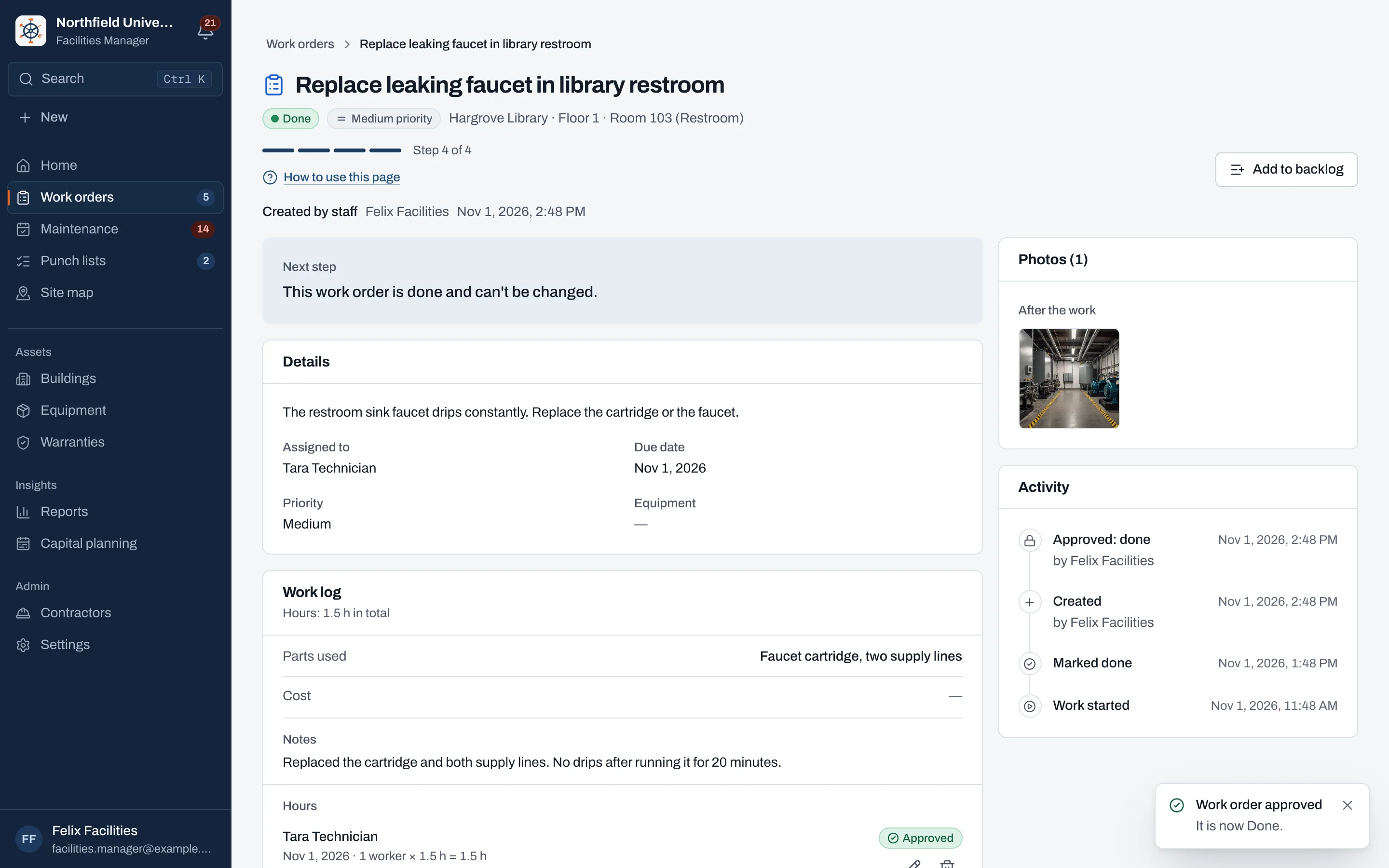
Step 9: Find finished jobs under Done.
Transcript
Show the transcript
When someone marks a job done, it waits for you under Pending review. It isn't finished until an Owner Admin or Facilities Manager approves it.
Open the job. The Next step box says it was marked done, and asks you to approve it or return it.
Start with the work log. It shows the parts used, what the technician did, and the hours they logged, still waiting for your approval.
If the job had a checklist, its answers sit with the work, including any readings, photos and signatures. Next to an item marked Fail or Flag, choose Create follow-up job to open a new work order with the details already filled in.
Then look at the after photo. It's the quickest way to see the job was done right, without walking over to check.
If something still needs doing, click Return and say what. The job goes back to In progress, and everyone assigned is told why. This one looks good, so cancel.
When you're happy with the work, click Approve. A done job can't be changed afterwards, so this is your final check.
Confirm, and the job is Done. The hours on it are approved too. If the job came from a request, the person who reported it is told.
Approved jobs move to the Done tab, with their hours, photos and history kept for your reports.