Work orders
Review new requests
Approve a request to turn it into a work order, merge a duplicate, or reject one that isn't a repair.
- Who it's for
- Owner AdminsFacilities Managers
- Where
- On a computer1:18 video
Steps
Step 1: Open Work orders, then New requests.
Step 2: Open a request.
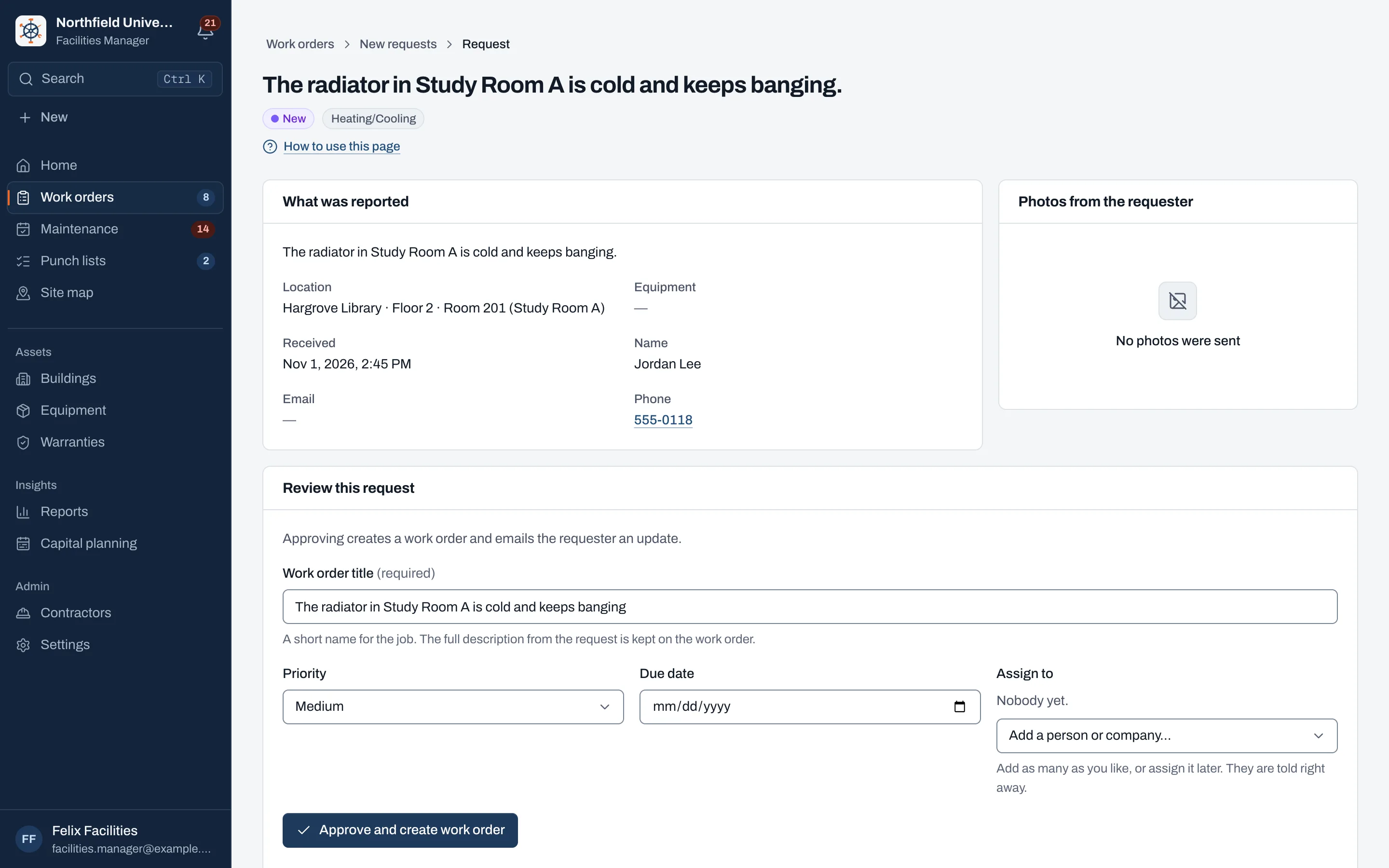
Step 3: Note the request's short number.
Step 4: Check the title, set a due date and choose who does the work.
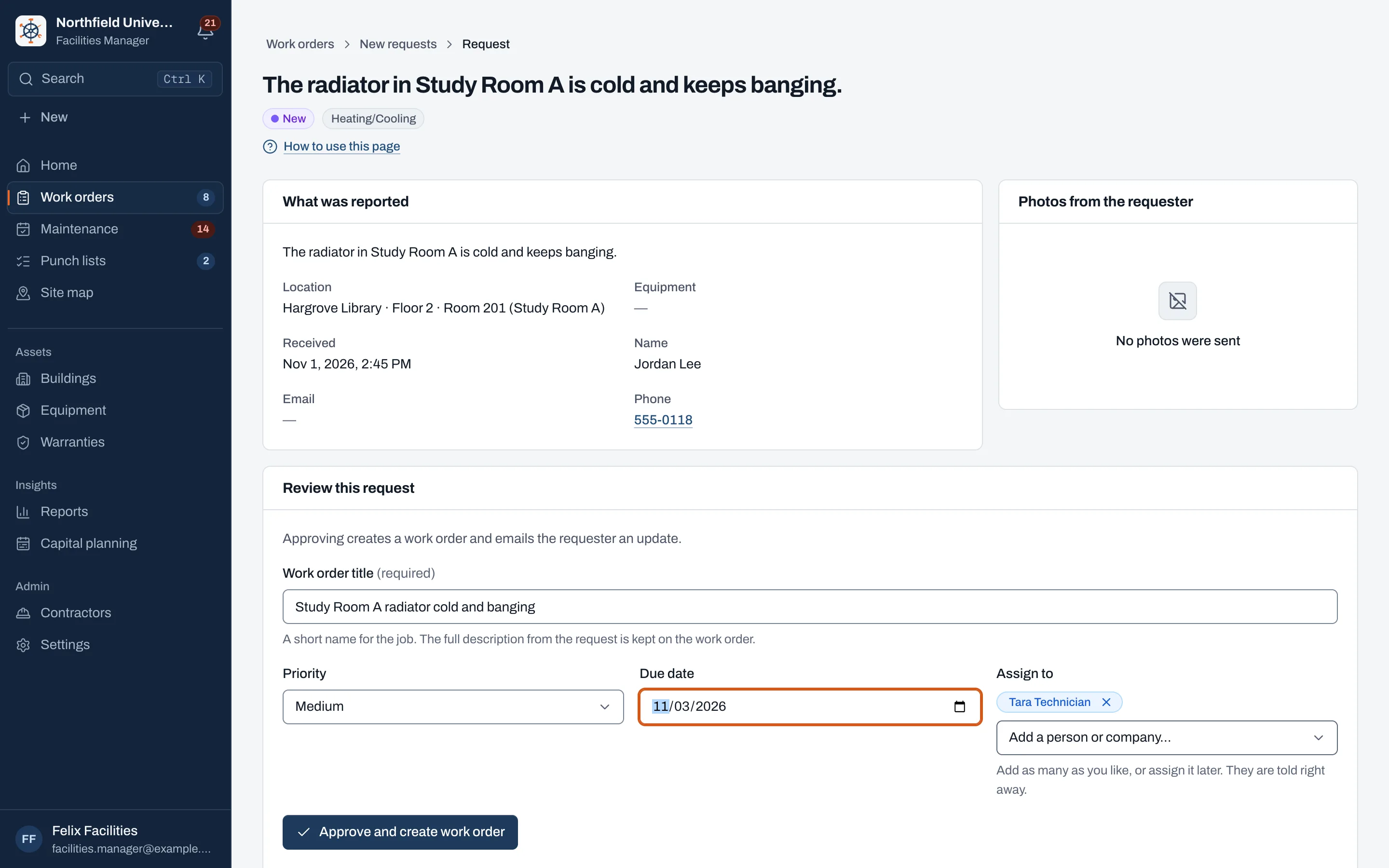
Step 5: Click Approve and create work order.
Step 6: Open a request that repeats another one.
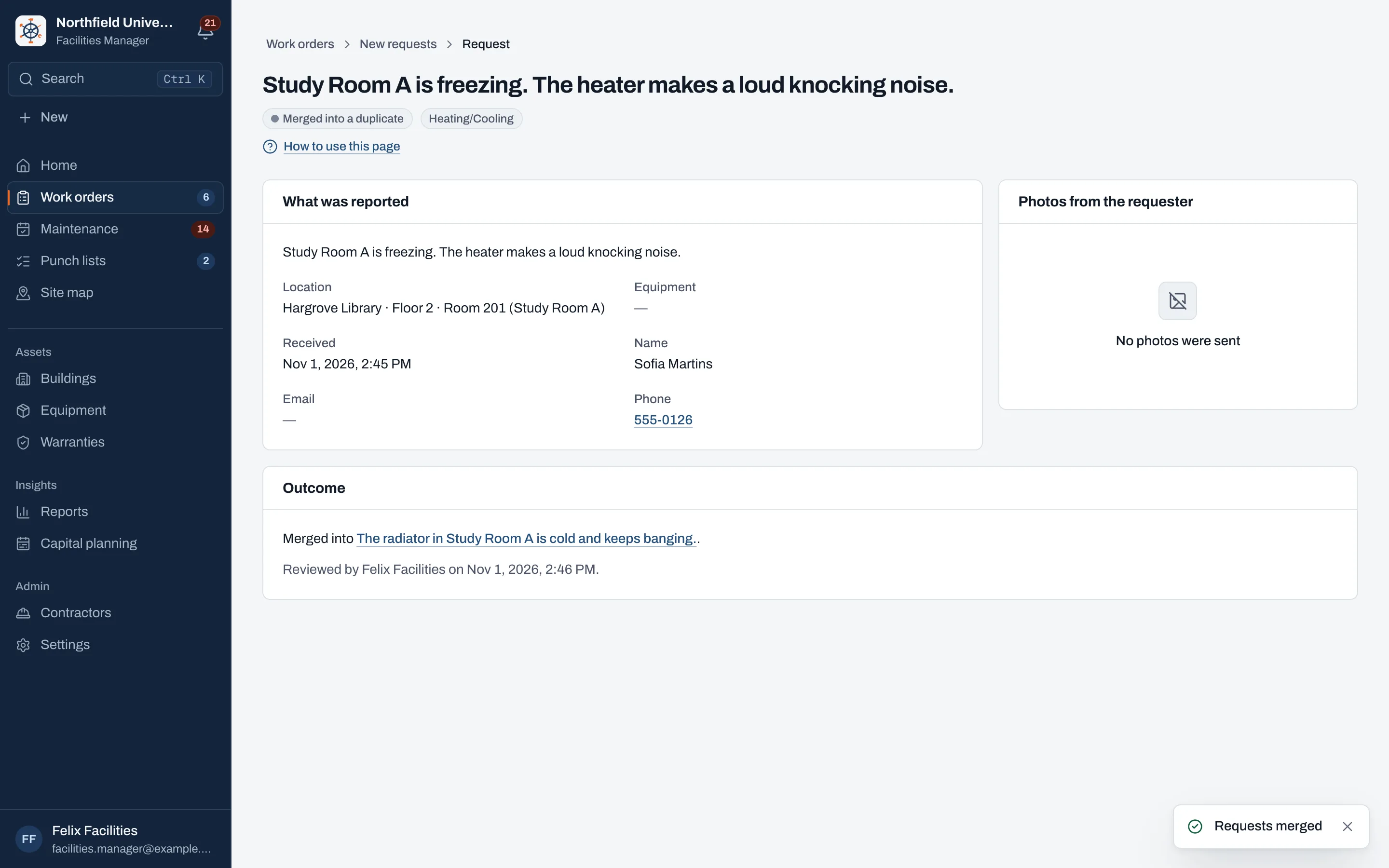
Step 7: Click Merge with a duplicate, choose the original and confirm.
Step 8: For a request that isn't a repair, click Reject and give a reason.
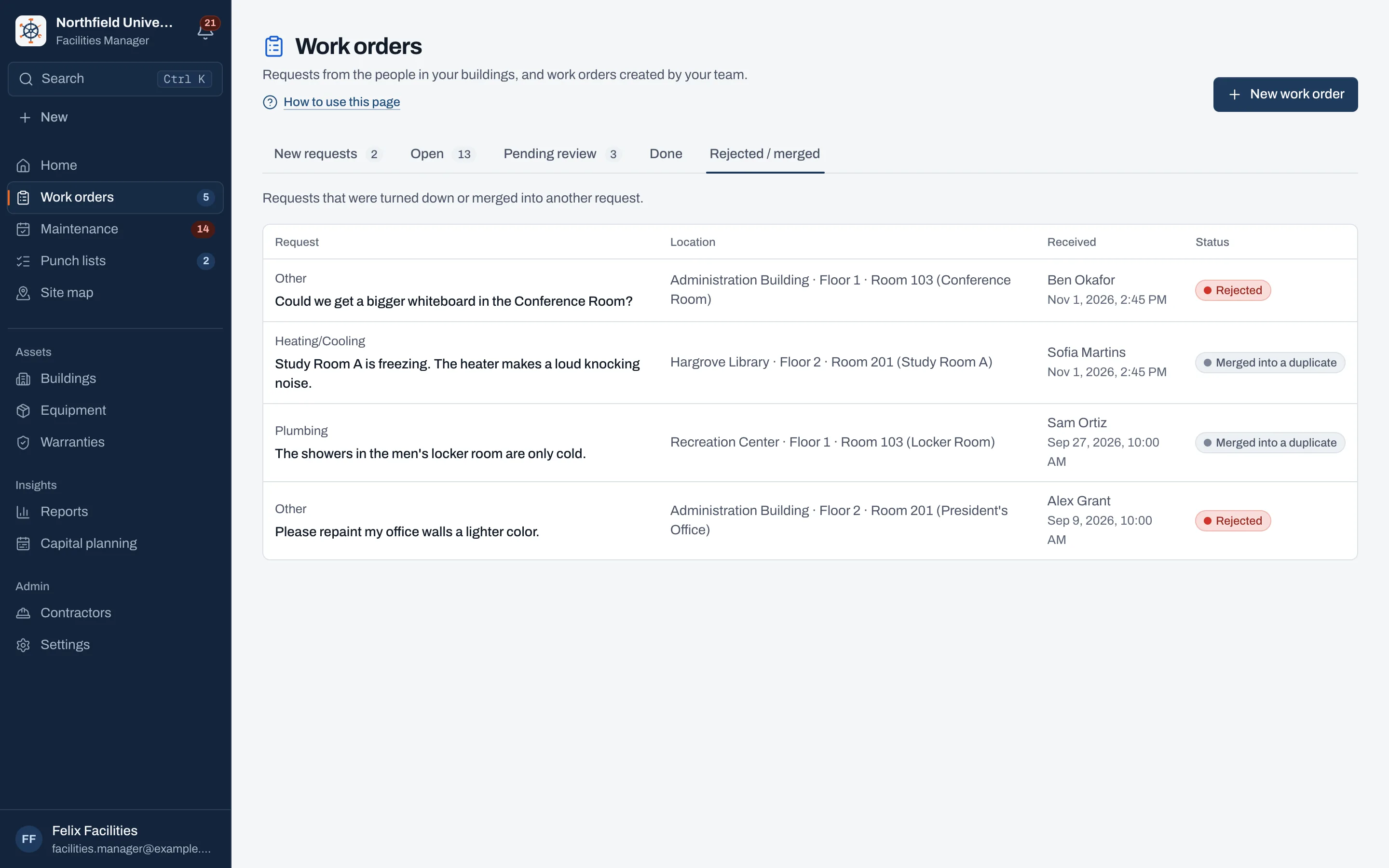
Step 9: Click Reject request. Find it later under Rejected / merged.
Transcript
Show the transcript
Reports from the people in your buildings wait for you in Work orders, under New requests. For each one you decide: turn it into a work order, merge it with a duplicate, or reject it.
Open a request to read what was reported, where it is and who sent it. Any photos from the requester are shown beside it.
Each request has a short number, like R-1042, and the work order you create from it gets its own, like WO-1042. A request you have not opened yet is bold with a dot, so new reports are easy to spot.
Approving a request creates a work order: give it a short title, a priority, a due date and who does the work. The Coordinator is the person on your team who looks after the vendor decisions and keeps track of any bids. Under How should this vendor work be handled, pick Request pricing to send it out for bids, Assign now for a vendor you already agreed a price or rates with, Under contract, or No vendor.
Click Approve and create work order: the new work order opens, and the people you chose are told. With Request pricing, the bid request goes to the vendors in the same step, and vendors are added when a bid is awarded. If the requester left an email, they get an update too.
Sometimes two people report the same problem. This request is about the same cold radiator.
Click Merge with a duplicate and choose the original request. This one is closed and follows the original, so nobody fixes the same thing twice.
Some requests aren't repairs. Open the request, click Reject, and say why.
Click Reject request. The reason is kept with the request, and if the requester left an email, they're told. Rejected and merged requests stay under Rejected / merged, so you can always look back.