Maintenance
Complete maintenance and inspections
Complete a maintenance task on your phone, record an inspection result, and what happens when a code inspection fails.
- Who it's for
- Maintenance TechniciansOwner AdminsFacilities ManagersContractor AdminsContractor Technicians
- Where
- On a phone1:21 video
Steps
Step 1: Tap Maintenance in the bar at the bottom.
Step 2: Tap Due soon to see what's coming up.
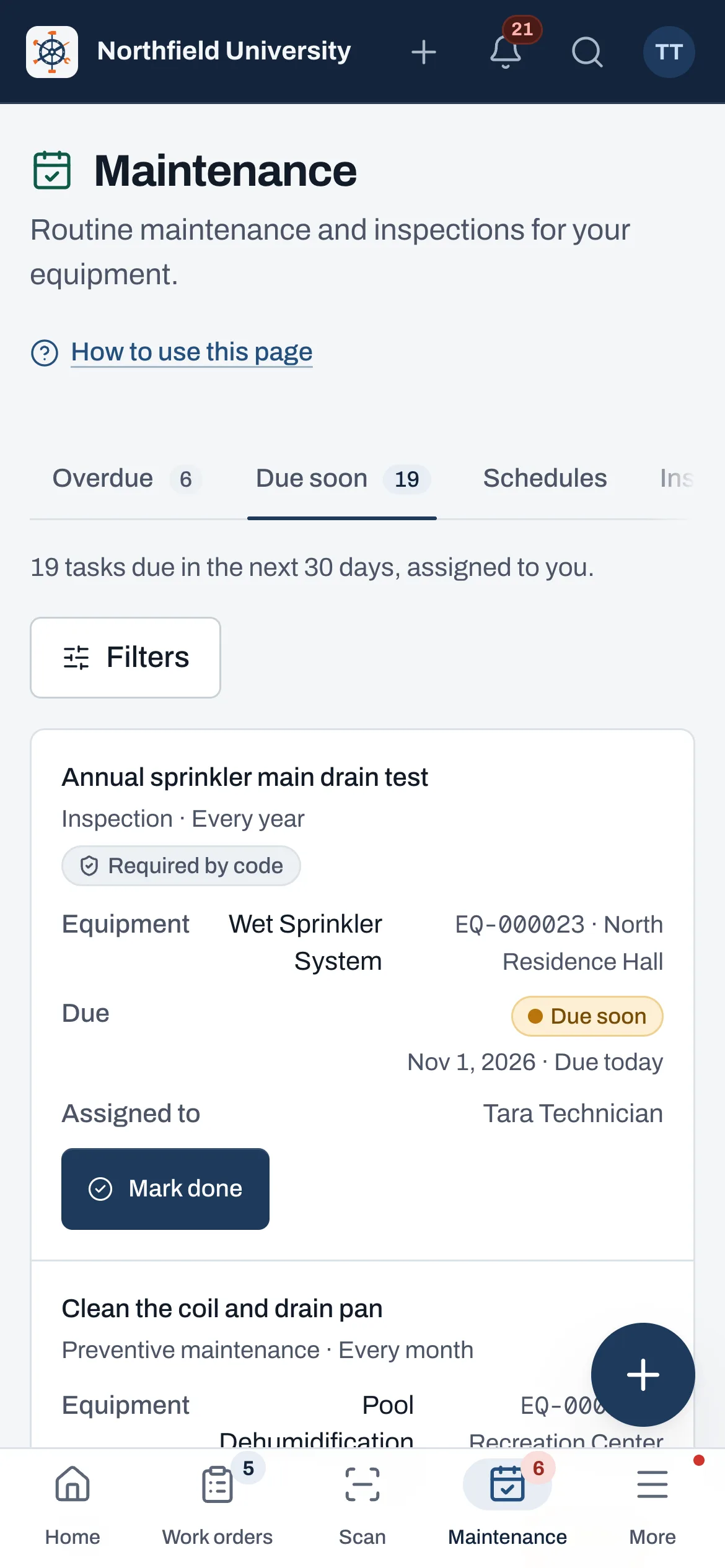
Step 3: Tap Mark done on the task.
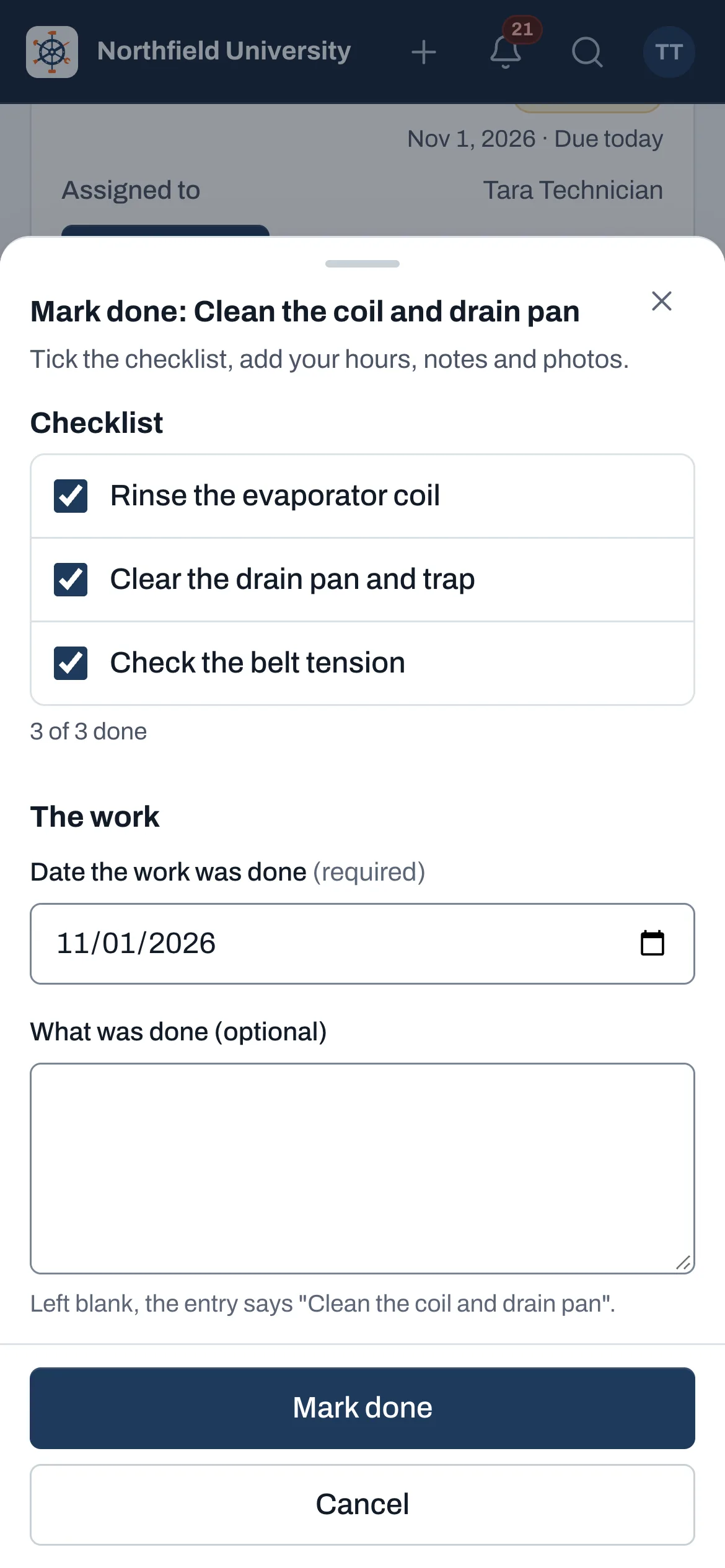
Step 4: Fill in the checklist.
Step 5: If the equipment was out of service, say if it works again.
Step 6: Add your hours, what you did and any parts.
Step 7: Tap Mark done.
Step 8: Open an inspection the same way.
Step 9: Choose the result and say what you found.
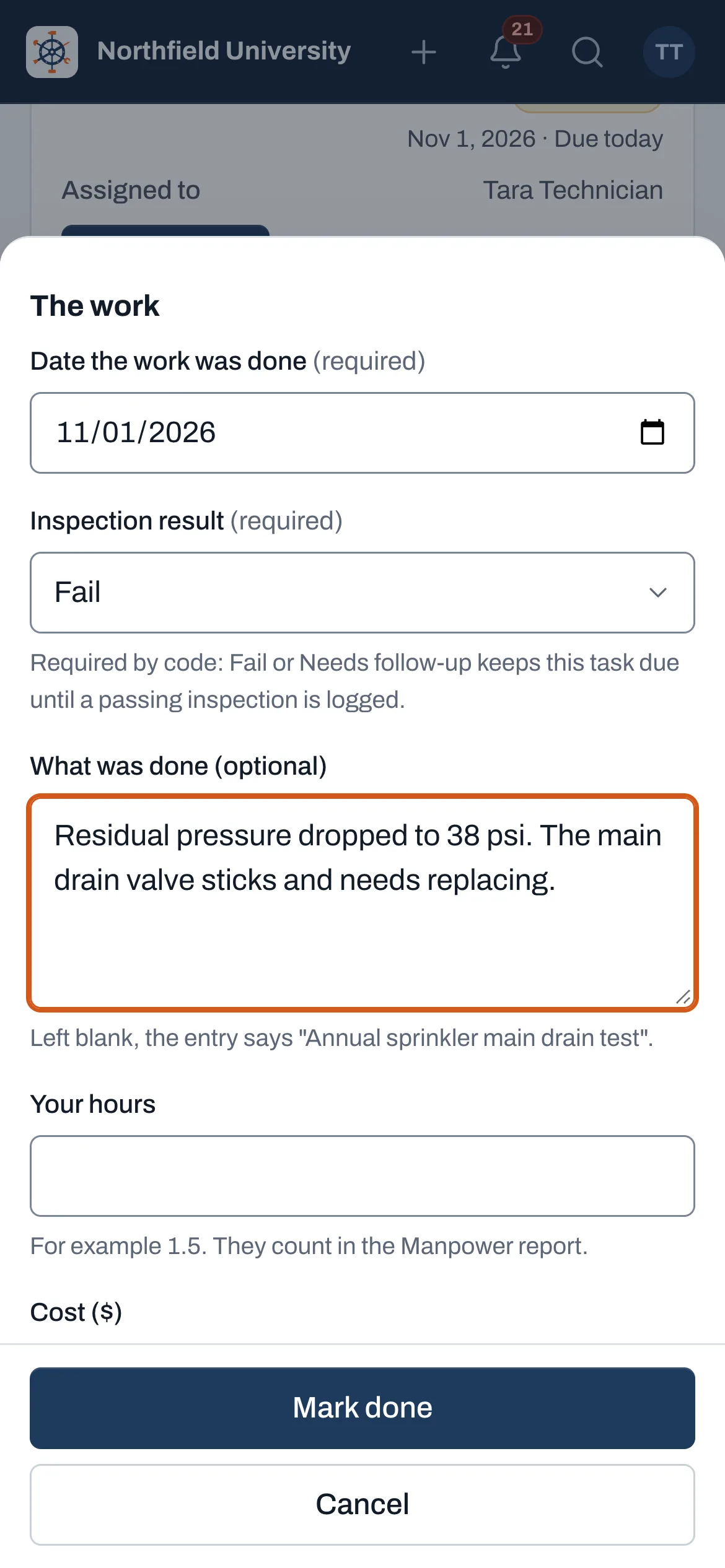
Step 10: Tap Mark done. A failed inspection stays due.
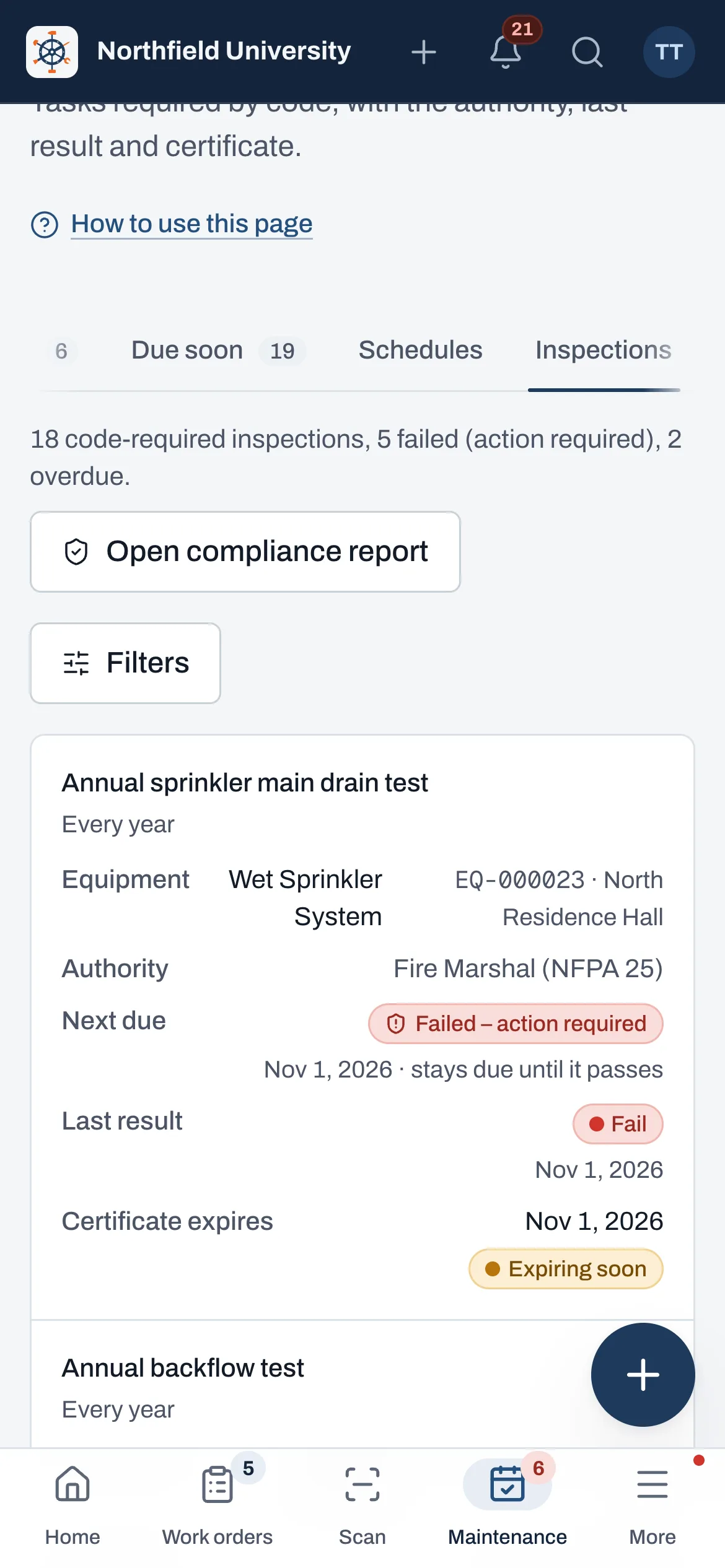
Step 11: Find it on the Inspections tab as Failed – action required.
Transcript
Show the transcript
Your recurring tasks are in Maintenance. Tap it in the bar at the bottom. The lists start with the tasks assigned to you.
Overdue shows anything past its date, and Due soon shows what's coming up. Each task says which equipment it's on and when it's due.
When you finish a task, tap Mark done. The form opens at the bottom of the screen, so you keep your place in the list.
Fill in each checklist item: tick it, choose Pass, Flag or Fail, enter the reading, take the photos or sign with your finger. Mark done waits until the required items are answered. A Fail or Flag shows on the visit, so the manager sees it and can create a follow-up job from it in one tap.
If the equipment was marked out of service, the form asks Is it working again? Choose Yes, it's working to put it back in service and stop its downtime clock, or No, still down to leave it as it is.
Add your hours, a line about the work and any parts you used. Your hours count in the Manpower report, and you can add photos too.
Tap Mark done. The work is saved in the equipment's history, and the task's next due date moves forward by one period.
Inspections work the same way, with one more step: the result. This sprinkler test is required by code.
Choose Pass, Fail or Needs follow-up, and say what you found. This test failed, so the result is Fail.
Tap Mark done. A failed code inspection stays due until a passing one is logged, and the Facilities Managers and Owner Admins are alerted right away.
On the Inspections tab it's marked Failed, action required, with the other failed inspections at the top. It shows the same way on Home and in the compliance report until it passes.