Insights
Plan capital replacements
Turn replacement estimates into a year-by-year capital plan, adjust it, and export it for budget meetings.
- Who it's for
- Owner AdminsFacilities ManagersViewers
- Where
- On a computer1:07 video
Steps
Step 1: Open Capital planning from the menu on the left.
Step 2: Read the totals at the top.
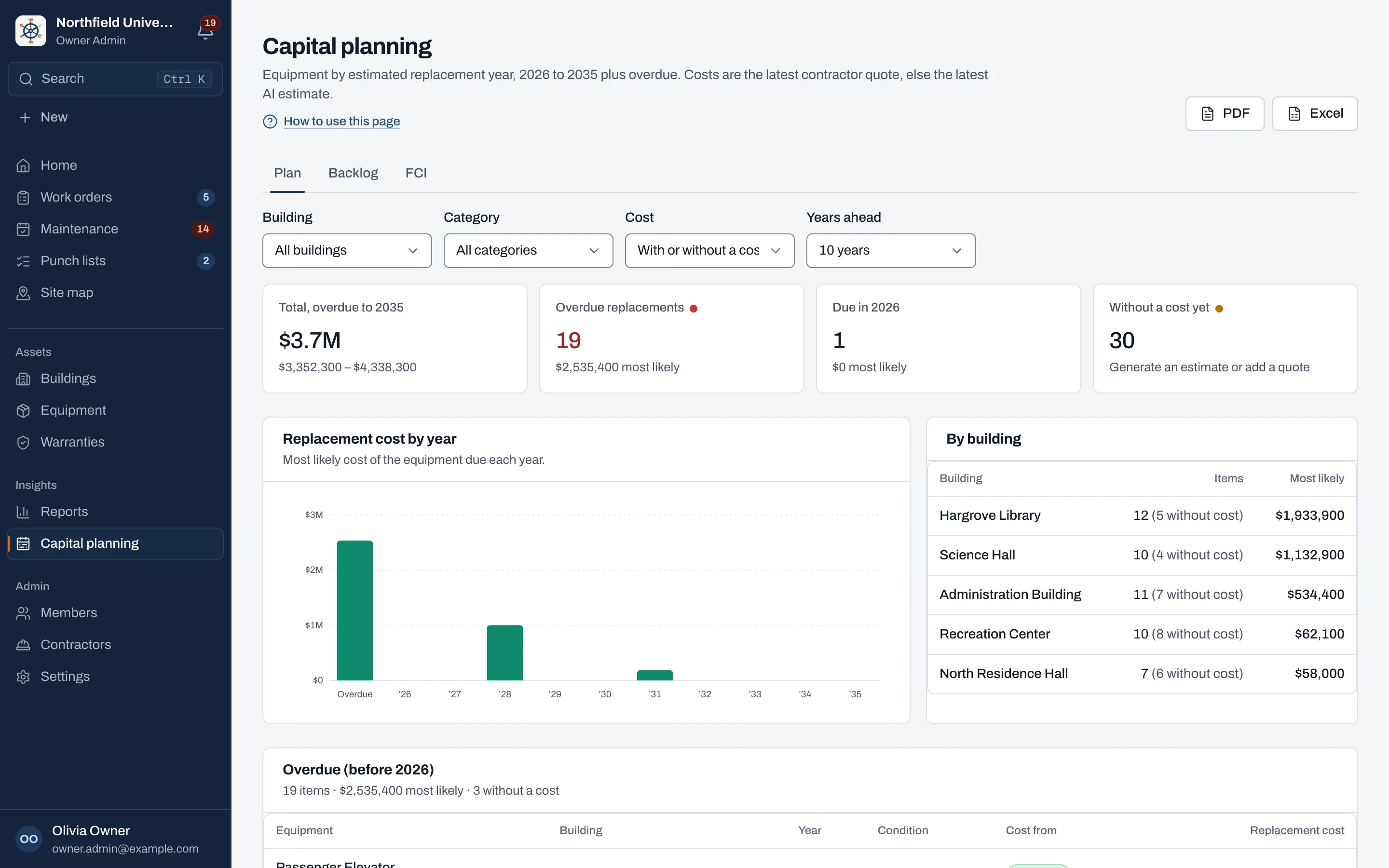
Step 3: See the cost due in each replacement year.
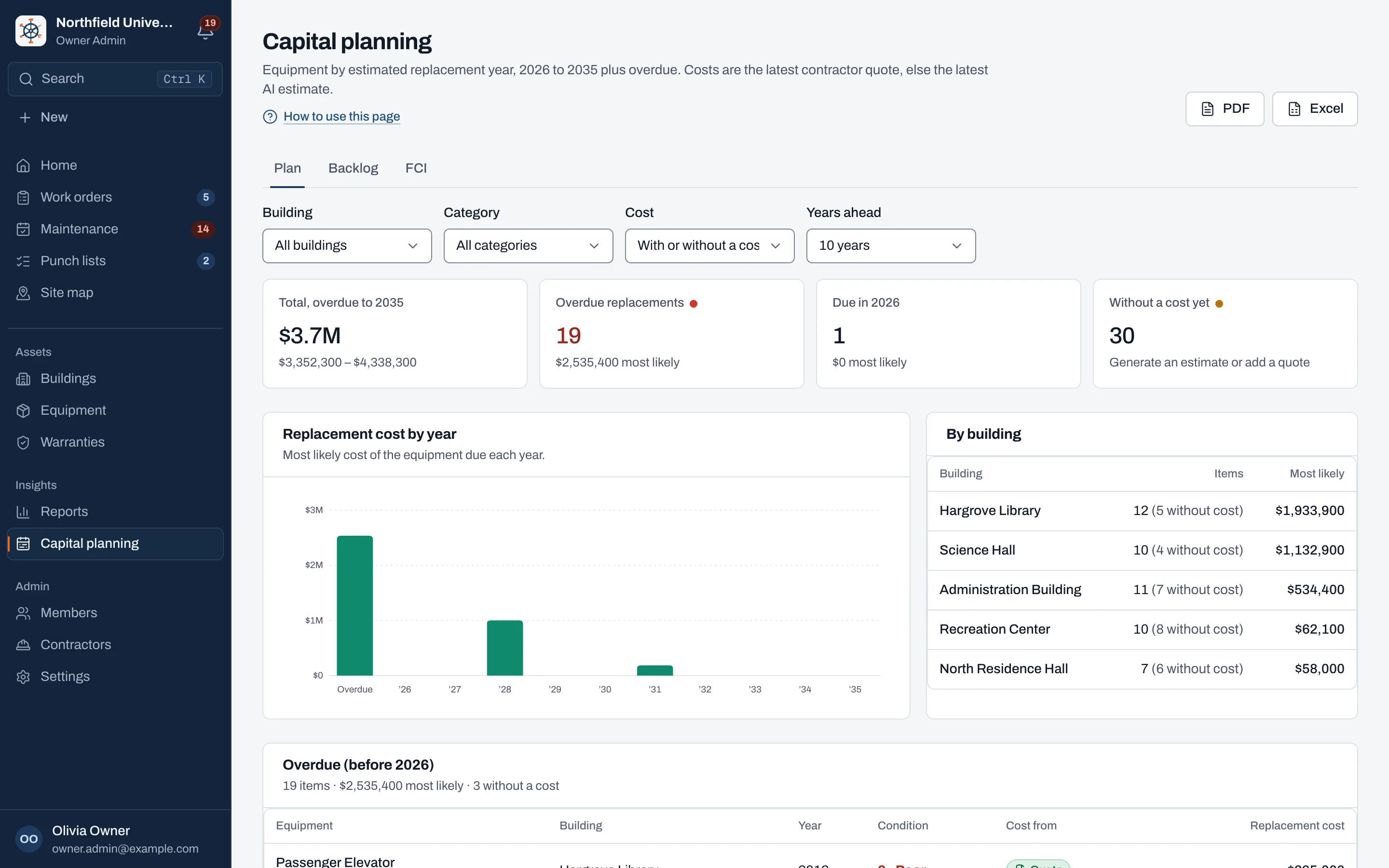
Step 4: Choose how many years ahead, and a building if you like.
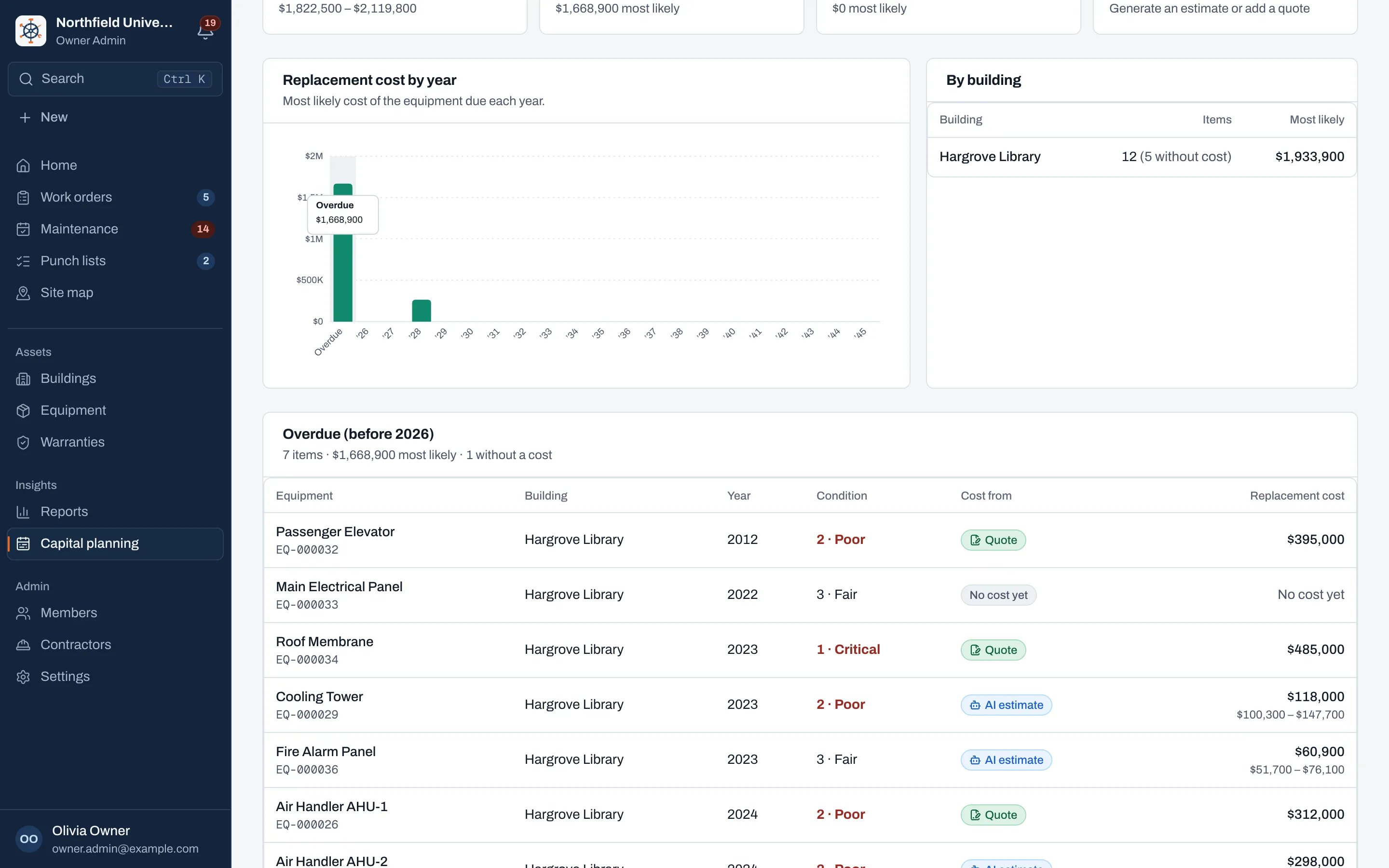
Step 5: Scroll down to the list for each year.
Step 6: Download the plan as a PDF or Excel file.
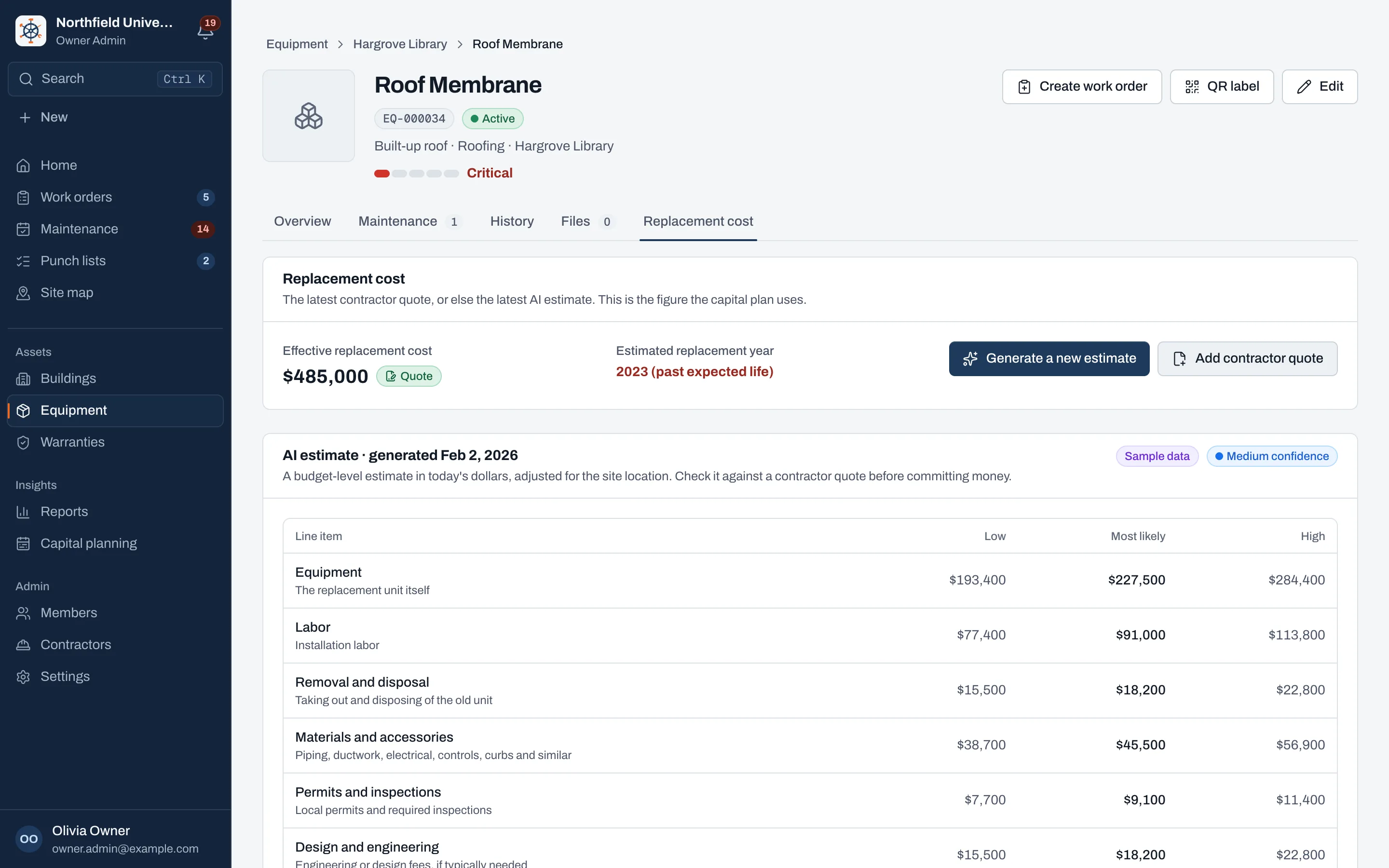
Step 7: Click an item to check or update its cost.
Transcript
Show the transcript
Capital planning tells you which equipment is due for replacement, and what it will cost. Open it from the menu on the left. The Plan tab is your budget view.
The tiles add it up: the total for the period, replacements that are already overdue, what's due this year, and items without a cost yet.
Each piece of equipment gets a replacement year: its install date plus its expected useful life. The chart shows the most likely cost falling due each year.
Plan further ahead with Years ahead, up to a hundred years. Choose a building to work on one budget at a time.
Below the chart, each year lists its equipment, condition and cost. Cost from says where the number comes from: a contractor quote, or an AI estimate when there's no quote yet.
For budget meetings, download the plan as a PDF or an Excel sheet. It covers the years and the building you chose.
Click an item to open its replacement cost. Add a real contractor quote and the plan uses it instead of the estimate. To move an item to another year, change its install date or useful life.