Maintenance
Create a maintenance schedule
Set up recurring maintenance or a code-required inspection on equipment, choose how often it repeats, and assign it.
- Who it's for
- Owner AdminsFacilities Managers
- Where
- On a computer1:17 video
Steps
Step 1: Open Maintenance from the menu on the left.
Step 2: Click Add schedule.
Step 3: Find the equipment and tick it.
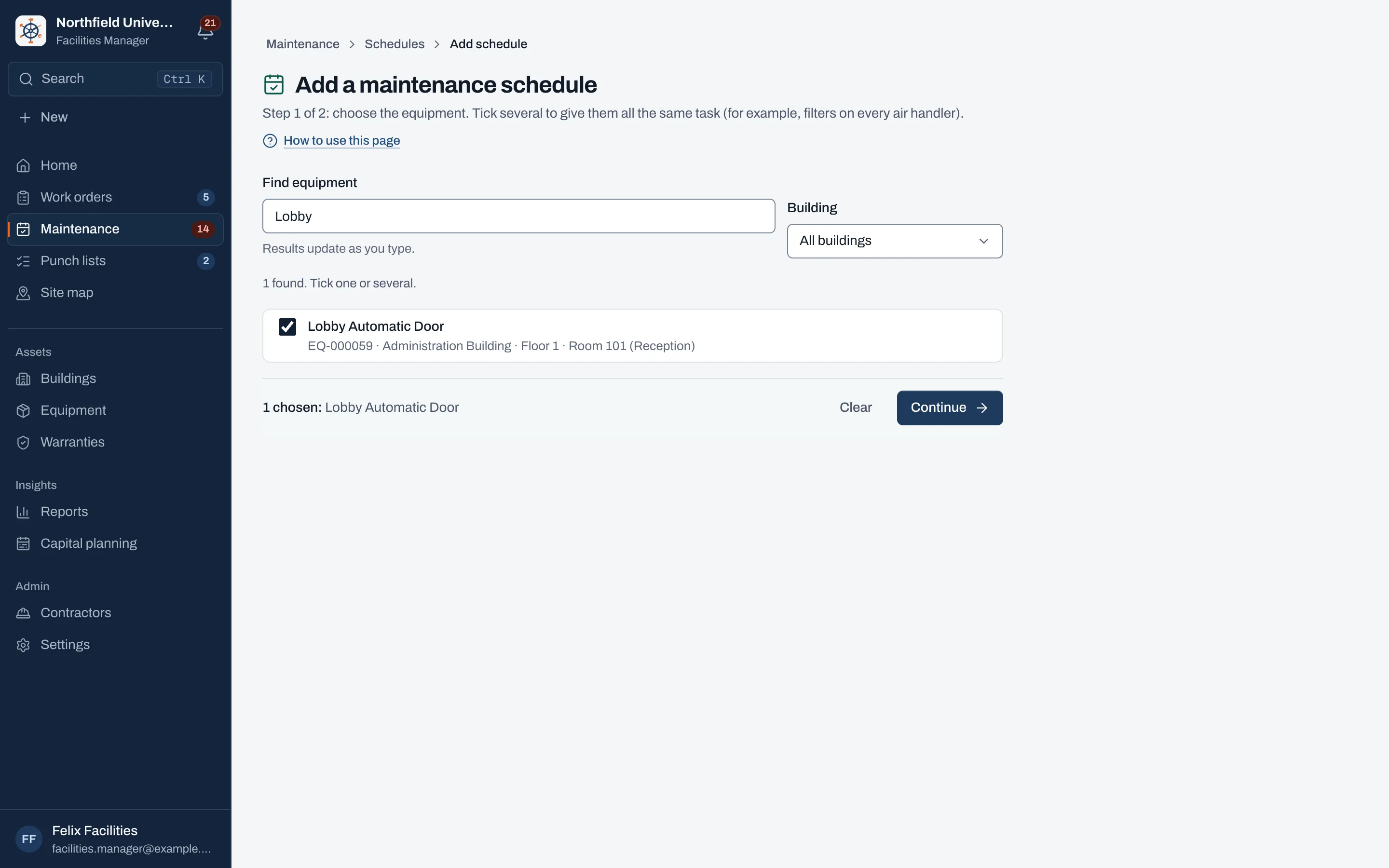
Step 4: Click Continue.
Step 5: Optional: choose Start from a standard task.
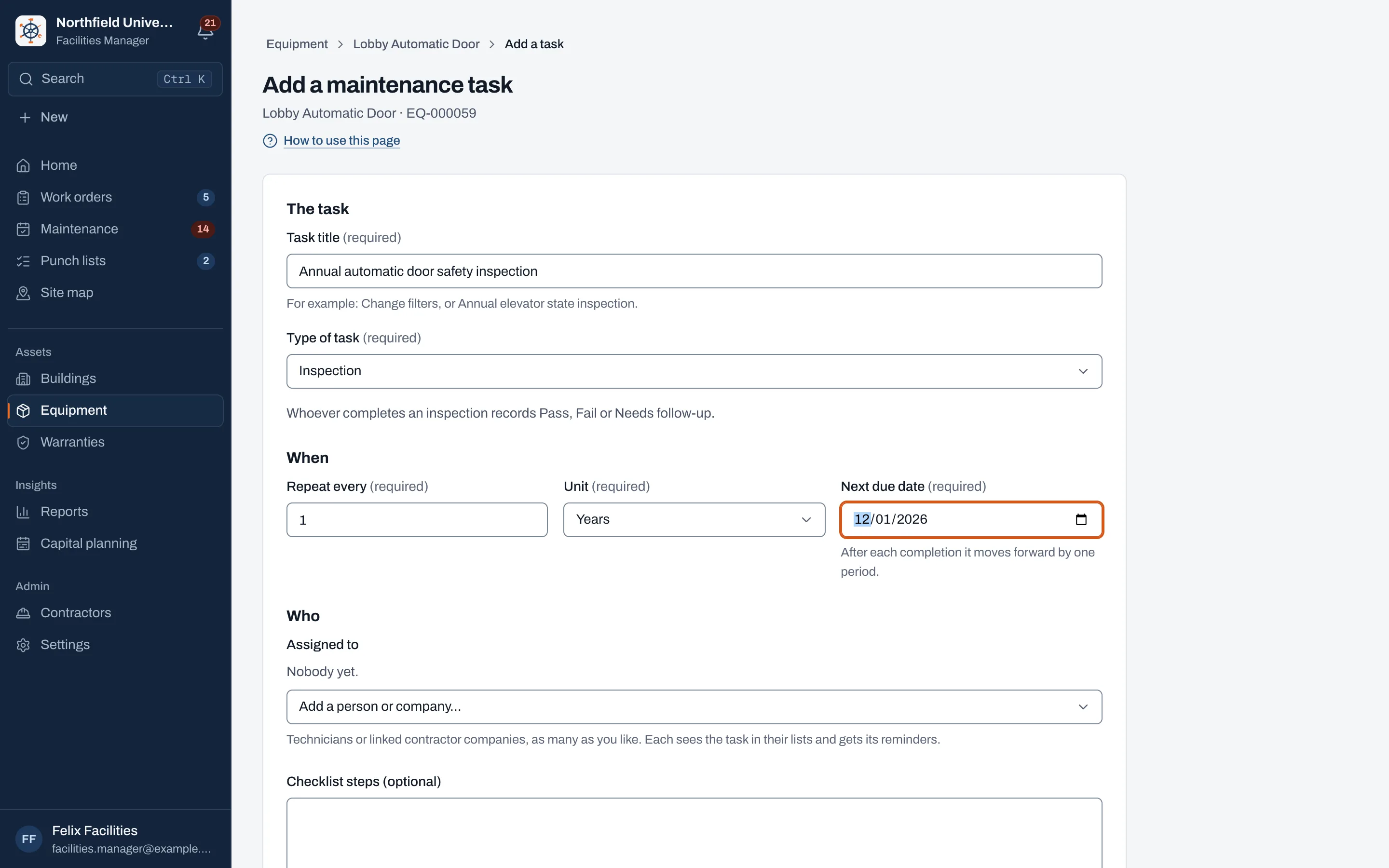
Step 6: Give the task a title and choose its type.
Step 7: Set how often it repeats and the next due date.
Step 8: Choose how required items are handled.
Step 9: Or let AI draft the checklist, then review it.
Step 10: Keep your checklists in the library.
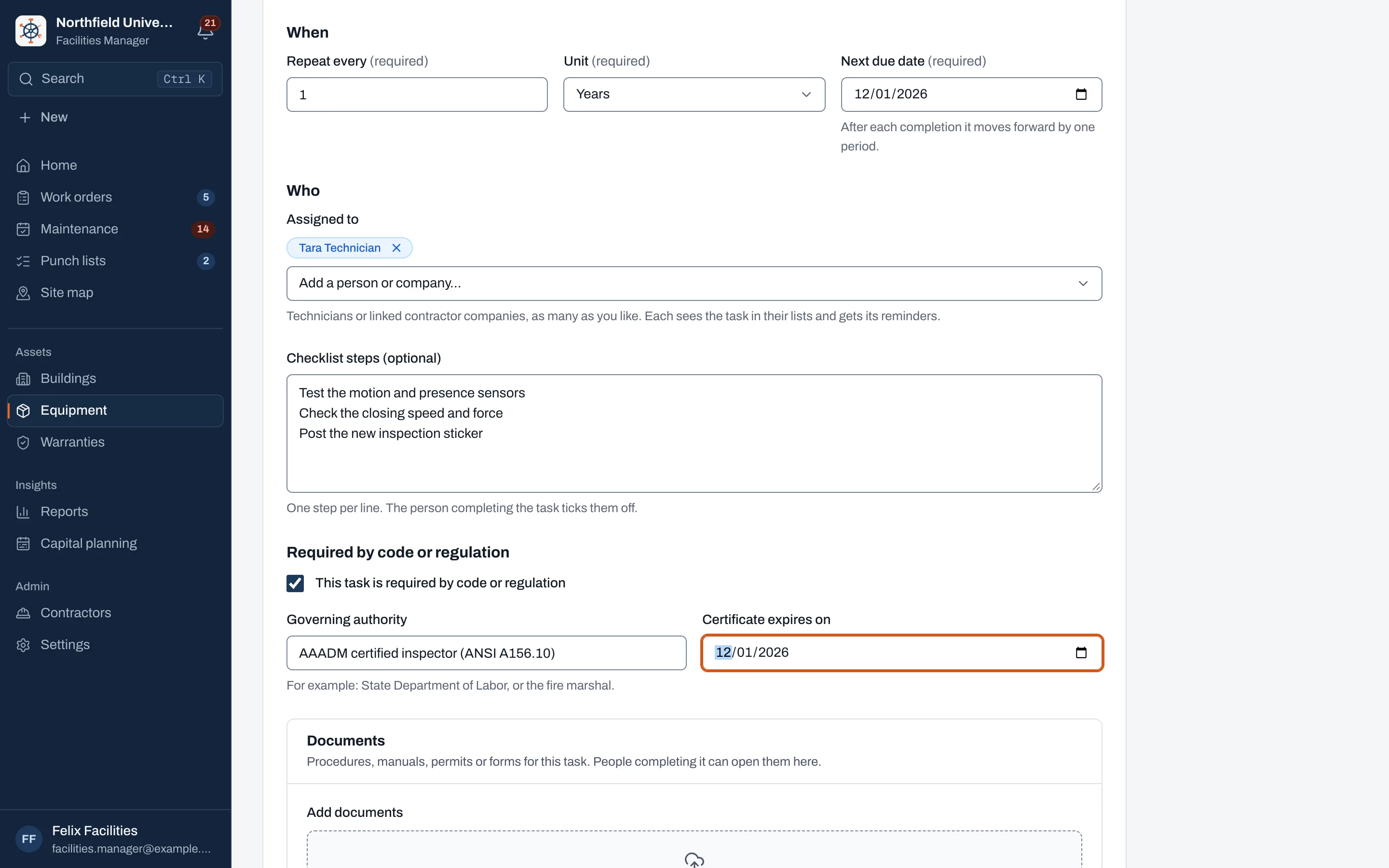
Step 11: Choose who does it and build the checklist.
Step 12: If the law requires it, tick Required by code and add the authority.
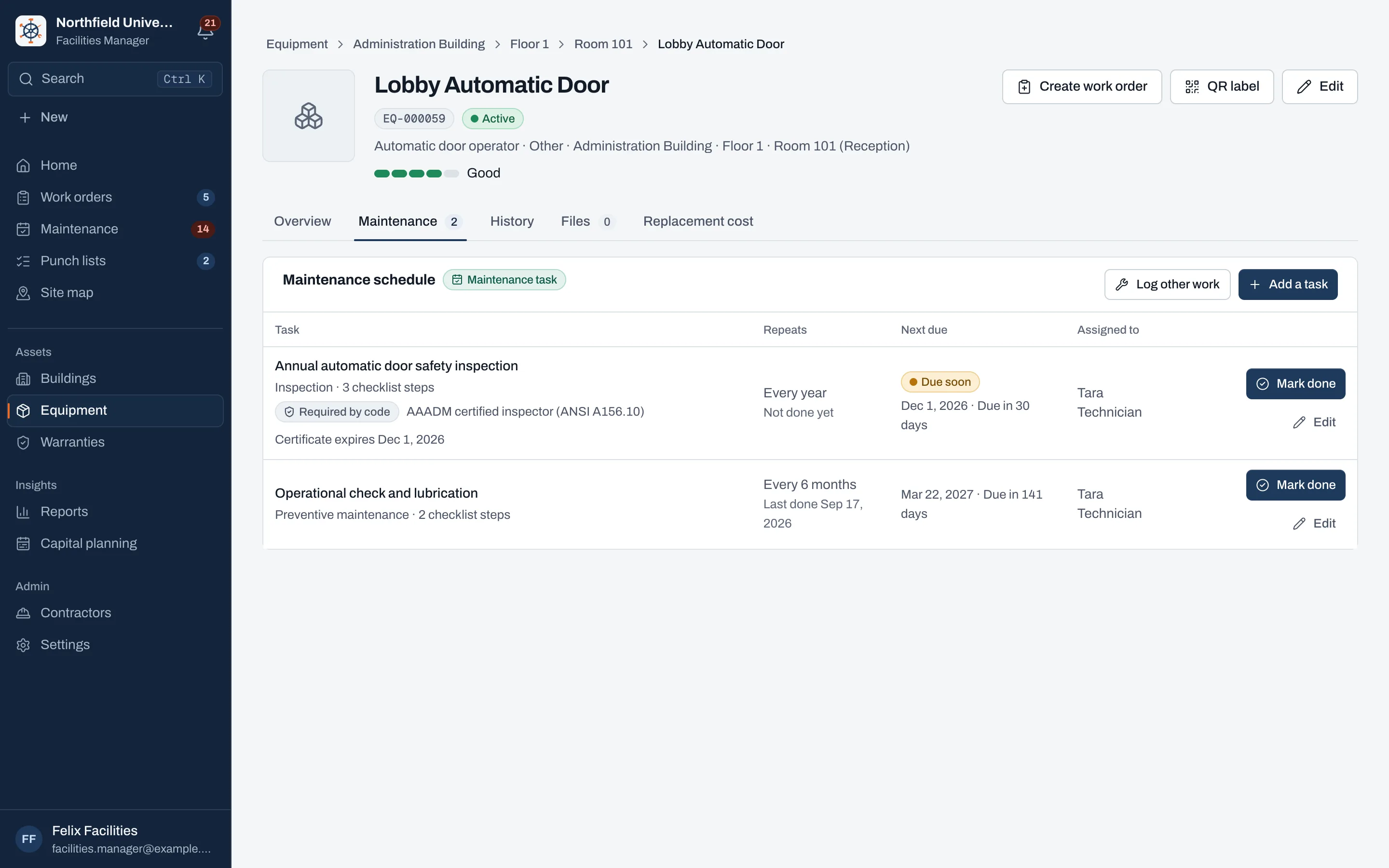
Step 13: Click Add task.
Transcript
Show the transcript
Recurring work lives in Maintenance. Overdue and Due soon show what needs doing now, and Schedules lists every recurring task in your buildings.
To set up a new task, click Add schedule. First you choose the equipment it's for.
Search by name, asset tag or model, and tick the equipment. Tick several to give them all the same task, like new filters on every air handler.
Click Continue to open the task form for that piece of equipment.
At the top of the form, Start from a standard task lists common jobs, with the ones that fit this equipment first. Choose one and it fills in the title, how often it repeats and the checklist. Managers who keep a checklist library see Start from a checklist instead, with the library's checklists alongside the standard ones.
Give the task a clear title and choose its type. For an inspection, whoever completes it records Pass, Fail or Needs follow-up.
Set how often it repeats and when it's next due. A plain sentence under the fields explains how it repeats: the next date is counted from the day the task was last done, and a code-required inspection stays due until an inspection passes. Estimated time is optional: how long each visit usually takes, which the schedule uses to suggest times.
Under Required items, choose All required items must be finished, or Required items can be skipped with a typed reason. With the first, Mark done waits until every required item has an answer.
Choose Draft with AI, then Describe it or From a manual. Describe the equipment and what to check, or pick a manual you uploaded during setup, and the items appear as the AI writes them. Nothing is saved until you check every item and save, and a thumbs up or down with a short comment tells us how good the draft was.
Maintenance, Checklists is your library of reusable checklists, including the standard ones that come with Building Helm. Choose New checklist to add one, or Draft with AI. Using a checklist on a task or job copies it, so changing the library later never changes work that is already set up.
Choose who does it: technicians, or a contractor company, saving a new one with + Add a vendor if it isn't listed. Start from a checklist in your library (Maintenance, Checklists), or build one with Add item (checkboxes, Pass / Flag / Fail, readings with an OK range, choices, photos, a finger-drawn signature, headings and safety notes), and mark the items that must be answered as Required. For a vendor, the task's Vendor work box offers Request pricing, Assign now or Under contract, and shows when the task was bid out and awarded.
If the law requires this task, tick the box and add the authority and when the certificate expires. It then shows on the Inspections tab and in the compliance report. Standard inspections that the code requires arrive with the box already ticked.
Click Add task. It's now on the equipment's Maintenance tab and in Tara's list, and she's reminded as it comes due.